How TCP fingerprints expose your scraper


Markus_automation
Expert in data parsing and automation
Moving browser automation from Windows to Linux often comes with unexpected issues, even when the script logic remains exactly the same. A scraper may launch successfully, open the required pages, and still stop collecting data without any obvious errors. The reason is often hidden not in the code, proxies, or browser settings, but much deeper—at the operating system's network stack level.
Modern anti-fraud systems analyze not only JavaScript-based browser fingerprints, but also low-level network communication characteristics. As a result, a browser may appear to be running on Windows at the web interface and API level, while revealing Linux through TCP/IP, TLS, and network packets. This mismatch between the application and transport layers becomes another indicator of automation.
In this article, we'll examine how these inconsistencies are created, why they affect scraping stability, and how anti-fraud systems use network signatures to identify automated traffic.
Contents
Stay anonymous, take advantage of multi-accounting, and achieve your goals with the highest-quality anti-detect browser on the market.
Would you like to try Octo Browser at discount?
Use the promo code OCTOSCRAPER to get 30% off any subscription. This offer is valid only for new users.
Why even a perfect anti-detect browser is still not enough
To understand the true scale of the problem, let's first recall how a standard anti-blocking setup works.
Historically, scraping evolved as an arms race at the HTTP and JavaScript levels. When servers began blocking default headers such as python-requests, developers started using User-Agent strings from real browsers. When anti-fraud systems began checking navigator properties, we moved to headless browsers modified through Chrome DevTools Protocol (CDP) or ready-made anti-detect solutions.
We have become accustomed to controlling the application layer (Layer 7). This is the layer where HTTP operates, cookies and headers are transmitted, and JavaScript executes.
The problem is that an HTTP request is not sent on its own. It is encapsulated inside a transport protocol (TCP—Layer 4), which is then encapsulated inside a network protocol (IP—Layer 3). This is where the main architectural trap lies:
L7 (application layer) is fully controlled by your application—your script, Puppeteer, or anti-detect browser.
L3 and L4 (network and transport layers) are controlled by the operating system kernel on which the code physically runs (or through which the traffic is routed). A socket
connect()call simply hands control to the Linux or Windows network stack, and from that point the OS builds packets according to its own internal, hardcoded rules.
Modern anti-fraud systems know this and use passive fingerprinting techniques to analyze exactly how a TCP connection is established before the first HTTP request is even sent.
If your User-Agent at L7 claims to be Chrome on Windows, but the server sees a TCP SYN packet structure characteristic of Linux at L4, the anti-fraud system considers this an obvious anomaly. From the server's perspective, a real Windows machine physically cannot generate such a network packet. Therefore, it is a bot running on a Linux server while pretending to be an ordinary user. The anti-fraud system then acts according to its own policies: Google Maps, for example, may return a simplified page, require authentication, and give you a CAPTCHA.
The anatomy of a TCP SYN packet: how servers identify your real operating system
Every HTTP(S) connection begins with establishing a TCP connection—the so-called three-way handshake. The very first packet sent to the target resource is a network packet with the SYN flag set. This tiny packet contains everything required for passive operating system fingerprinting. Security systems do not even need to wait for your HTTP headers. They inspect the service fields inside the SYN packet and determine with remarkable accuracy which operating system kernel created it.
There are three primary markers:
1. Time To Live (TTL)
TTL is a counter that decreases by one every time a packet passes through a router on its way to the server. Different operating systems use different default starting values:
Linux and macOS: default TTL is 64.
Windows: default TTL is 128.
If Google's anti-fraud system receives a packet with a TTL of 54, it can confidently conclude that the source is Linux or macOS. If it receives a value of 115, it is most likely Windows.
2. TCP Window Size
This is essentially the size of the receive buffer. It indicates how much data a device is prepared to accept at one time.
Since data is transmitted in fragments of approximately 1,460 bytes, operating systems typically allocate memory in multiples of that size. However, each OS does so differently.
Linux often allocates the initial window based on a fixed number of packets:
5840 = 4 packets × 1460
14600 = 10 packets × 1460
29200 = 20 packets × 1460
When anti-fraud systems see 29200, they recognize a pattern typical of the Linux kernel.
Windows tends to use powers of two or maximum values:
8192 = 8 KB
65535 = the maximum value that fits into a 16-bit Window Size field
64240 = a hybrid approach used by modern Windows versions (44 packets × 1460)
Anti-fraud systems compare these values with your User-Agent. If you claim to be Chrome on Windows but your window size is 29200, the mismatch is obvious.
3. TCP Options order
This is the most powerful fingerprinting mechanism.
SYN packets include additional parameters such as MSS, Window Scaling, SACK Permitted, Timestamps, and others. The values themselves may vary, but the order in which they appear is hardcoded into the operating system kernel.
For example:
Typical Windows fingerprint:
MSS → NOP → Window Scaling → NOP → NOP → SACK Permitted
Typical Linux fingerprint:
MSS → SACK Permitted → Timestamps → NOP → Window Scaling
These details may seem insignificant, but any advanced anti-fraud system will identify these inconsistencies, restrict sessions, and prevent stable scraping.
The datacenter proxy trap: why your local operating system no longer matters
If TCP/IP fingerprinting is the problem, a logical solution might seem to be running the scraper on a Windows Server.
Suppose you launch your scraper on a clean Windows machine. The operating system generates TCP SYN packets with TTL=128, appropriate window sizes, and the correct option order. Yet CAPTCHAs and session interruptions still appear. The reason lies in how proxy servers work.
Serious scraping operations almost always rely on proxies. In most automation setups, datacenter proxies are used because they are inexpensive, fast, and stable. The catch is that the vast majority of these proxy servers run Linux distributions such as Ubuntu, Debian, or CentOS.
When you use a proxy, there is no direct network connection between your device and Google's servers. The process is split into two independent connections:
Connection A (Your computer → Proxy server)
Your Windows machine establishes a TCP connection to the proxy.
Connection B (Proxy server → Google)
After receiving your request, the proxy creates a completely new TCP connection to the destination server on your behalf.
Since the proxy server runs Linux, the Linux network stack generates the SYN packet sent to Google.
As a result, Google's anti-fraud system sees a TCP connection that was clearly created by Linux (TTL 64, Linux-style window sizes, Linux TCP options ordering). Inside that connection (L7 level), however, it sees HTTP headers claiming to be Chrome on Windows.
Datacenter proxies expose your local transport-layer fingerprint. Even if you operate an expensive farm of real Windows machines, routing traffic through standard Linux-based datacenter proxies causes all of your traffic to appear as Linux to the destination server.
This is one of the reasons residential proxies are better for scraping.
How to check your fingerprint
Always test your scripts in real-world conditions. Try to evaluate your scraper from the anti-fraud system's perspective.
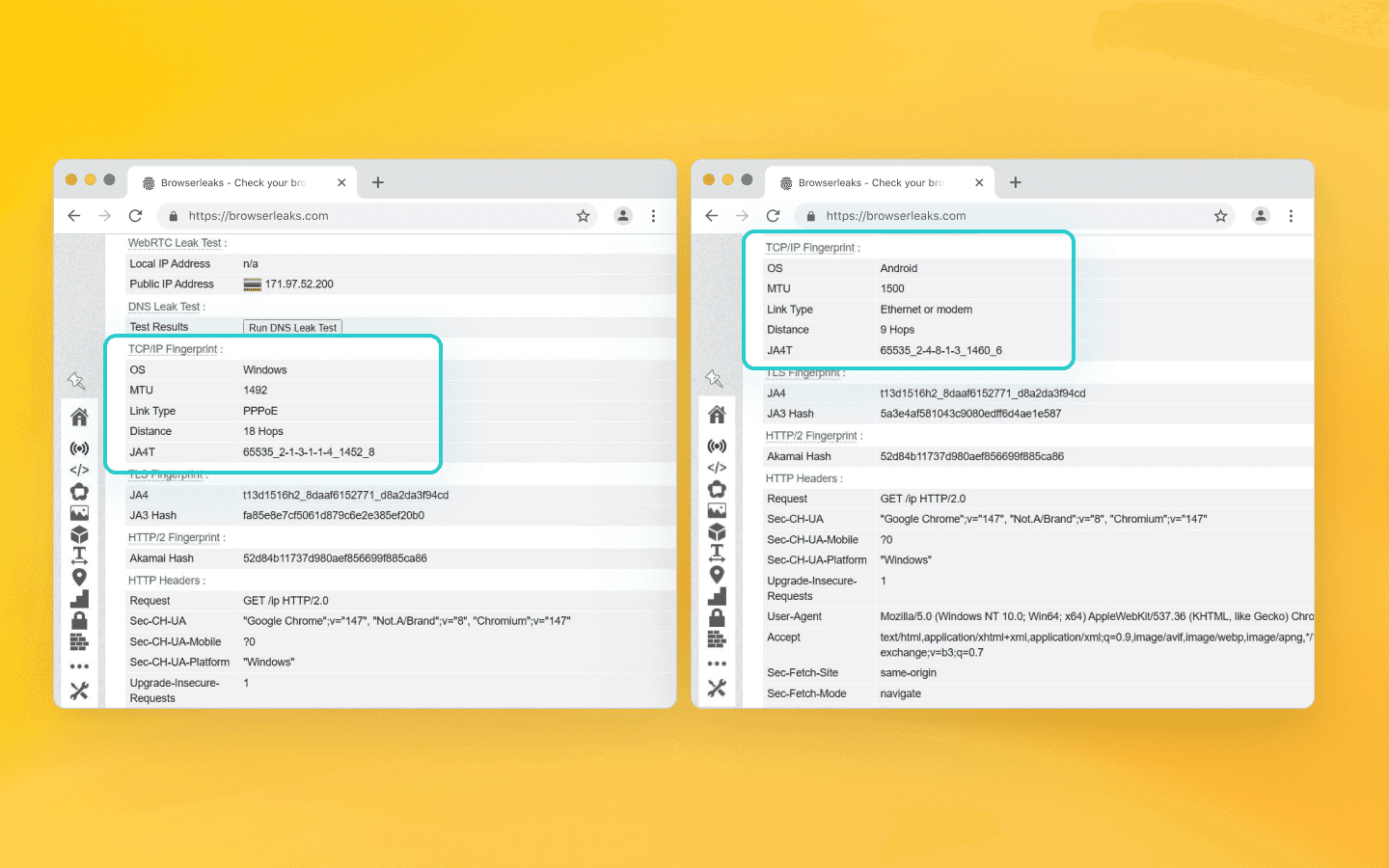
Route your scraper's traffic through BrowserLeaks and scroll down to the TCP/IP Fingerprint section. If your Puppeteer configuration uses a Windows User-Agent but the service reports OS Fingerprint: Linux/Android, you are facing exactly the mismatch discussed in this article.
Possible solutions: how to disguise Linux
So how do you make your scraper pass serious anti-fraud protection?
Option 1. Change the type of proxy
Since datacenter proxies can spoil your fingerprint with their Linux kernels, the most reliable solution is to stop using them and switch to residential proxies.
Residential proxies route traffic through real user devices (home PCs running Windows or macOS, home routers). The endpoint that establishes the TCP connection with Google's servers is no longer a Linux server in a datacenter, but a real computer.
When traffic passes through these devices, the destination server sees a legitimate TCP fingerprint from a real consumer device that perfectly matches your L7 fingerprint. The mismatch problem disappears on its own.
If you purchase mobile proxies (which operate through farms of real 4G smartphones), the endpoint becomes an Android or iOS device. Android is based on the Linux kernel. If you run a desktop scraper with a Windows 11 User-Agent through mobile proxies, the anti-fraud system will receive packets from Android and detect the inconsistency.
The type of your L7 profile in the anti-detect browser must strictly match the type of the proxy endpoint. With mobile proxies, enable mobile Chrome emulation. With residential proxies, look for pools that provide desktop Windows IPs.
Option 2. Tune the Linux kernel
If you run scripts directly from a Linux server without proxies (or operate your own proxies that you can fully control), you will need to disguise the operating system's network stack.
Level 1. Basic adjustments (TTL)
You can change the default TTL to match Windows with a single iptables command. The kernel will rewrite the packet's TTL value immediately before transmission:
iptables -t mangle -A POSTROUTING -j TTL --ttl-set 128
Level 2. Deep modification (Window Size and TCP Options)
Spoofing the initial window size and TCP option ordering is much more difficult. Basic sysctl settings are not enough because the packet structure is hardcoded into the Linux kernel source code.
To disguise Linux as Windows at the TCP Options level, you can use the NFQueue mechanism. Here's how it works:
Outgoing packets are intercepted by the kernel and forwarded to user space.
A special utility (written in C or Python using the
Scapylibrary) captures them.The program parses the TCP header, changes the window size to 65535 or 64240, rearranges options (
MSS,NOP,Window Scale, etc.) into the desired order, recalculates the checksum, and returns the packet to the kernel for transmission.
There are ready-made utilities (such as p0f-obfuscator and modules from DPI-evasion projects) that can perform these modifications on the fly. The setup is complex and can reduce network performance, but it makes your Linux server invisible to passive fingerprinting techniques.
Option 3. Move to Windows infrastructure
The simplest approach is not to hide Linux at all, but to run your entire scraping infrastructure on Windows Server.
You can migrate your code to a Windows machine and send traffic directly. In this case, Microsoft's native network stack generates natural packets with:
TTL 128,
appropriate window sizes,
and the canonical Windows TCP option order.
However, this approach has drawbacks:
Cost. Windows servers are always more expensive to rent.
Resource consumption. The operating system itself requires a significant amount of RAM and CPU resources for background processes.
Scalability. Deploying, updating, and scaling a fleet of scrapers on Windows is far more difficult than spinning up dozens of lightweight Docker containers on Ubuntu.
Conclusion
Simply spoofing User-Agent, Canvas, WebGL, and navigator.platform is no longer enough to guarantee success, especially when dealing with heavily protected platforms such as Google, Cloudflare, Akamai, or DataDome. Modern anti-fraud systems have learned to analyze not only what data you send, but also how you deliver it at the fundamental network level.
If you're experiencing scraping issues and cannot determine the cause, it's time to look at the consistency of all layers of the OSI model. If your application layer does not logically or mathematically match the transport and network layers (L3/L4), the problem may be there.
If your carefully configured setup—with a high-quality anti-detect browser and expensive proxies—starts receiving unexplained 403 errors, serving stripped-down versions of pages, or triggering CAPTCHAs, stop endlessly changing JavaScript fingerprints. Try looking one layer deeper.
Stay anonymous, take advantage of multi-accounting, and achieve your goals with the highest-quality anti-detect browser on the market.
Would you like to try Octo Browser at discount?
Use the promo code OCTOSCRAPER to get 30% off any subscription. This offer is valid only for new users.
Why even a perfect anti-detect browser is still not enough
To understand the true scale of the problem, let's first recall how a standard anti-blocking setup works.
Historically, scraping evolved as an arms race at the HTTP and JavaScript levels. When servers began blocking default headers such as python-requests, developers started using User-Agent strings from real browsers. When anti-fraud systems began checking navigator properties, we moved to headless browsers modified through Chrome DevTools Protocol (CDP) or ready-made anti-detect solutions.
We have become accustomed to controlling the application layer (Layer 7). This is the layer where HTTP operates, cookies and headers are transmitted, and JavaScript executes.
The problem is that an HTTP request is not sent on its own. It is encapsulated inside a transport protocol (TCP—Layer 4), which is then encapsulated inside a network protocol (IP—Layer 3). This is where the main architectural trap lies:
L7 (application layer) is fully controlled by your application—your script, Puppeteer, or anti-detect browser.
L3 and L4 (network and transport layers) are controlled by the operating system kernel on which the code physically runs (or through which the traffic is routed). A socket
connect()call simply hands control to the Linux or Windows network stack, and from that point the OS builds packets according to its own internal, hardcoded rules.
Modern anti-fraud systems know this and use passive fingerprinting techniques to analyze exactly how a TCP connection is established before the first HTTP request is even sent.
If your User-Agent at L7 claims to be Chrome on Windows, but the server sees a TCP SYN packet structure characteristic of Linux at L4, the anti-fraud system considers this an obvious anomaly. From the server's perspective, a real Windows machine physically cannot generate such a network packet. Therefore, it is a bot running on a Linux server while pretending to be an ordinary user. The anti-fraud system then acts according to its own policies: Google Maps, for example, may return a simplified page, require authentication, and give you a CAPTCHA.
The anatomy of a TCP SYN packet: how servers identify your real operating system
Every HTTP(S) connection begins with establishing a TCP connection—the so-called three-way handshake. The very first packet sent to the target resource is a network packet with the SYN flag set. This tiny packet contains everything required for passive operating system fingerprinting. Security systems do not even need to wait for your HTTP headers. They inspect the service fields inside the SYN packet and determine with remarkable accuracy which operating system kernel created it.
There are three primary markers:
1. Time To Live (TTL)
TTL is a counter that decreases by one every time a packet passes through a router on its way to the server. Different operating systems use different default starting values:
Linux and macOS: default TTL is 64.
Windows: default TTL is 128.
If Google's anti-fraud system receives a packet with a TTL of 54, it can confidently conclude that the source is Linux or macOS. If it receives a value of 115, it is most likely Windows.
2. TCP Window Size
This is essentially the size of the receive buffer. It indicates how much data a device is prepared to accept at one time.
Since data is transmitted in fragments of approximately 1,460 bytes, operating systems typically allocate memory in multiples of that size. However, each OS does so differently.
Linux often allocates the initial window based on a fixed number of packets:
5840 = 4 packets × 1460
14600 = 10 packets × 1460
29200 = 20 packets × 1460
When anti-fraud systems see 29200, they recognize a pattern typical of the Linux kernel.
Windows tends to use powers of two or maximum values:
8192 = 8 KB
65535 = the maximum value that fits into a 16-bit Window Size field
64240 = a hybrid approach used by modern Windows versions (44 packets × 1460)
Anti-fraud systems compare these values with your User-Agent. If you claim to be Chrome on Windows but your window size is 29200, the mismatch is obvious.
3. TCP Options order
This is the most powerful fingerprinting mechanism.
SYN packets include additional parameters such as MSS, Window Scaling, SACK Permitted, Timestamps, and others. The values themselves may vary, but the order in which they appear is hardcoded into the operating system kernel.
For example:
Typical Windows fingerprint:
MSS → NOP → Window Scaling → NOP → NOP → SACK Permitted
Typical Linux fingerprint:
MSS → SACK Permitted → Timestamps → NOP → Window Scaling
These details may seem insignificant, but any advanced anti-fraud system will identify these inconsistencies, restrict sessions, and prevent stable scraping.
The datacenter proxy trap: why your local operating system no longer matters
If TCP/IP fingerprinting is the problem, a logical solution might seem to be running the scraper on a Windows Server.
Suppose you launch your scraper on a clean Windows machine. The operating system generates TCP SYN packets with TTL=128, appropriate window sizes, and the correct option order. Yet CAPTCHAs and session interruptions still appear. The reason lies in how proxy servers work.
Serious scraping operations almost always rely on proxies. In most automation setups, datacenter proxies are used because they are inexpensive, fast, and stable. The catch is that the vast majority of these proxy servers run Linux distributions such as Ubuntu, Debian, or CentOS.
When you use a proxy, there is no direct network connection between your device and Google's servers. The process is split into two independent connections:
Connection A (Your computer → Proxy server)
Your Windows machine establishes a TCP connection to the proxy.
Connection B (Proxy server → Google)
After receiving your request, the proxy creates a completely new TCP connection to the destination server on your behalf.
Since the proxy server runs Linux, the Linux network stack generates the SYN packet sent to Google.
As a result, Google's anti-fraud system sees a TCP connection that was clearly created by Linux (TTL 64, Linux-style window sizes, Linux TCP options ordering). Inside that connection (L7 level), however, it sees HTTP headers claiming to be Chrome on Windows.
Datacenter proxies expose your local transport-layer fingerprint. Even if you operate an expensive farm of real Windows machines, routing traffic through standard Linux-based datacenter proxies causes all of your traffic to appear as Linux to the destination server.
This is one of the reasons residential proxies are better for scraping.
How to check your fingerprint
Always test your scripts in real-world conditions. Try to evaluate your scraper from the anti-fraud system's perspective.
Route your scraper's traffic through BrowserLeaks and scroll down to the TCP/IP Fingerprint section. If your Puppeteer configuration uses a Windows User-Agent but the service reports OS Fingerprint: Linux/Android, you are facing exactly the mismatch discussed in this article.
Possible solutions: how to disguise Linux
So how do you make your scraper pass serious anti-fraud protection?
Option 1. Change the type of proxy
Since datacenter proxies can spoil your fingerprint with their Linux kernels, the most reliable solution is to stop using them and switch to residential proxies.
Residential proxies route traffic through real user devices (home PCs running Windows or macOS, home routers). The endpoint that establishes the TCP connection with Google's servers is no longer a Linux server in a datacenter, but a real computer.
When traffic passes through these devices, the destination server sees a legitimate TCP fingerprint from a real consumer device that perfectly matches your L7 fingerprint. The mismatch problem disappears on its own.
If you purchase mobile proxies (which operate through farms of real 4G smartphones), the endpoint becomes an Android or iOS device. Android is based on the Linux kernel. If you run a desktop scraper with a Windows 11 User-Agent through mobile proxies, the anti-fraud system will receive packets from Android and detect the inconsistency.
The type of your L7 profile in the anti-detect browser must strictly match the type of the proxy endpoint. With mobile proxies, enable mobile Chrome emulation. With residential proxies, look for pools that provide desktop Windows IPs.
Option 2. Tune the Linux kernel
If you run scripts directly from a Linux server without proxies (or operate your own proxies that you can fully control), you will need to disguise the operating system's network stack.
Level 1. Basic adjustments (TTL)
You can change the default TTL to match Windows with a single iptables command. The kernel will rewrite the packet's TTL value immediately before transmission:
iptables -t mangle -A POSTROUTING -j TTL --ttl-set 128
Level 2. Deep modification (Window Size and TCP Options)
Spoofing the initial window size and TCP option ordering is much more difficult. Basic sysctl settings are not enough because the packet structure is hardcoded into the Linux kernel source code.
To disguise Linux as Windows at the TCP Options level, you can use the NFQueue mechanism. Here's how it works:
Outgoing packets are intercepted by the kernel and forwarded to user space.
A special utility (written in C or Python using the
Scapylibrary) captures them.The program parses the TCP header, changes the window size to 65535 or 64240, rearranges options (
MSS,NOP,Window Scale, etc.) into the desired order, recalculates the checksum, and returns the packet to the kernel for transmission.
There are ready-made utilities (such as p0f-obfuscator and modules from DPI-evasion projects) that can perform these modifications on the fly. The setup is complex and can reduce network performance, but it makes your Linux server invisible to passive fingerprinting techniques.
Option 3. Move to Windows infrastructure
The simplest approach is not to hide Linux at all, but to run your entire scraping infrastructure on Windows Server.
You can migrate your code to a Windows machine and send traffic directly. In this case, Microsoft's native network stack generates natural packets with:
TTL 128,
appropriate window sizes,
and the canonical Windows TCP option order.
However, this approach has drawbacks:
Cost. Windows servers are always more expensive to rent.
Resource consumption. The operating system itself requires a significant amount of RAM and CPU resources for background processes.
Scalability. Deploying, updating, and scaling a fleet of scrapers on Windows is far more difficult than spinning up dozens of lightweight Docker containers on Ubuntu.
Conclusion
Simply spoofing User-Agent, Canvas, WebGL, and navigator.platform is no longer enough to guarantee success, especially when dealing with heavily protected platforms such as Google, Cloudflare, Akamai, or DataDome. Modern anti-fraud systems have learned to analyze not only what data you send, but also how you deliver it at the fundamental network level.
If you're experiencing scraping issues and cannot determine the cause, it's time to look at the consistency of all layers of the OSI model. If your application layer does not logically or mathematically match the transport and network layers (L3/L4), the problem may be there.
If your carefully configured setup—with a high-quality anti-detect browser and expensive proxies—starts receiving unexplained 403 errors, serving stripped-down versions of pages, or triggering CAPTCHAs, stop endlessly changing JavaScript fingerprints. Try looking one layer deeper.
Stay up to date with the latest Octo Browser news
By clicking the button you agree to our Privacy Policy.
Stay up to date with the latest Octo Browser news
By clicking the button you agree to our Privacy Policy.
Stay up to date with the latest Octo Browser news
By clicking the button you agree to our Privacy Policy.

Join Octo Browser now
Or contact Customer Service at any time with any questions you might have.
Join Octo Browser now
Or contact Customer Service at any time with any questions you might have.
Join Octo Browser now
Or contact Customer Service at any time with any questions you might have.