Profile access rights in teams: tags, folders, and how to switch between them

Profile folders are now available in Octo Browser 3.0. In addition to organizing profiles, folders can now be used to manage team access rights. They are an alternative to tag-based access rights.
If your team already uses tags for access management, nothing changes for you in Octo 3.0. Tag-based access continues to work exactly as before, and all existing settings are kept. This article is for users who want to understand how folder-based access differs from tag-based access and how to switch between them if you decide to try it.
For teams that did not use tags for access management before the 3.0 update, profile access restrictions now work through folders by default. Tags remain available for labeling and filtering profiles.
How tag-based access rights work
Tag-based access rights follow the principle of “everything is available until restricted.” To limit which profiles a team member can see, you assign specific tags to that user. The user will only see profiles with those tags. Profiles without tags remain visible to all team members by default. This means that every new untagged profile automatically becomes accessible to the entire team, and if someone forgets to assign a tag, the profile may become visible to people who should not have access to it.
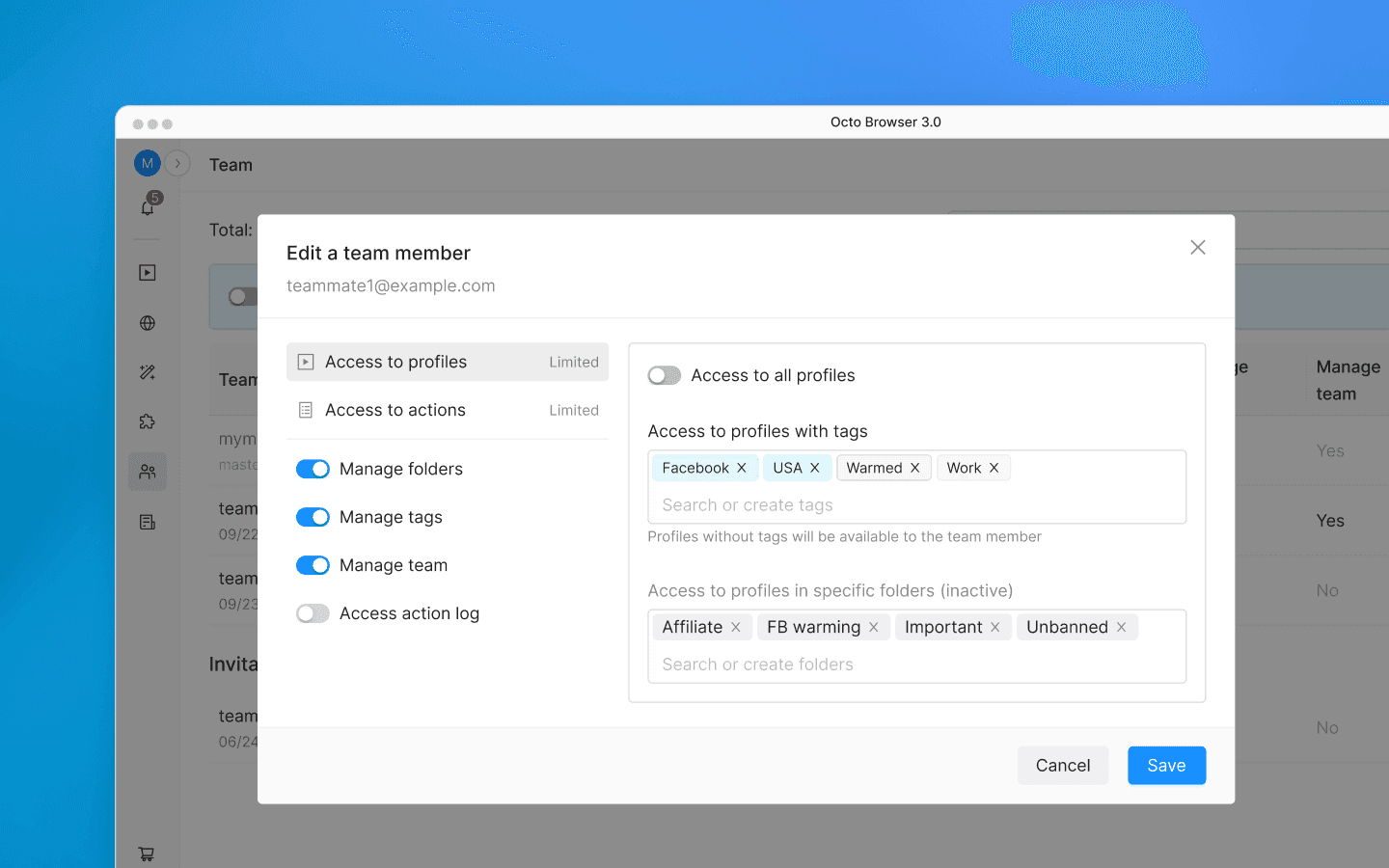
Tags also serve two functions at the same time: profile organization (filtering) and access rights management. When the number of profiles and team members is small, this is convenient. But as the team grows, these functions start to conflict: a tag created for filtering may unintentionally grant access to additional users, while tags created for access management clutter the filter list.
Transferring profiles between team members is also tied to tags: to transfer a profile to another person, you need to assign it a tag that the recipient has access to.
How folder-based access rights work
Folder-based access rights work the opposite way: “nothing is available until allowed.” Each team member is granted access to specific folders and sees only those folders. In the “All profiles” tab, users only see profiles from folders they have access to. You can also separately grant access to profiles that are not assigned to any folder. Without access to at least one folder or to unassigned profiles, a team member will not see any profiles at all.
Each profile belongs to one folder only. This removes the ambiguity that existed with tags: there is no need to guess which of several tags granted a user access to a profile.
Tags and folders can be used together. With folder-based access enabled, tags no longer affect profile visibility and instead work as statuses or labels for filtering profiles inside folders. The tag list remains shared across all folders.

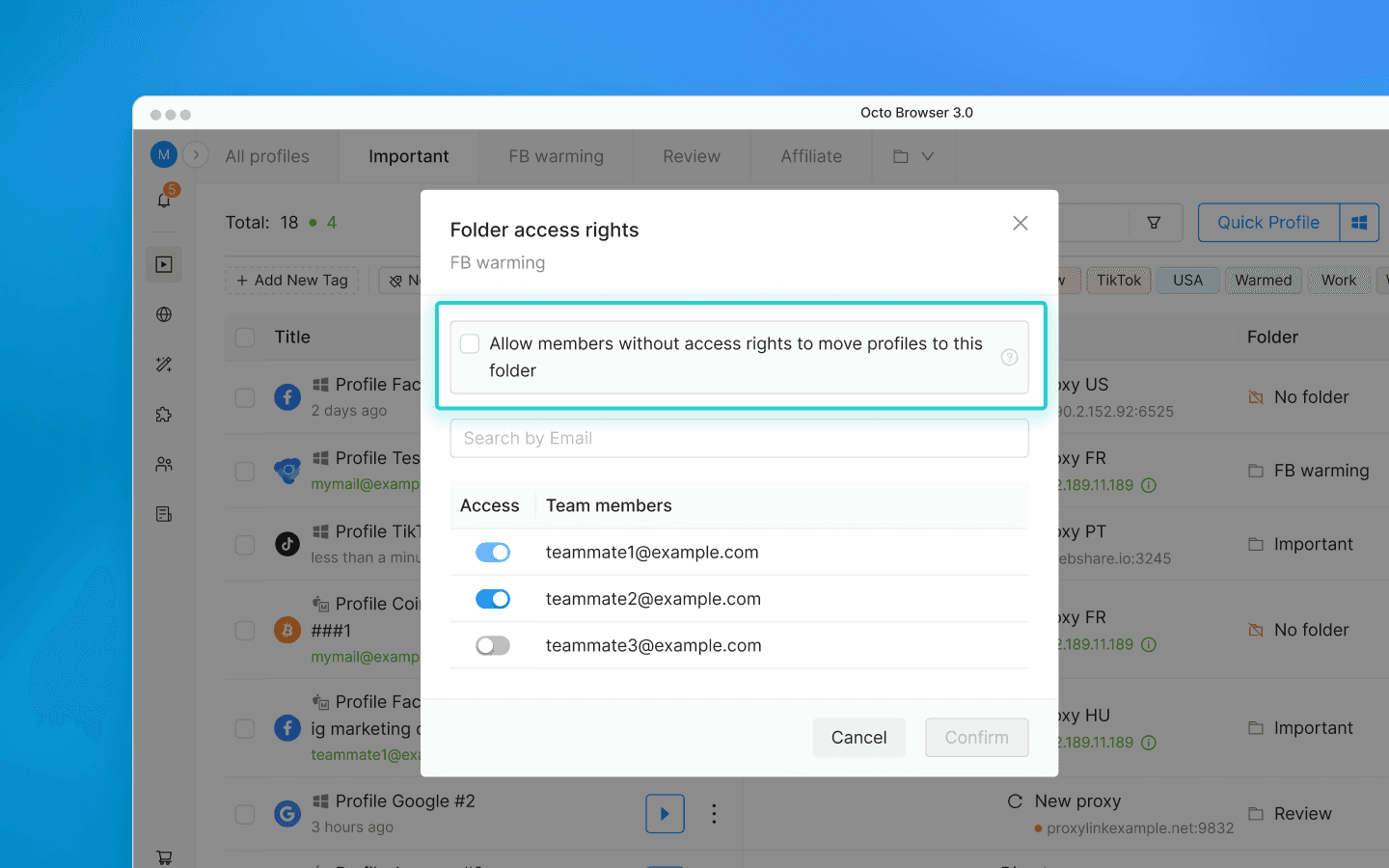
You can configure access rights either from the team table in settings or directly from the settings of an individual folder by selecting which team members can view that folder’s contents.
If you need to transfer a profile to another department or team, you can enable the setting “Allow members without access rights to move profiles to this folder.” A team member without access to the folder will still be able to select it when transferring a profile, but they will not see the folder’s contents. The profile will be transferred, and team members with access to the destination folder will continue working with it.
How to switch from tags to folders
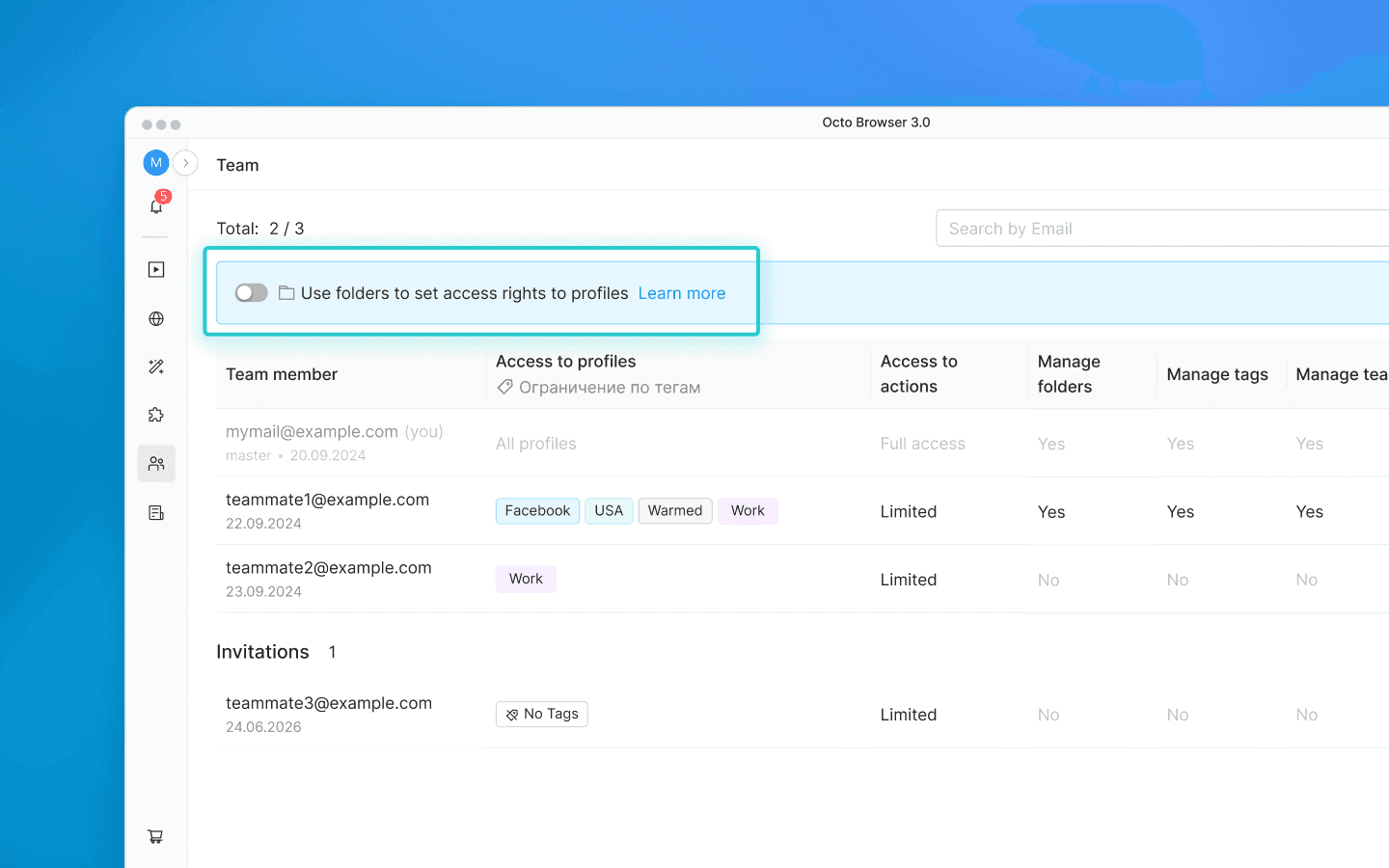
The “Use folders to set access right to profile” toggle is located in the team settings at the top of the “Team” page. It is only available to teams that currently use tags for access rights management.
We recommend switching in the following order:
Create the desired folders and assign profiles to them.
Open the settings for each team member and configure folder access permissions in the “Access to profiles” tab. While the toggle is disabled, folder-based permissions are not active yet, but all settings are already saved. This allows you to prepare everything in advance.
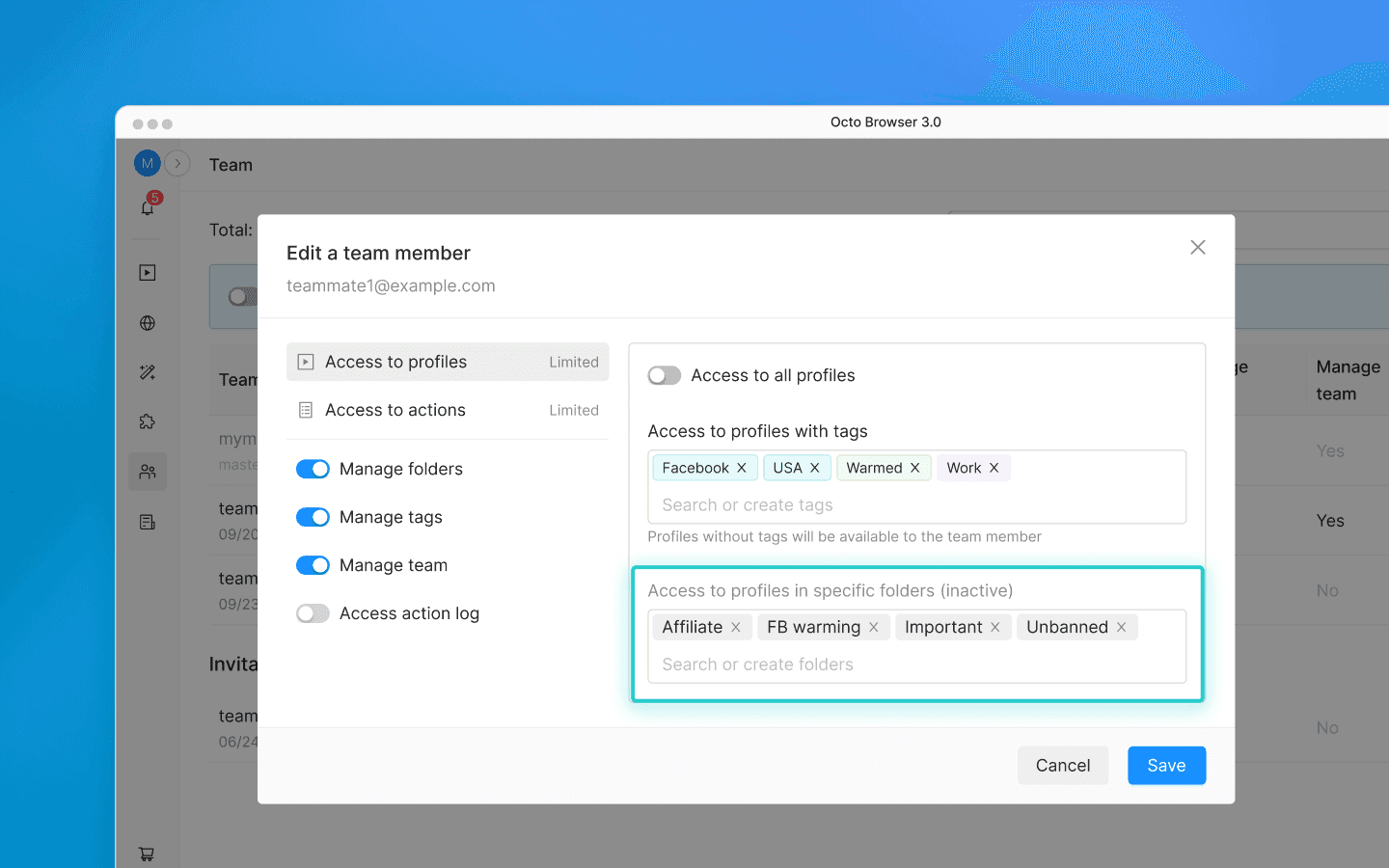
Once all permissions are set, enable the toggle. The system will display a warning notifying you that after enabling it, profiles will only be visible to team members with full access or those to whom specific folders have been assigned.
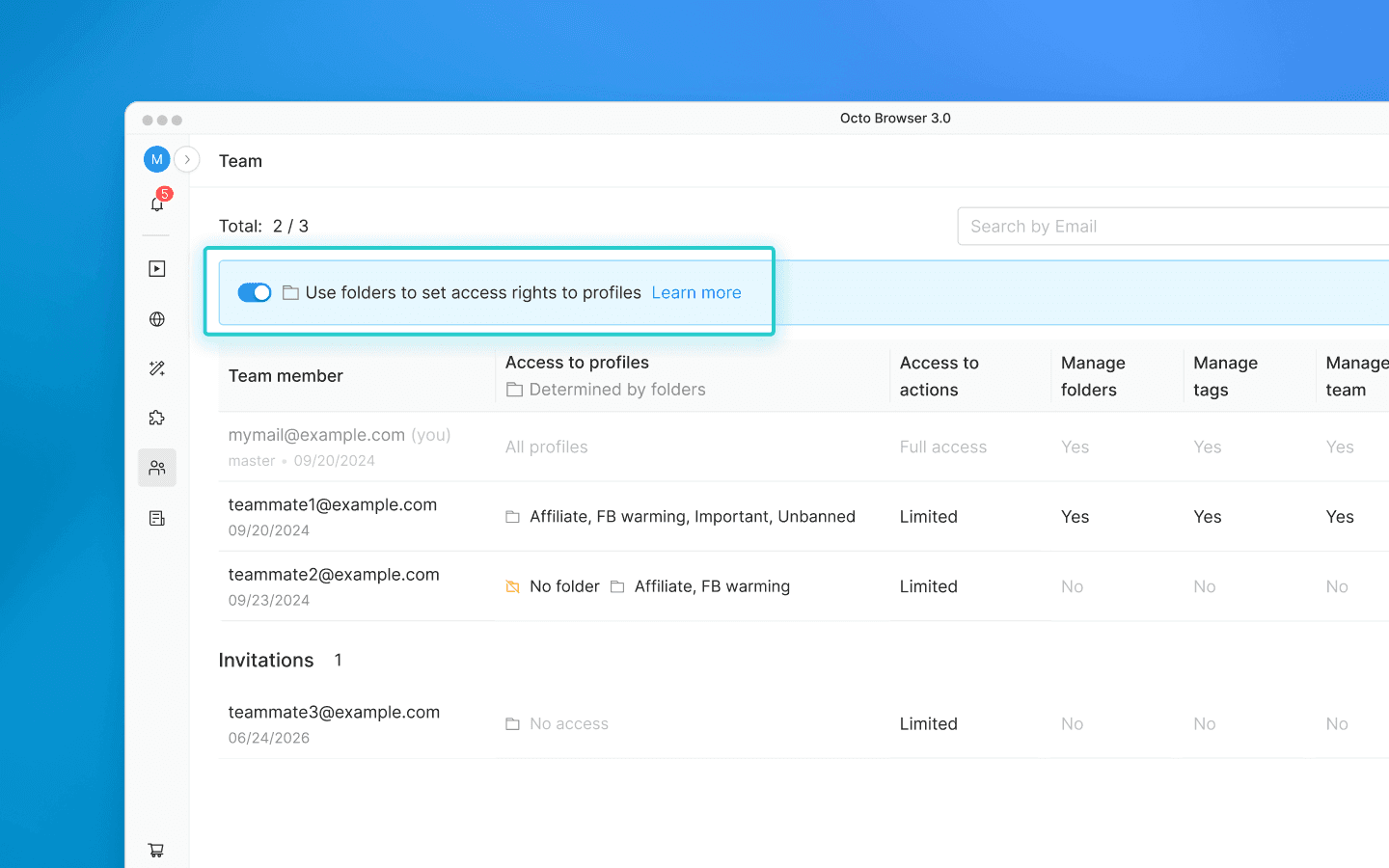
Make sure that all team members can see the right profiles.
If something goes wrong, you can switch back at any time. Tag-based access rights will be restored exactly as they were at the moment you switched to folders.
What happens if you enable the toggle without preparation
Nothing irreversible. Team members without assigned folders will simply stop seeing profiles. The master account owner will continue to see everything. You only need to assign the appropriate folder permissions to team members or switch back to tags.
For more information about working with folders and configuring permissions, consult our documentation. If you encounter any issues during the transition or have other questions, contact our Customer Service and we’ll help you sort everything out.
How tag-based access rights work
Tag-based access rights follow the principle of “everything is available until restricted.” To limit which profiles a team member can see, you assign specific tags to that user. The user will only see profiles with those tags. Profiles without tags remain visible to all team members by default. This means that every new untagged profile automatically becomes accessible to the entire team, and if someone forgets to assign a tag, the profile may become visible to people who should not have access to it.
Tags also serve two functions at the same time: profile organization (filtering) and access rights management. When the number of profiles and team members is small, this is convenient. But as the team grows, these functions start to conflict: a tag created for filtering may unintentionally grant access to additional users, while tags created for access management clutter the filter list.
Transferring profiles between team members is also tied to tags: to transfer a profile to another person, you need to assign it a tag that the recipient has access to.
How folder-based access rights work
Folder-based access rights work the opposite way: “nothing is available until allowed.” Each team member is granted access to specific folders and sees only those folders. In the “All profiles” tab, users only see profiles from folders they have access to. You can also separately grant access to profiles that are not assigned to any folder. Without access to at least one folder or to unassigned profiles, a team member will not see any profiles at all.
Each profile belongs to one folder only. This removes the ambiguity that existed with tags: there is no need to guess which of several tags granted a user access to a profile.
Tags and folders can be used together. With folder-based access enabled, tags no longer affect profile visibility and instead work as statuses or labels for filtering profiles inside folders. The tag list remains shared across all folders.
You can configure access rights either from the team table in settings or directly from the settings of an individual folder by selecting which team members can view that folder’s contents.
If you need to transfer a profile to another department or team, you can enable the setting “Allow members without access rights to move profiles to this folder.” A team member without access to the folder will still be able to select it when transferring a profile, but they will not see the folder’s contents. The profile will be transferred, and team members with access to the destination folder will continue working with it.
How to switch from tags to folders
The “Use folders to set access right to profile” toggle is located in the team settings at the top of the “Team” page. It is only available to teams that currently use tags for access rights management.
We recommend switching in the following order:
Create the desired folders and assign profiles to them.
Open the settings for each team member and configure folder access permissions in the “Access to profiles” tab. While the toggle is disabled, folder-based permissions are not active yet, but all settings are already saved. This allows you to prepare everything in advance.
Once all permissions are set, enable the toggle. The system will display a warning notifying you that after enabling it, profiles will only be visible to team members with full access or those to whom specific folders have been assigned.
Make sure that all team members can see the right profiles.
If something goes wrong, you can switch back at any time. Tag-based access rights will be restored exactly as they were at the moment you switched to folders.
What happens if you enable the toggle without preparation
Nothing irreversible. Team members without assigned folders will simply stop seeing profiles. The master account owner will continue to see everything. You only need to assign the appropriate folder permissions to team members or switch back to tags.
For more information about working with folders and configuring permissions, consult our documentation. If you encounter any issues during the transition or have other questions, contact our Customer Service and we’ll help you sort everything out.
Stay up to date with the latest Octo Browser news
By clicking the button you agree to our Privacy Policy.
Stay up to date with the latest Octo Browser news
By clicking the button you agree to our Privacy Policy.
Stay up to date with the latest Octo Browser news
By clicking the button you agree to our Privacy Policy.

Join Octo Browser now
Or contact Customer Service at any time with any questions you might have.
Join Octo Browser now
Or contact Customer Service at any time with any questions you might have.
Join Octo Browser now
Or contact Customer Service at any time with any questions you might have.