Полезные массовые действия с API Octo Browser

Alex Phillips
Customer Service Specialist
API (Application Programming Interface) — это интерфейс, который позволяет программам взаимодействовать друг с другом. В случае Octo Browser API позволяет отправлять HTTP-запросы к серверу Octo и автоматизировать управление браузерными профилями.
В прошлой статье мы подробно описали, что такое API, рассказали про способы запуска скриптов и объяснили структуру построения запроса. Теперь же разберем несколько полезных примеров, наиболее востребованных у наших пользователей. Прочитав эту статью, вы научитесь получать и сохранять имена профилей, массово добавлять в созданные профили расширения, стартовые страницы и закладки, а также выгружать данные профилей в таблицу. Ниже — подробные инструкции и готовый код.
Содержание
Управляйте любым количеством аккаунтов без банов, рутины и лишних расходов.
Хотите попробовать Octo Browser со скидкой?
По промокоду OCTOBLOG получите 30% скидку на любую подписку. Предложение действительно только для новых пользователей.
Подготовка к работе
Скачайте и установите VS Code.
Скачайте и установите node.js.
Создайте папку в удобном для вас месте и назовите ее, к примеру, octo_api.
Откройте эту папку в VS Code.
Создайте файл с расширением .js. Лучше называть его по имени действия, которое будет выполнять код, чтобы не запутаться. Например, get_titles.js.
Откройте терминал и выполните команду npm install axios, чтобы установить зависимость для NodeJS.
Если VS Code выдает ошибку — откройте от имени администратора Window PowerShell, введите там команду Set-ExecutionPolicy -Scope CurrentUser -ExecutionPolicy RemoteSigned и подтвердите. Затем повторите предыдущий пункт.
Запустите клиент Octo Browser.
Где найти API-токен
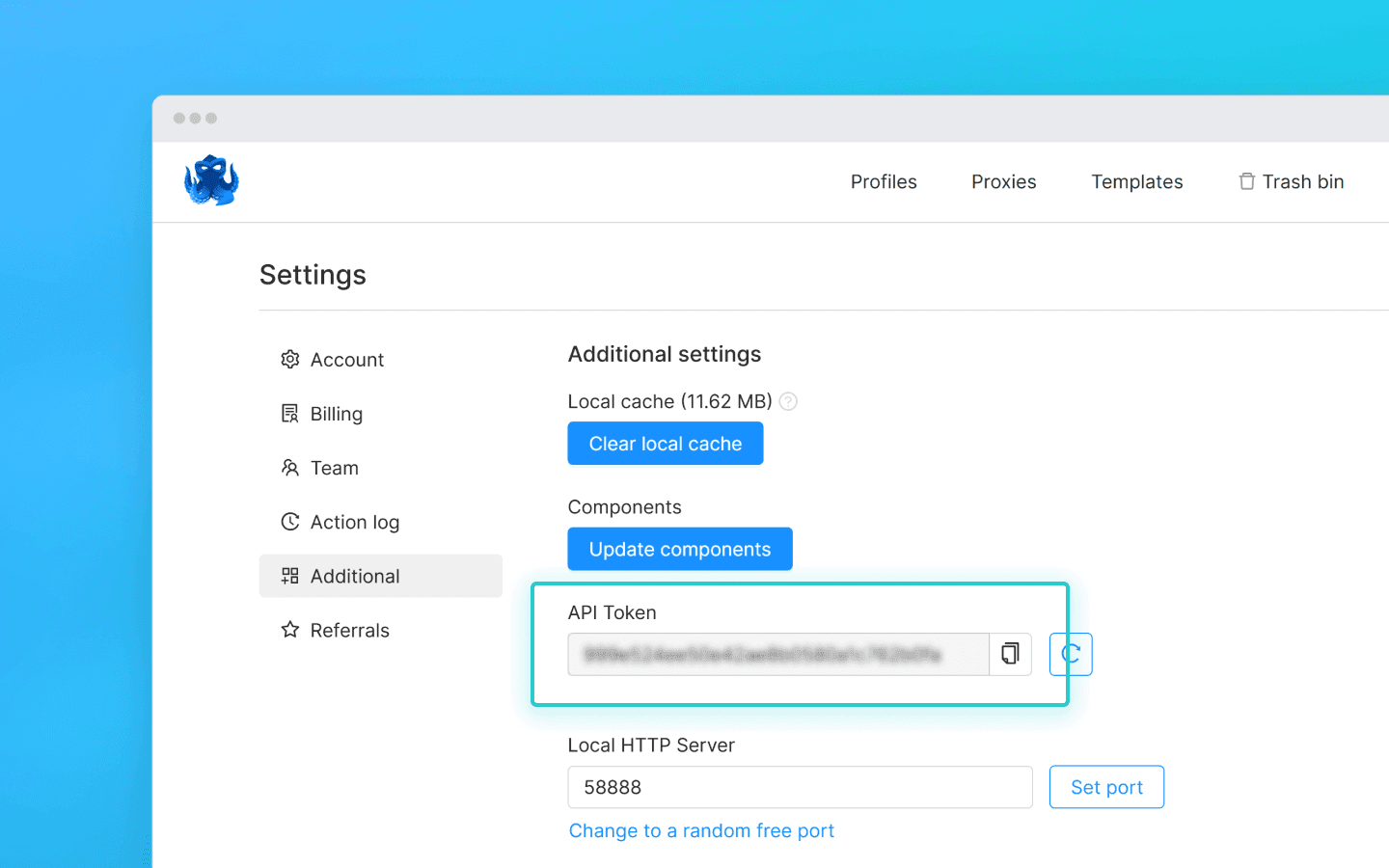
Чтобы взаимодействовать с клиентом Octo Browser через API, вам потребуется API-токен. Он доступен пользователям с подпиской Base и выше. API-токен отображается в клиенте Octo Browser в настройках мастер-аккаунта на вкладке «Дополнительные» (другие члены команды API-токен не видят).
Ограничения API (Rate Limits)
Стоит учитывать, что API Octo Browser имеет ограничения на количество запросов. В приведенных сниппетах используется функция check_limits, которая проверяет заголовки API-лимитов и автоматически делает паузу, если осталось мало запросов. Это помогает избежать ошибок 429 Too Many Requests.
При запросах к Public API тратится 1 RPM и 1 RPH за один запрос. При запросах к Local API RPM/RPH не снимаются, кроме запросов POST Start Profile (1 RPM и 1 RPH) и POST One-time profile (4 RPM и 4 RPH).
Точное число профилей, которые вы можете запустить/cоздать/удалить на определенной подписке, полностью зависит от ваших скриптов и их логики. Вы можете самостоятельно рассчитать необходимое количество запросов для вашей схемы работы, исходя из информации о том, какие запросы влияют на количество RPH и RPM.
Некоторые API-запросы могут требовать более сложной обработки, а значит, их выполнение может стоить больше, чем один запрос из лимитов. Это необходимо для балансировки нагрузки на сервер и оптимальной производительности для всех пользователей.
RPM (Requests Per Minute) — запросы в минуту.
RPH (Requests Per Hour) — запросы в час.
Значения лимитов зависят от вашей подписки.
С подготовкой разобрались, переходим к полезным сниппетам.
Получение имен профилей и сохранение их в .txt-файл
Этот сниппет будет полезен, когда нужно быстро собрать список всех созданных профилей в одном месте. Помогает упростить учет профилей, проверку их фактического наличия и дальнейшую работу с ними.
В папке octo_api создайте файл get_titles.js в octo_api и скопируйте в него код сниппета.
В поле octo_token вместо OCTO_API_TOKEN вставьте свой API-токен из клиента Octo Browser.
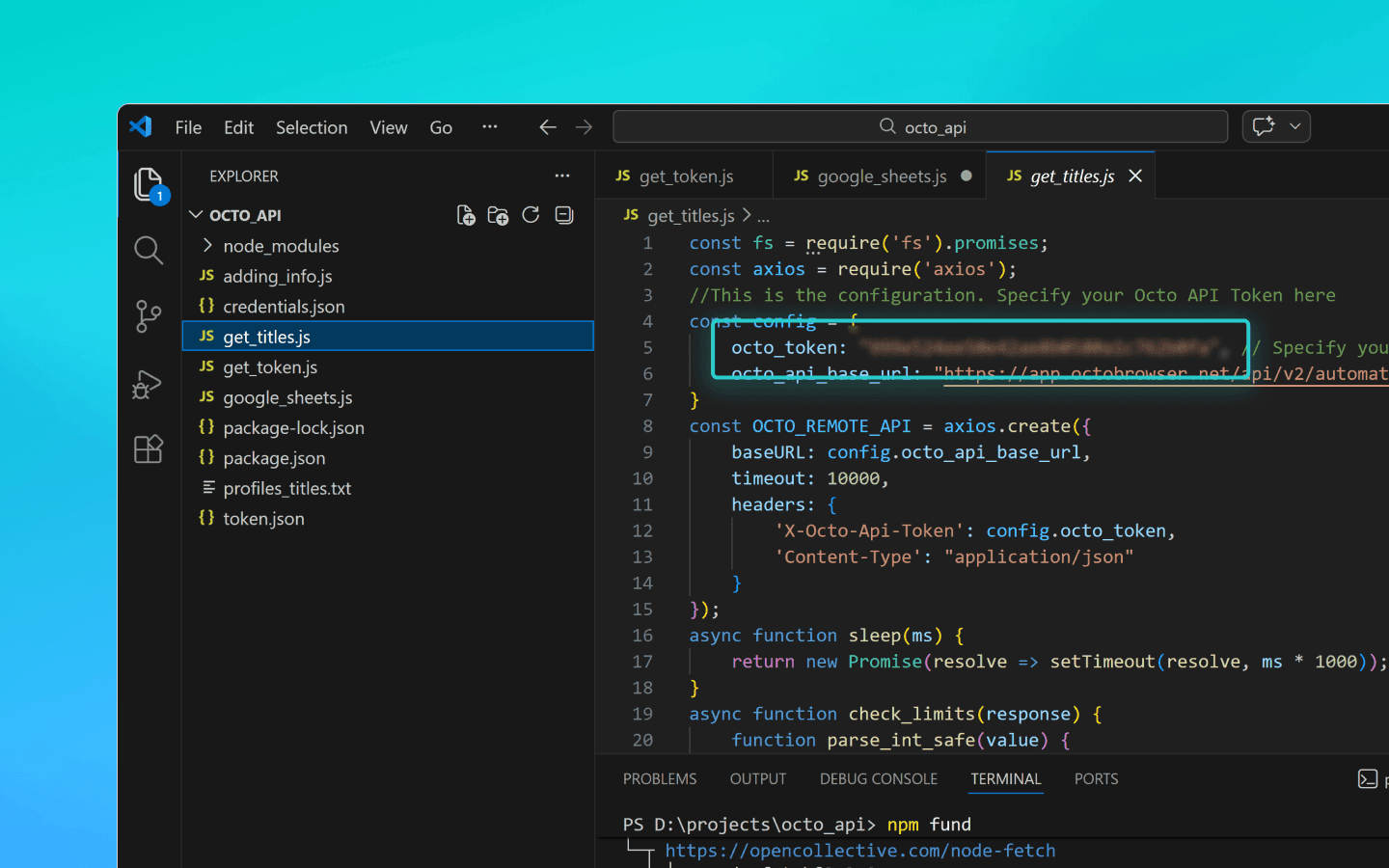
Сохраните изменения в файле.
Введите в терминал команду node get_titles.js и запустите скрипт.
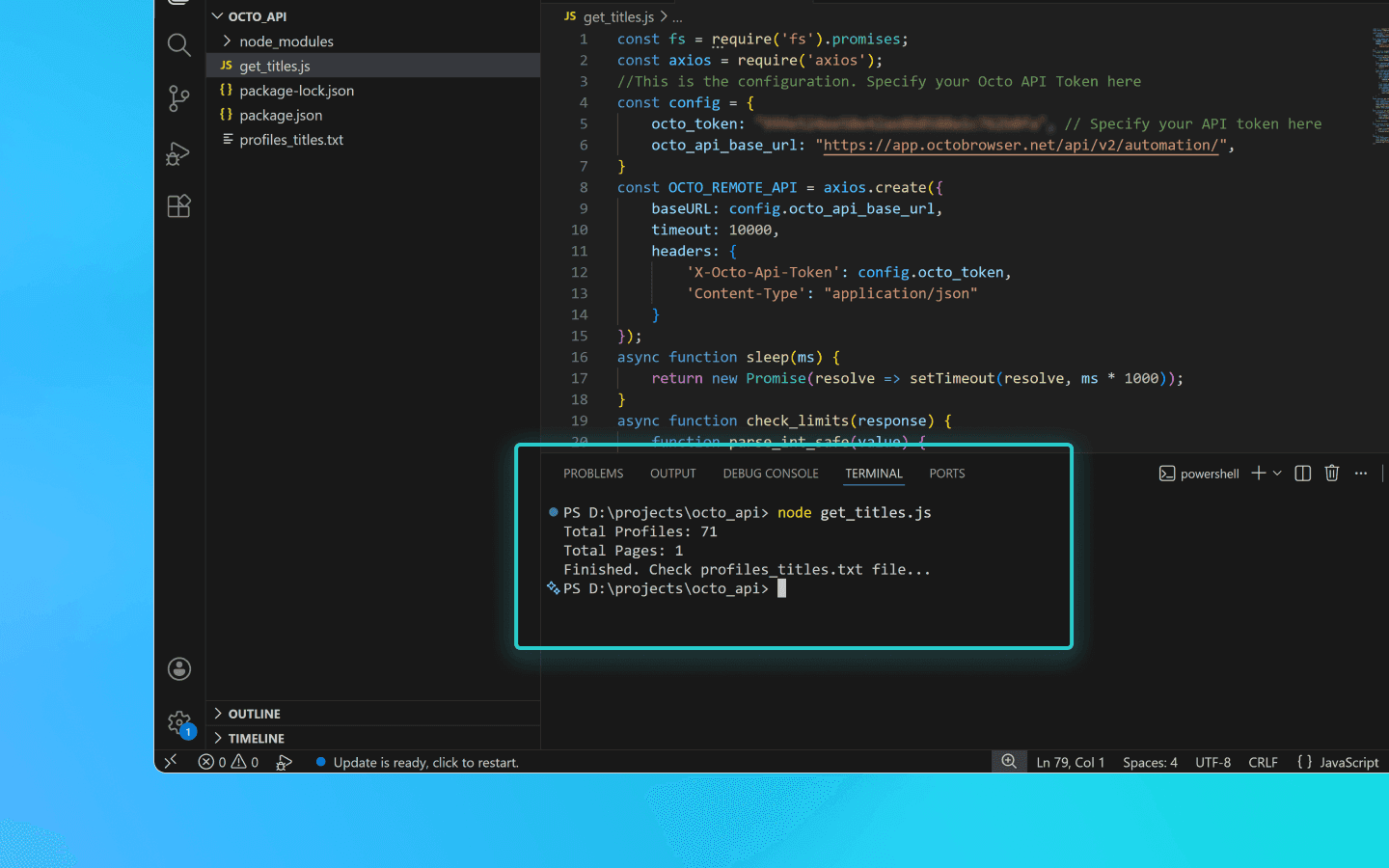
Названия профилей будут сохранены построчно в файл profiles_titles.txt в папке, где находится скрипт.
Сниппет для сохранения имен профилей в .txt-файл
const fs = require('fs').promises;
const axios = require('axios');
//This is the configuration. Specify your Octo API Token here
const config = {
    octo_token: "OCTO_API_TOKEN", // Specify your API token here
    octo_api_base_url: "https://app.octobrowser.net/api/v2/automation/",
}
const OCTO_REMOTE_API = axios.create({
    baseURL: config.octo_api_base_url,
    timeout: 10000,
    headers: {
        'X-Octo-Api-Token': config.octo_token,
        'Content-Type': "application/json"
    }
});
async function sleep(ms) {
    return new Promise(resolve => setTimeout(resolve, ms * 1000));
}
async function check_limits(response) {
    function parse_int_safe(value) {
        const parsed = parseInt(value, 10);
        return isNaN(parsed) ? 0 : parsed;
    }
    const ratelimit_header = response.headers.ratelimit;
    if (!ratelimit_header) {
        console.warn('No ratelimit header found!');
        return;
    }
    const limit_entries = ratelimit_header.split(',').map(entry => entry.trim());
    for (const entry of limit_entries) {
        const name_match = entry.match(/^([^;]+)/);
        const r_match = entry.match(/;r=(\d+)/);
        const t_match = entry.match(/;t=(\d+)/);
        if (!r_match || !t_match) {
            console.warn(`Invalid ratelimit format: ${entry}`);
            continue;
        }
        const limit_name = name_match ? name_match[1] : 'unknown_limit';
        const remaining_quantity = parse_int_safe(r_match[1]);
        const window_seconds = parse_int_safe(t_match[1]);
        if (remaining_quantity < 5) {
            const wait_time = window_seconds + 1;
            console.log(`Waiting ${wait_time} seconds due to ${limit_name} limit`);
            await sleep(wait_time);
        }
    }
}
async function get_total_pages() {
    const response = await OCTO_REMOTE_API.get('/profiles?page=0&page_len=10');
    const total_profiles = response.data.total_count;
    const total_pages = Math.ceil(response.data.total_count / 100);
    console.log(`Total Profiles: ${total_profiles}\nTotal Pages: ${total_pages}`);
    await check_limits(response);
    return total_pages;
}
async function get_all_profiles_titles(total_pages) {
    let profiles = [];
    for (let i = 0; i < total_pages; i++) {
        let response = await OCTO_REMOTE_API.get(`/profiles?page=${i}&page_len=100&fields=title`);
        await check_limits(response);
        profiles.push(...response.data.data);
    }
    return profiles;
}
async function write_file(profiles) {
    const titles = profiles.map(item => item.title).filter(Boolean);
    try {
        await fs.writeFile('./profiles_titles.txt', titles.join('\n'), 'utf-8');
    } catch (error) {
        console.error(`ERROR: While trying writing the file some error occured:\n${error}`);
    }
}
(async () => {
    const total_pages = await get_total_pages();
    const profiles = await get_all_profiles_titles(total_pages);
    await write_file(profiles);
    console.log('Finished. Check profiles_titles.txt file...');
})()
const fs = require('fs').promises;
const axios = require('axios');
//This is the configuration. Specify your Octo API Token here
const config = {
    octo_token: "OCTO_API_TOKEN", // Specify your API token here
    octo_api_base_url: "https://app.octobrowser.net/api/v2/automation/",
}
const OCTO_REMOTE_API = axios.create({
    baseURL: config.octo_api_base_url,
    timeout: 10000,
    headers: {
        'X-Octo-Api-Token': config.octo_token,
        'Content-Type': "application/json"
    }
});
async function sleep(ms) {
    return new Promise(resolve => setTimeout(resolve, ms * 1000));
}
async function check_limits(response) {
    function parse_int_safe(value) {
        const parsed = parseInt(value, 10);
        return isNaN(parsed) ? 0 : parsed;
    }
    const ratelimit_header = response.headers.ratelimit;
    if (!ratelimit_header) {
        console.warn('No ratelimit header found!');
        return;
    }
    const limit_entries = ratelimit_header.split(',').map(entry => entry.trim());
    for (const entry of limit_entries) {
        const name_match = entry.match(/^([^;]+)/);
        const r_match = entry.match(/;r=(\d+)/);
        const t_match = entry.match(/;t=(\d+)/);
        if (!r_match || !t_match) {
            console.warn(`Invalid ratelimit format: ${entry}`);
            continue;
        }
        const limit_name = name_match ? name_match[1] : 'unknown_limit';
        const remaining_quantity = parse_int_safe(r_match[1]);
        const window_seconds = parse_int_safe(t_match[1]);
        if (remaining_quantity < 5) {
            const wait_time = window_seconds + 1;
            console.log(`Waiting ${wait_time} seconds due to ${limit_name} limit`);
            await sleep(wait_time);
        }
    }
}
async function get_total_pages() {
    const response = await OCTO_REMOTE_API.get('/profiles?page=0&page_len=10');
    const total_profiles = response.data.total_count;
    const total_pages = Math.ceil(response.data.total_count / 100);
    console.log(`Total Profiles: ${total_profiles}\nTotal Pages: ${total_pages}`);
    await check_limits(response);
    return total_pages;
}
async function get_all_profiles_titles(total_pages) {
    let profiles = [];
    for (let i = 0; i < total_pages; i++) {
        let response = await OCTO_REMOTE_API.get(`/profiles?page=${i}&page_len=100&fields=title`);
        await check_limits(response);
        profiles.push(...response.data.data);
    }
    return profiles;
}
async function write_file(profiles) {
    const titles = profiles.map(item => item.title).filter(Boolean);
    try {
        await fs.writeFile('./profiles_titles.txt', titles.join('\n'), 'utf-8');
    } catch (error) {
        console.error(`ERROR: While trying writing the file some error occured:\n${error}`);
    }
}
(async () => {
    const total_pages = await get_total_pages();
    const profiles = await get_all_profiles_titles(total_pages);
    await write_file(profiles);
    console.log('Finished. Check profiles_titles.txt file...');
})()
Добавление расширений / стартовых страниц / закладок в профили
С помощью этой автоматизации вы сможете быстро привести конфигурацию профилей к единому виду и не добавлять одинаковые параметры вручную.
Для добавления расширений вам потребуются их UUID:
Откройте профиль с подключенным расширением.
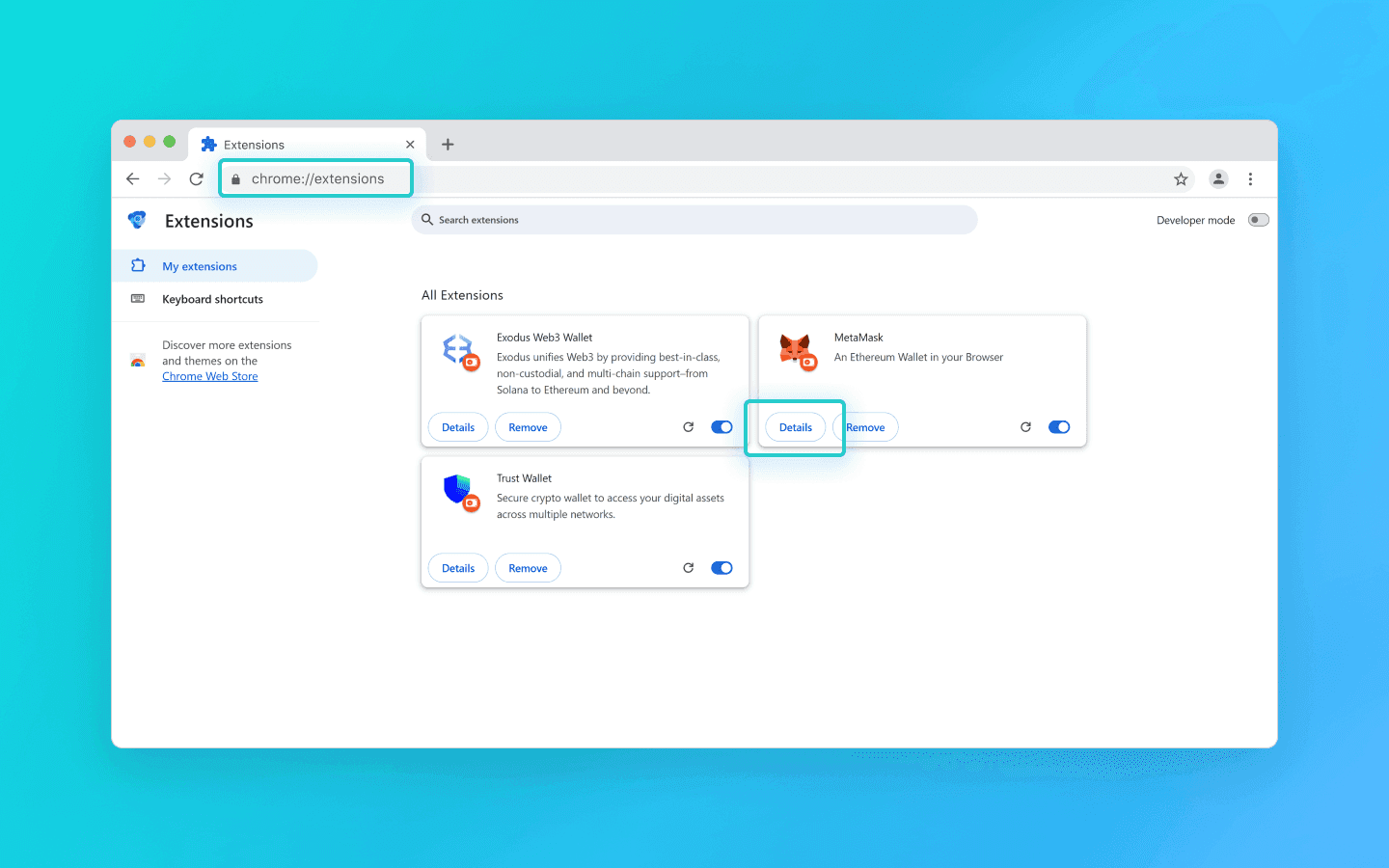
В адресной строке профиля введите chrome://extensions/ и нажмите Enter.
На нужном расширении нажмите кнопку «Сведения» (Details).
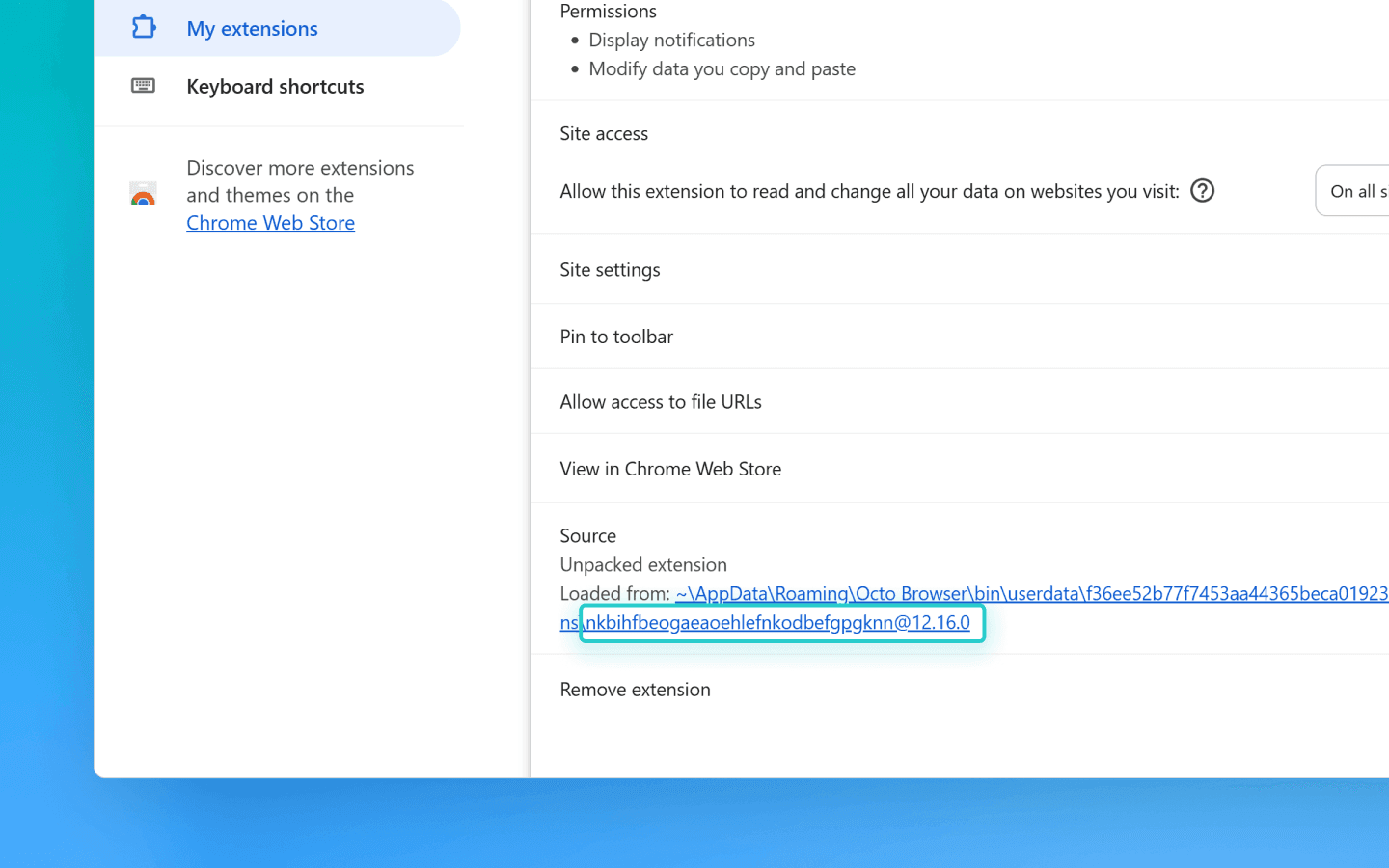
Внизу страницы скопируйте UUID расширения вместе с версией.
Cпособы для получения UUID с помощью API вы можете найти в документации.
Затем вам нужно отредактировать код:
Создайте файл adding_info.js в папке octo_api.
Скопируйте в него сниппет.
В поле octo_token вставьте API-токен.
В поле extensions (расширения) добавьте UUID необходимых расширений.
В поле bookmarks (закладки) добавьте name — название закладки, URL — адрес сайта.
В поле start_pages (стартовые страницы) добавьте URL сайтов, которые хотите открывать автоматически при запуске профиля.
Если вам необходимо добавить не все, а только extensions/bookmarks/start_pages, — вы можете удалить ненужные вам параметры из сниппета:
data: { extensions: ["nkbihfbeogaeaoehlefnkodbefgpgknn@12.17.2"], //удаляем, если не нужно добавлять расширения bookmarks: [ { name: "google", url: "https://google.com" }, { name: "facebook", url: "https://facebook.com" } ],//удаляем, если не нужны закладки start_pages: ["https://google.com", "https://facebook.com"] //удаляем, если не нужны стартовые страницы }data: { extensions: ["nkbihfbeogaeaoehlefnkodbefgpgknn@12.17.2"], //удаляем, если не нужно добавлять расширения bookmarks: [ { name: "google", url: "https://google.com" }, { name: "facebook", url: "https://facebook.com" } ],//удаляем, если не нужны закладки start_pages: ["https://google.com", "https://facebook.com"] //удаляем, если не нужны стартовые страницы }
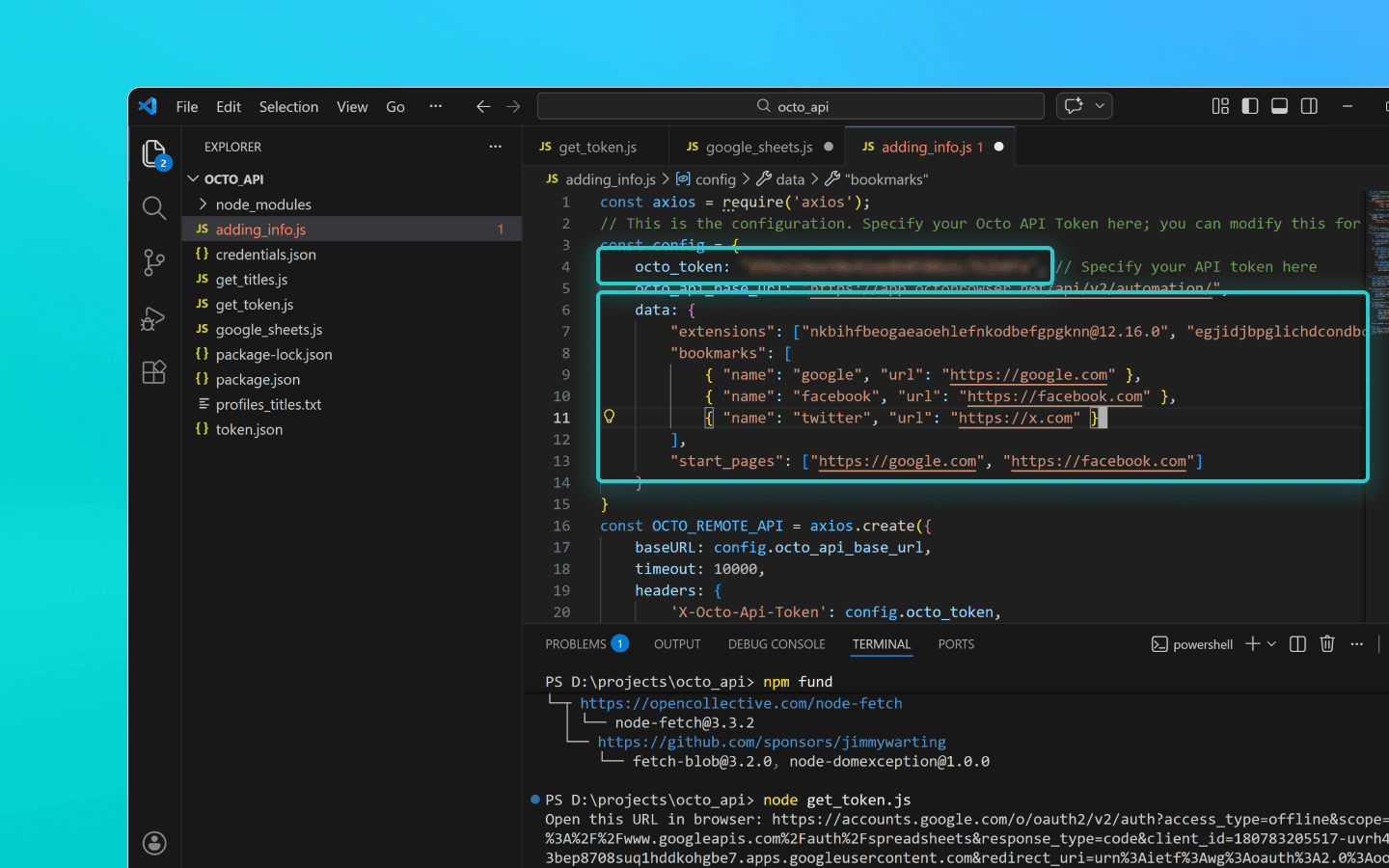
Сохраните файл adding_info.js.
Запустите файл с помощью команды node adding_info.js.
Нужные расширения, закладки и стартовые страницы будут добавлены во все ваши профили. Если изменения требуются для отдельных профилей — смотрите пример в документации.
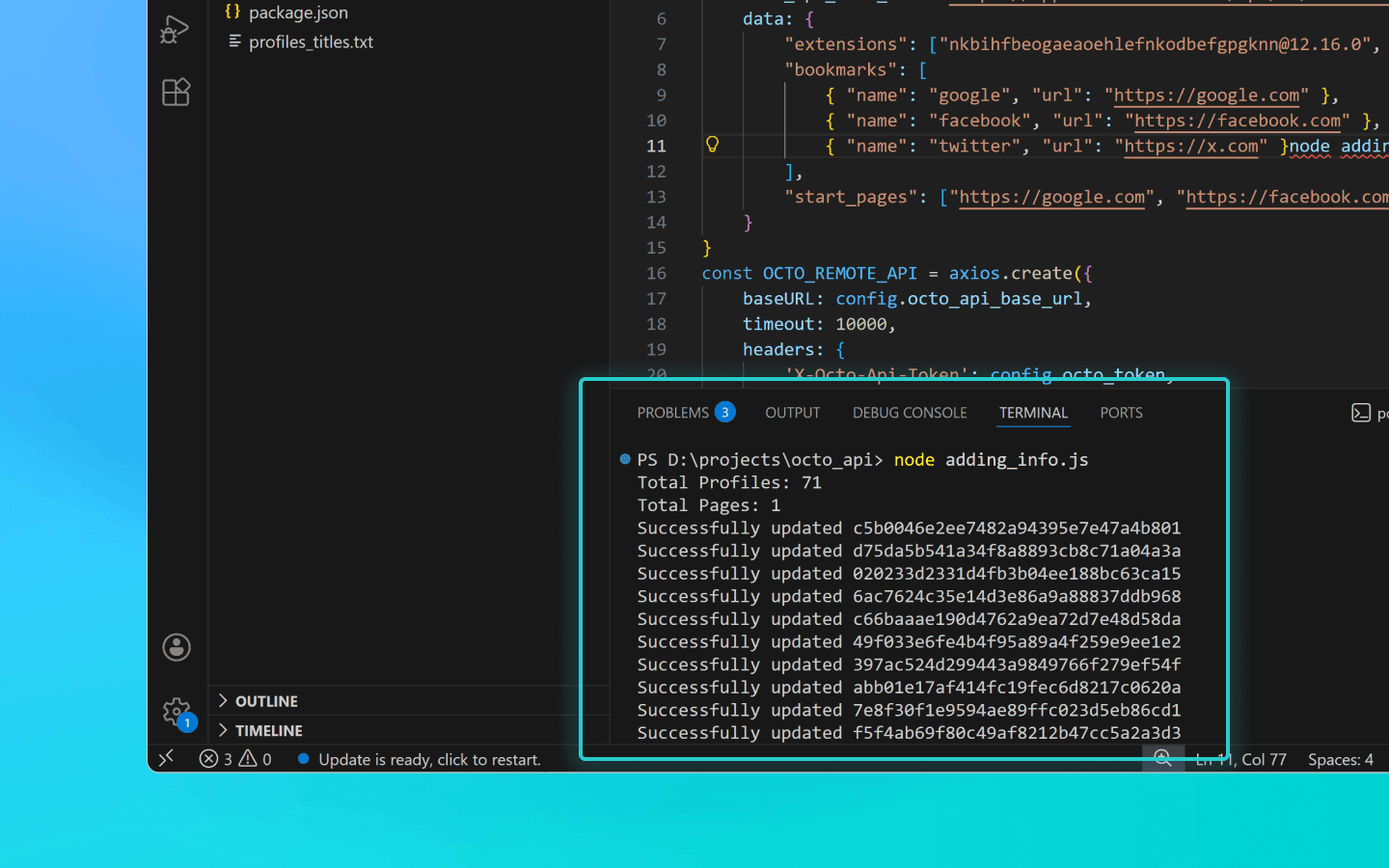
Перед запуском скрипта убедитесь, что профили, в которые необходимо добавить данные, не запущены. Запущенные профили обновлены не будут.
Сниппет для добавления расширений, стартовых страниц и закладок в профили
const axios = require('axios'); // This is the configuration. Specify your Octo API Token here; you can modify this for your personal needs const config = { octo_token: "OCTO_API_TOKEN", // Specify your API token here octo_api_base_url: "https://app.octobrowser.net/api/v2/automation/", data: { "extensions": ["aapfglkgnhmiaabhiijkjpfmhllaodgp@4.2.3"], "bookmarks": [ { "name": "google", "url": "https://google.com" }, { "name": "facebook", "url": "https://facebook.com" } ], "start_pages": ["https://google.com", "https://facebook.com"] } } const OCTO_REMOTE_API = axios.create({ baseURL: config.octo_api_base_url, timeout: 10000, headers: { 'X-Octo-Api-Token': config.octo_token, 'Content-Type': "application/json" } }); //functions async function sleep(ms) { return new Promise(resolve => setTimeout(resolve, ms * 1000)); } async function check_limits(response) { function parse_int_safe(value) { const parsed = parseInt(value, 10); return isNaN(parsed) ? 0 : parsed; } const ratelimit_header = response.headers.ratelimit; if (!ratelimit_header) { console.warn('No ratelimit header found!'); return; } const limit_entries = ratelimit_header.split(',').map(entry => entry.trim()); for (const entry of limit_entries) { const name_match = entry.match(/^([^;]+)/); const r_match = entry.match(/;r=(\d+)/); const t_match = entry.match(/;t=(\d+)/); if (!r_match || !t_match) { console.warn(`Invalid ratelimit format: ${entry}`); continue; } const limit_name = name_match ? name_match[1] : 'unknown_limit'; const remaining_quantity = parse_int_safe(r_match[1]); const window_seconds = parse_int_safe(t_match[1]); if (remaining_quantity < 5) { const wait_time = window_seconds + 1; console.log(`Waiting ${wait_time} seconds due to ${limit_name} limit`); await sleep(wait_time); } } } async function get_total_profiles() { const response = await OCTO_REMOTE_API.get('/profiles?page=0&page_len=10'); const total_profiles = response.data.total_count; const total_pages = Math.ceil(response.data.total_count / 100); console.log(`Total Profiles: ${total_profiles}\nTotal Pages: ${total_pages}`); await check_limits(response); return total_pages; } async function get_all_profiles_uuids(total_pages) { let profiles = []; for (let i = 0; i < total_pages; i++) { let response = await OCTO_REMOTE_API.get(`/profiles?page=${i}&page_len=100`); await check_limits(response); profiles.push(...response.data.data); } return profiles; } async function patch_all_profiles(profiles) { let updated = []; let not_updated = []; for (let profile of profiles) { try { const response = await OCTO_REMOTE_API.patch(`/profiles/${profile.uuid}`, config.data); await check_limits(response); updated.push(profile); console.log(`Successfully updated ${profile.uuid}`); } catch (error) { not_updated.push(profile); console.error(`ERROR: Can't patch profile ${profile.uuid}`); } } return [updated, not_updated]; } (async () => { const total = await get_total_profiles(); const profiles = await get_all_profiles_uuids(total); const [updated, not_updated] = await patch_all_profiles(profiles); console.log(`Finished process:\nUpdated: ${updated.length}\nNot updated: ${not_updated.length}`); })();
const axios = require('axios'); // This is the configuration. Specify your Octo API Token here; you can modify this for your personal needs const config = { octo_token: "OCTO_API_TOKEN", // Specify your API token here octo_api_base_url: "https://app.octobrowser.net/api/v2/automation/", data: { "extensions": ["aapfglkgnhmiaabhiijkjpfmhllaodgp@4.2.3"], "bookmarks": [ { "name": "google", "url": "https://google.com" }, { "name": "facebook", "url": "https://facebook.com" } ], "start_pages": ["https://google.com", "https://facebook.com"] } } const OCTO_REMOTE_API = axios.create({ baseURL: config.octo_api_base_url, timeout: 10000, headers: { 'X-Octo-Api-Token': config.octo_token, 'Content-Type': "application/json" } }); //functions async function sleep(ms) { return new Promise(resolve => setTimeout(resolve, ms * 1000)); } async function check_limits(response) { function parse_int_safe(value) { const parsed = parseInt(value, 10); return isNaN(parsed) ? 0 : parsed; } const ratelimit_header = response.headers.ratelimit; if (!ratelimit_header) { console.warn('No ratelimit header found!'); return; } const limit_entries = ratelimit_header.split(',').map(entry => entry.trim()); for (const entry of limit_entries) { const name_match = entry.match(/^([^;]+)/); const r_match = entry.match(/;r=(\d+)/); const t_match = entry.match(/;t=(\d+)/); if (!r_match || !t_match) { console.warn(`Invalid ratelimit format: ${entry}`); continue; } const limit_name = name_match ? name_match[1] : 'unknown_limit'; const remaining_quantity = parse_int_safe(r_match[1]); const window_seconds = parse_int_safe(t_match[1]); if (remaining_quantity < 5) { const wait_time = window_seconds + 1; console.log(`Waiting ${wait_time} seconds due to ${limit_name} limit`); await sleep(wait_time); } } } async function get_total_profiles() { const response = await OCTO_REMOTE_API.get('/profiles?page=0&page_len=10'); const total_profiles = response.data.total_count; const total_pages = Math.ceil(response.data.total_count / 100); console.log(`Total Profiles: ${total_profiles}\nTotal Pages: ${total_pages}`); await check_limits(response); return total_pages; } async function get_all_profiles_uuids(total_pages) { let profiles = []; for (let i = 0; i < total_pages; i++) { let response = await OCTO_REMOTE_API.get(`/profiles?page=${i}&page_len=100`); await check_limits(response); profiles.push(...response.data.data); } return profiles; } async function patch_all_profiles(profiles) { let updated = []; let not_updated = []; for (let profile of profiles) { try { const response = await OCTO_REMOTE_API.patch(`/profiles/${profile.uuid}`, config.data); await check_limits(response); updated.push(profile); console.log(`Successfully updated ${profile.uuid}`); } catch (error) { not_updated.push(profile); console.error(`ERROR: Can't patch profile ${profile.uuid}`); } } return [updated, not_updated]; } (async () => { const total = await get_total_profiles(); const profiles = await get_all_profiles_uuids(total); const [updated, not_updated] = await patch_all_profiles(profiles); console.log(`Finished process:\nUpdated: ${updated.length}\nNot updated: ${not_updated.length}`); })();
Выгрузка данных профилей в Google Sheets
Данные ваших профилей можно выгрузить в таблицу. Так удобнее структурировать информацию при работе, сортировать и анализировать данные. Можно выгрузить в следующие параметры профиля:
UUID,
теги,
имя,
описание.
Создайте файл google_sheets.js в папке octo_api.
Добавьте код сниппета в файл.
Заполните поле octo_token — API-токен можно найти в клиенте Octo.
Заполните поле table_id — это ID таблицы Google Sheets.
Заполните поле table_sheet_name — это название листа внутри таблицы Google Sheets, куда вам нужна выгрузка.
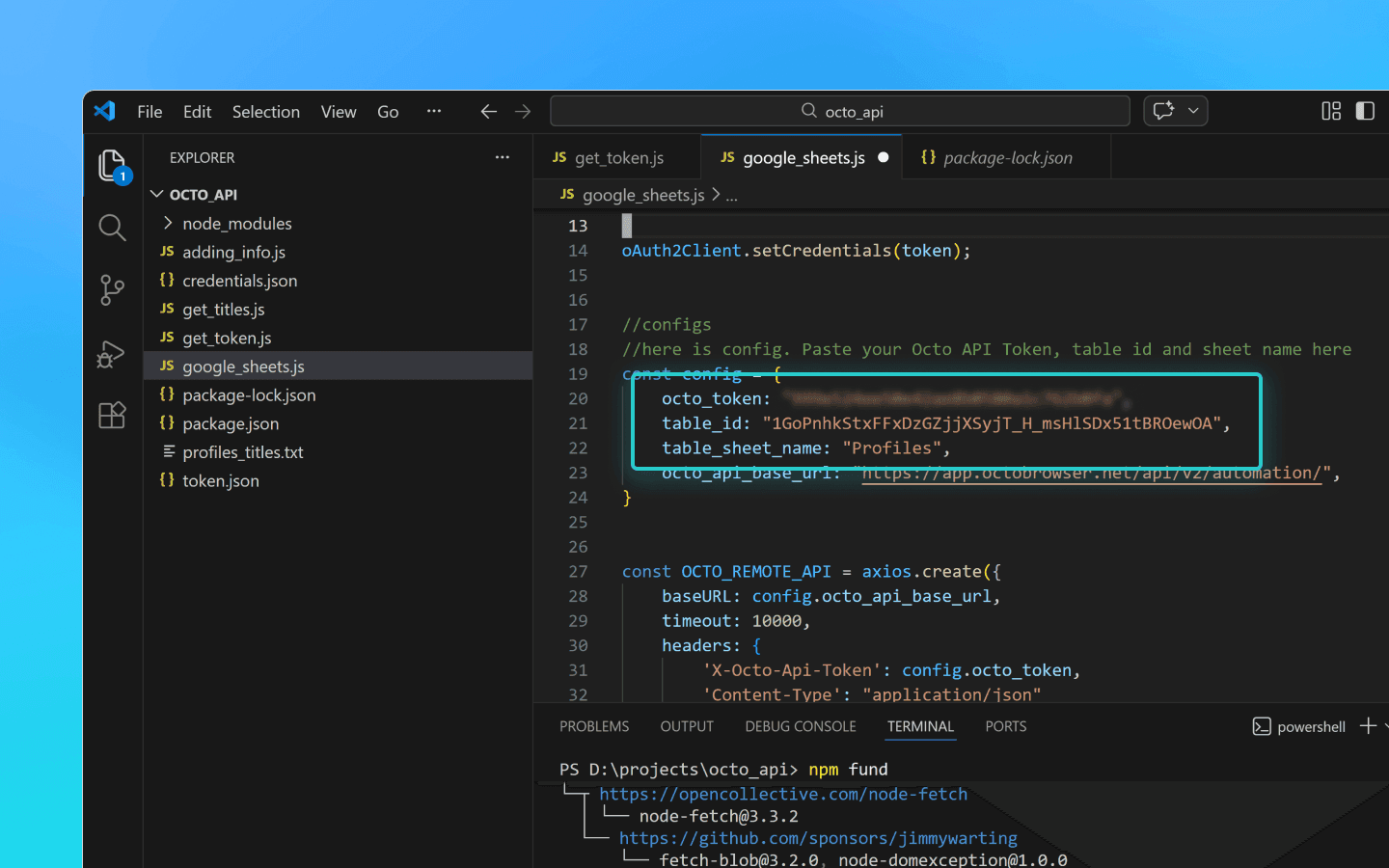
Сохраните изменения.
Добавьте в папку octo_api файлы credentials.json и token.json.
Запустите скрипт через терминал VS Code командой node google_sheets.js.
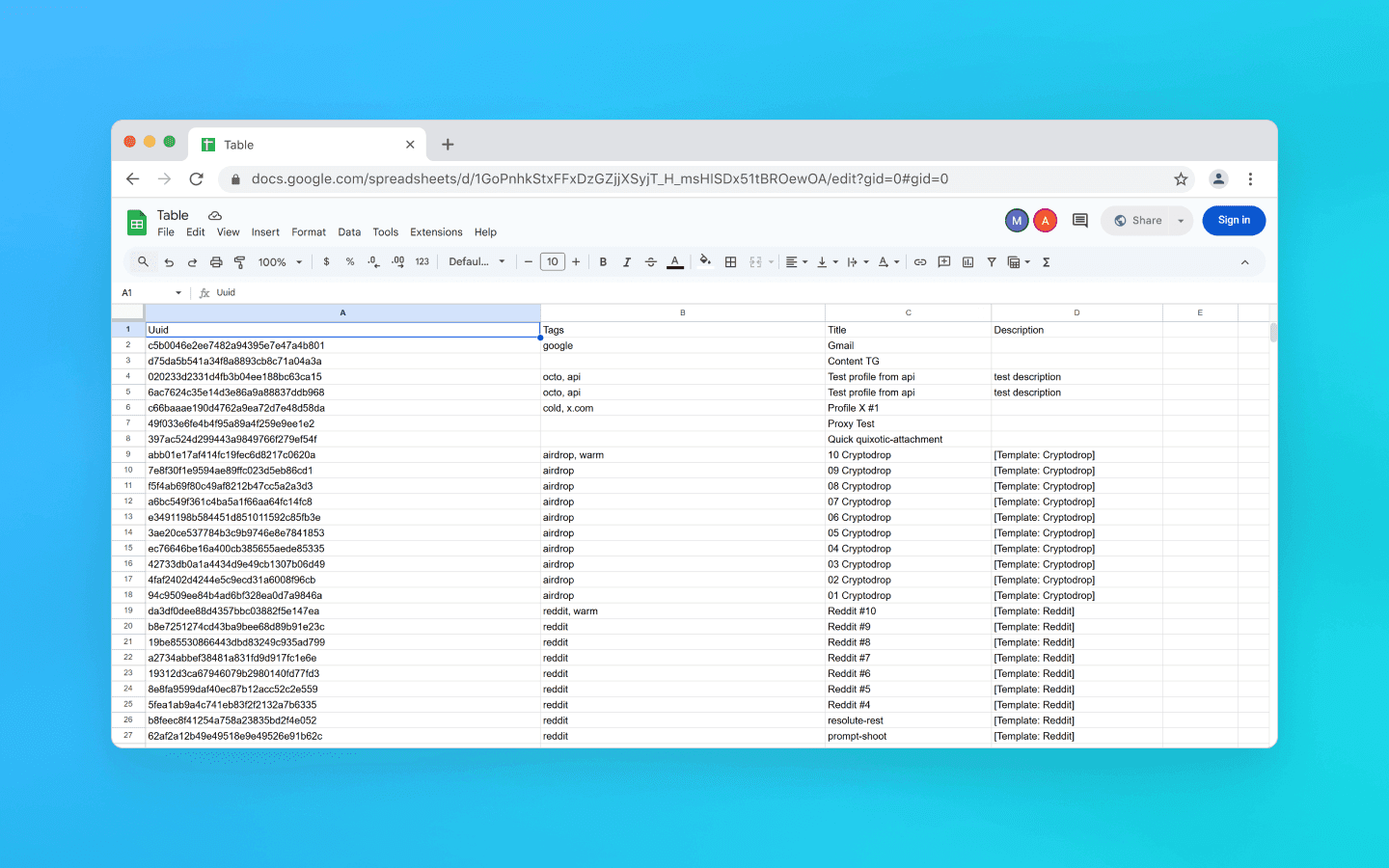
После выполнения скрипта данные будут загружены в указанную таблицу.
Сниппет для выгрузки данных профилей в Google Sheets
const axios = require('axios'); const { google } = require('googleapis'); const token = require('./token.json'); const credentials = require('./credentials.json'); const oAuth2Client = new google.auth.OAuth2( credentials.installed.client_id, credentials.installed.client_secret, credentials.installed.redirect_uris[0] ); oAuth2Client.setCredentials(token); //configuration //Paste your Octo API token, spreadsheet ID and sheet name here const config = { octo_token: "OCTO_API_TOKEN", table_id: "1pqnVysHymZSI5Lzx6odasdasAqE022fqUEf6q5LnOqAhylLSM", table_sheet_name: "Profiles", octo_api_base_url: "https://app.octobrowser.net/api/v2/automation/", } const OCTO_REMOTE_API = axios.create({ baseURL: config.octo_api_base_url, timeout: 10000, headers: { 'X-Octo-Api-Token': config.octo_token, 'Content-Type': "application/json" } }); //functions async function check_limits(response) { function parse_int_safe(value) { const parsed = parseInt(value, 10); return isNaN(parsed) ? 0 : parsed; } const ratelimit_header = response.headers.ratelimit; if (!ratelimit_header) { console.warn('No ratelimit header found!'); return; } const limit_entries = ratelimit_header.split(',').map(entry => entry.trim()); for (const entry of limit_entries) { const name_match = entry.match(/^([^;]+)/); const r_match = entry.match(/;r=(\d+)/); const t_match = entry.match(/;t=(\d+)/); if (!r_match || !t_match) { console.warn(`Invalid ratelimit format: ${entry}`); continue; } const limit_name = name_match ? name_match[1] : 'unknown_limit'; const remaining_quantity = parse_int_safe(r_match[1]); const window_seconds = parse_int_safe(t_match[1]); if (remaining_quantity < 5) { const wait_time = window_seconds + 1; console.log(`Waiting ${wait_time} seconds due to ${limit_name} limit`); await sleep(wait_time); } } } async function sleep(ms) { return new Promise(resolve => setTimeout(resolve, ms * 1000)); } async function get_total_pages() { const response = await OCTO_REMOTE_API.get('/profiles?page=0&page_len=10'); const total_profiles = response.data.total_count; const total_pages = Math.ceil(response.data.total_count / 100); console.log(`Total Profiles: ${total_profiles}\nTotal Pages: ${total_pages}`); await check_limits(response); return total_pages; } async function get_all_profiles_data(total_pages) { let profiles = []; for (let i = 0; i < total_pages; i++) { let response = await OCTO_REMOTE_API.get(`/profiles?page=${i}&page_len=100&fields=title,description,tags`); await check_limits(response); profiles.push(...response.data.data); } return profiles; } async function fill_sheet_with_data(oAuth2Client, spreadsheet_id, list_name, data) { const sheets = google.sheets({ version: 'v4', auth: oAuth2Client }); try { const sheetInfo = await sheets.spreadsheets.get({ spreadsheetId: spreadsheet_id, }); const sheetExists = sheetInfo.data.sheets.some( sheet => sheet.properties.title === list_name ); if (!sheetExists) { await sheets.spreadsheets.batchUpdate({ spreadsheetId: spreadsheet_id, resource: { requests: [{ addSheet: { properties: { title: list_name } } }] } }); console.log(`New sheet created: "${list_name}".`); } const headers = ['Uuid', 'Tags', 'Title', 'Description']; const values = data.map(item => [ item.uuid, Array.isArray(item.tags) ? item.tags.join(', ') : item.tags, item.title, item.description || '' ]); await sheets.spreadsheets.values.update({ spreadsheetId: spreadsheet_id, range: `${list_name}!A1:D1`, valueInputOption: 'RAW', resource: { values: [headers] } }); await sheets.spreadsheets.values.update({ spreadsheetId: spreadsheet_id, range: `${list_name}!A2:D${values.length + 1}`, valueInputOption: 'RAW', resource: { values: values } }); console.log(`Data successfully added to the sheet "${list_name}".`); } catch (err) { console.error('An error occurred when updating the spreadsheet:', err); throw err; } } (async () => { const total_pages = await get_total_pages(); const profiles_data = await get_all_profiles_data(total_pages); await fill_sheet_with_data(oAuth2Client, config.table_id, config.table_sheet_name, profiles_data); })()
const axios = require('axios'); const { google } = require('googleapis'); const token = require('./token.json'); const credentials = require('./credentials.json'); const oAuth2Client = new google.auth.OAuth2( credentials.installed.client_id, credentials.installed.client_secret, credentials.installed.redirect_uris[0] ); oAuth2Client.setCredentials(token); //configuration //Paste your Octo API token, spreadsheet ID and sheet name here const config = { octo_token: "OCTO_API_TOKEN", table_id: "1pqnVysHymZSI5Lzx6odasdasAqE022fqUEf6q5LnOqAhylLSM", table_sheet_name: "Profiles", octo_api_base_url: "https://app.octobrowser.net/api/v2/automation/", } const OCTO_REMOTE_API = axios.create({ baseURL: config.octo_api_base_url, timeout: 10000, headers: { 'X-Octo-Api-Token': config.octo_token, 'Content-Type': "application/json" } }); //functions async function check_limits(response) { function parse_int_safe(value) { const parsed = parseInt(value, 10); return isNaN(parsed) ? 0 : parsed; } const ratelimit_header = response.headers.ratelimit; if (!ratelimit_header) { console.warn('No ratelimit header found!'); return; } const limit_entries = ratelimit_header.split(',').map(entry => entry.trim()); for (const entry of limit_entries) { const name_match = entry.match(/^([^;]+)/); const r_match = entry.match(/;r=(\d+)/); const t_match = entry.match(/;t=(\d+)/); if (!r_match || !t_match) { console.warn(`Invalid ratelimit format: ${entry}`); continue; } const limit_name = name_match ? name_match[1] : 'unknown_limit'; const remaining_quantity = parse_int_safe(r_match[1]); const window_seconds = parse_int_safe(t_match[1]); if (remaining_quantity < 5) { const wait_time = window_seconds + 1; console.log(`Waiting ${wait_time} seconds due to ${limit_name} limit`); await sleep(wait_time); } } } async function sleep(ms) { return new Promise(resolve => setTimeout(resolve, ms * 1000)); } async function get_total_pages() { const response = await OCTO_REMOTE_API.get('/profiles?page=0&page_len=10'); const total_profiles = response.data.total_count; const total_pages = Math.ceil(response.data.total_count / 100); console.log(`Total Profiles: ${total_profiles}\nTotal Pages: ${total_pages}`); await check_limits(response); return total_pages; } async function get_all_profiles_data(total_pages) { let profiles = []; for (let i = 0; i < total_pages; i++) { let response = await OCTO_REMOTE_API.get(`/profiles?page=${i}&page_len=100&fields=title,description,tags`); await check_limits(response); profiles.push(...response.data.data); } return profiles; } async function fill_sheet_with_data(oAuth2Client, spreadsheet_id, list_name, data) { const sheets = google.sheets({ version: 'v4', auth: oAuth2Client }); try { const sheetInfo = await sheets.spreadsheets.get({ spreadsheetId: spreadsheet_id, }); const sheetExists = sheetInfo.data.sheets.some( sheet => sheet.properties.title === list_name ); if (!sheetExists) { await sheets.spreadsheets.batchUpdate({ spreadsheetId: spreadsheet_id, resource: { requests: [{ addSheet: { properties: { title: list_name } } }] } }); console.log(`New sheet created: "${list_name}".`); } const headers = ['Uuid', 'Tags', 'Title', 'Description']; const values = data.map(item => [ item.uuid, Array.isArray(item.tags) ? item.tags.join(', ') : item.tags, item.title, item.description || '' ]); await sheets.spreadsheets.values.update({ spreadsheetId: spreadsheet_id, range: `${list_name}!A1:D1`, valueInputOption: 'RAW', resource: { values: [headers] } }); await sheets.spreadsheets.values.update({ spreadsheetId: spreadsheet_id, range: `${list_name}!A2:D${values.length + 1}`, valueInputOption: 'RAW', resource: { values: values } }); console.log(`Data successfully added to the sheet "${list_name}".`); } catch (err) { console.error('An error occurred when updating the spreadsheet:', err); throw err; } } (async () => { const total_pages = await get_total_pages(); const profiles_data = await get_all_profiles_data(total_pages); await fill_sheet_with_data(oAuth2Client, config.table_id, config.table_sheet_name, profiles_data); })()
Как получить table_id
Откройте или создайте таблицу в Google Sheets.
Скопируйте ID таблицы — это часть в URL между
/d/и/edit.
Например, если ссылка: https://docs.google.com/spreadsheets/d/1GoPnhkStxFFxDzGZjjXSyjT_H_msHlSDx51tBROewOA/edit, то table_id: 1GoPnhkStxFFxDzGZjjXSyjT_H_msHlSDx51tBROewOA.
Как получить файл credentials.json
Авторизуйтесь в персональный (не состоящий в организации) Gmail-аккаунт.
Перейдите по ссылке https://console.cloud.google.com/.
Выберите из списка любую европейскую страну и нажмите Agree and continue.
Кликните Select a project, далее New project.
Введите любое название проекта и нажмите Create.
Перейдите по ссылке https://console.cloud.google.com/auth. Кликните Get Started.
Укажите любое App Name, вашу почту и нажмите Next.
Выберите External, еще раз укажите свою почту, кликните Next, активируйте чекбокс с согласием, затем нажмите Continue и Finish.
Перейдите по ссылке https://console.cloud.google.com/auth/audience.
В разделе Test Users нажмите кнопку Add Users.
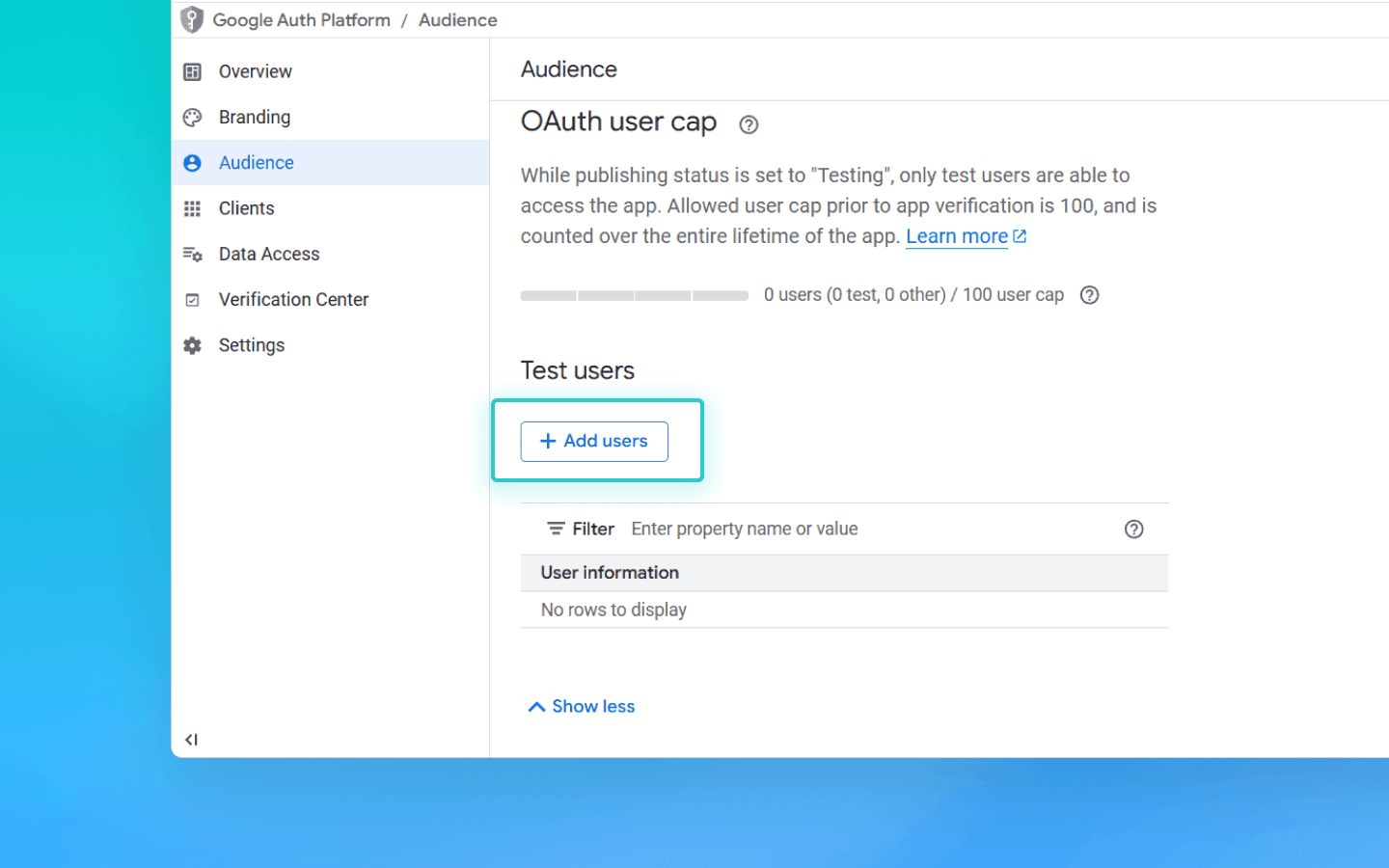
. Добавьте вашу почту и нажмите Save.
. На странице https://console.cloud.google.com/auth/overview нажмите Create OAuth Client.
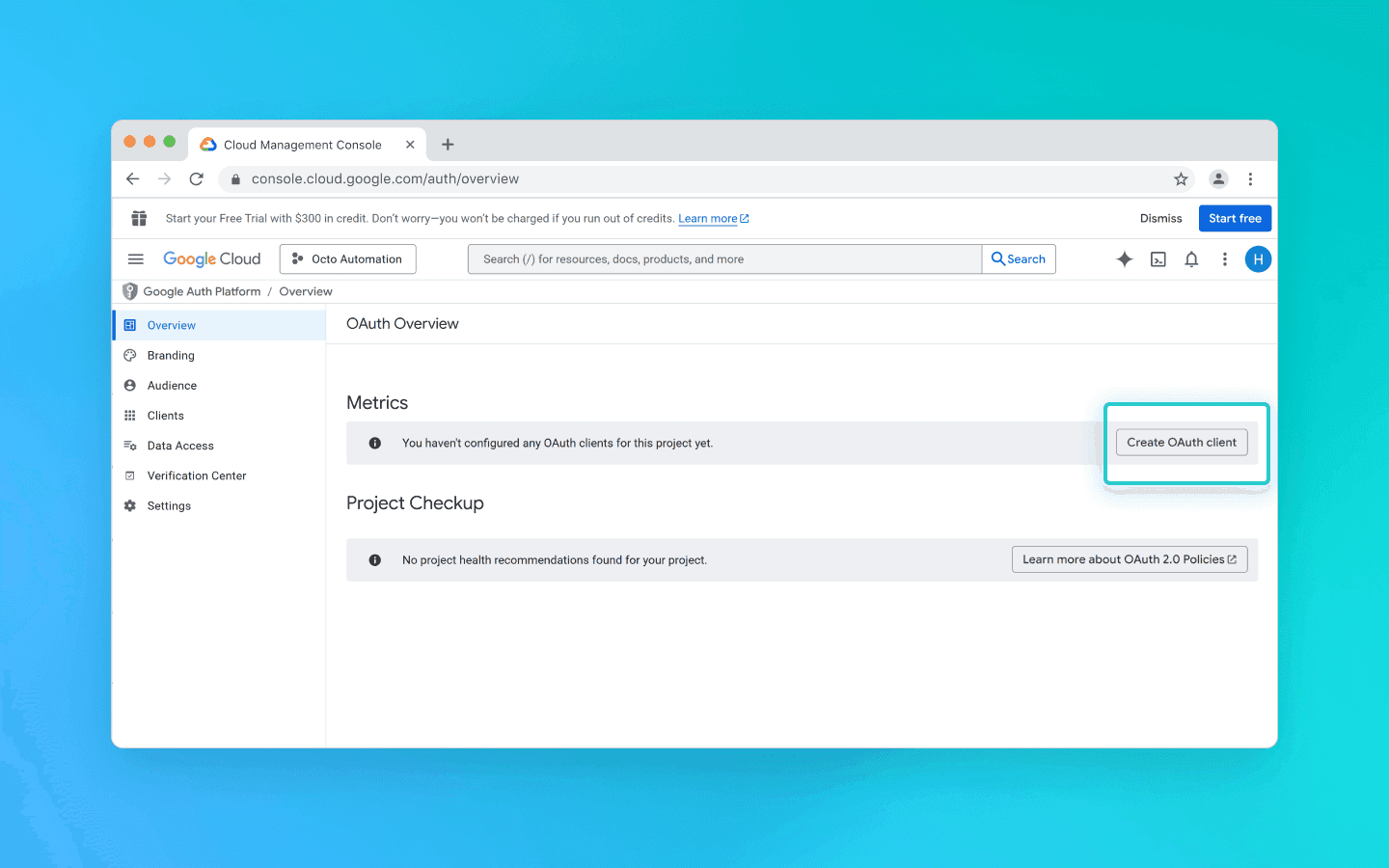
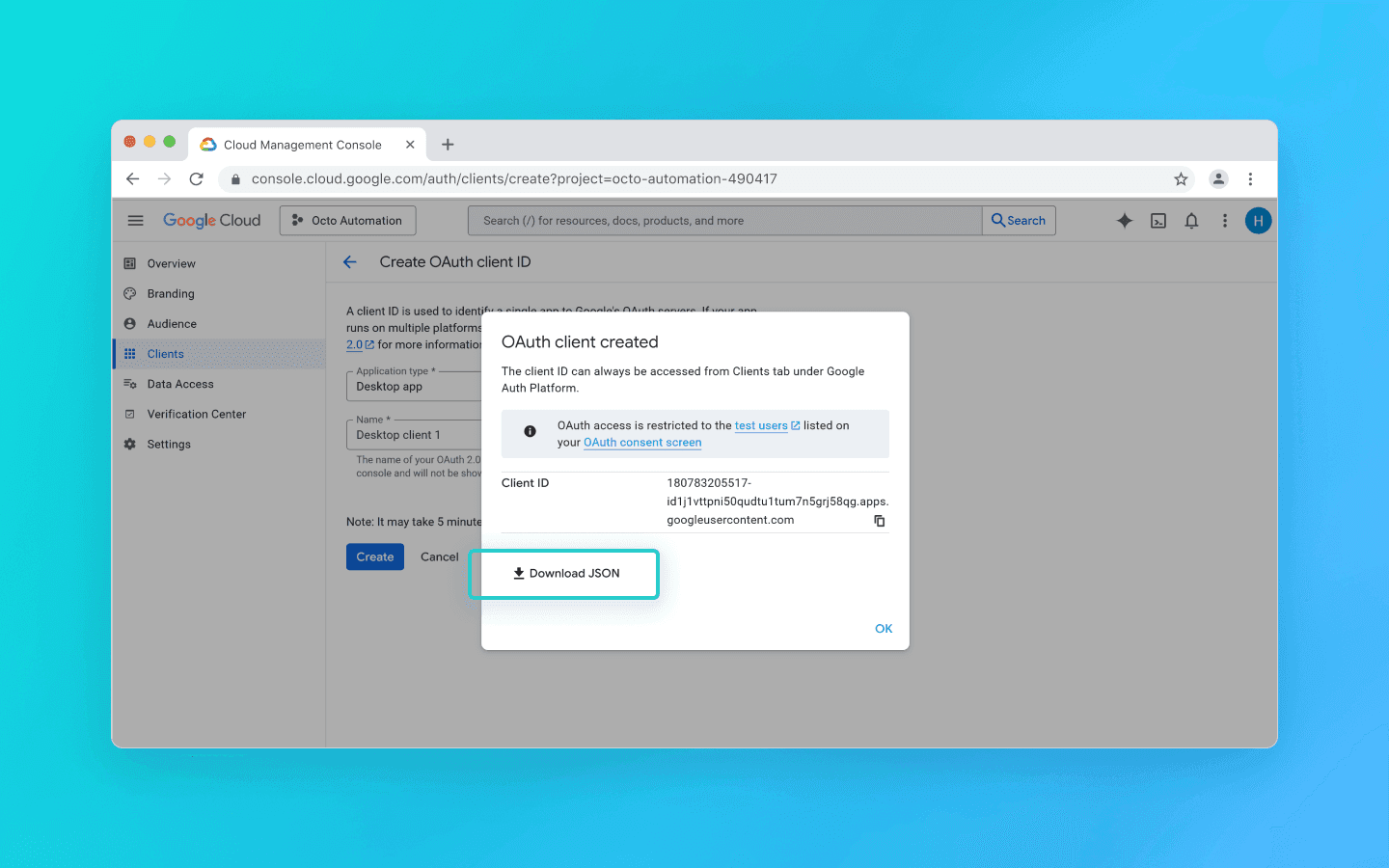
. Выберите из списка Desktop app, введите любое название и кликните на Create.
. Появится всплывающее окно, из которого нужно скачать JSON-файл.
. Перейдите по ссылке https://console.cloud.google.com/apis/library.
. В строку поиска впишите Google Sheets API.
. Выберите найденный API, затем нажмите Enable.
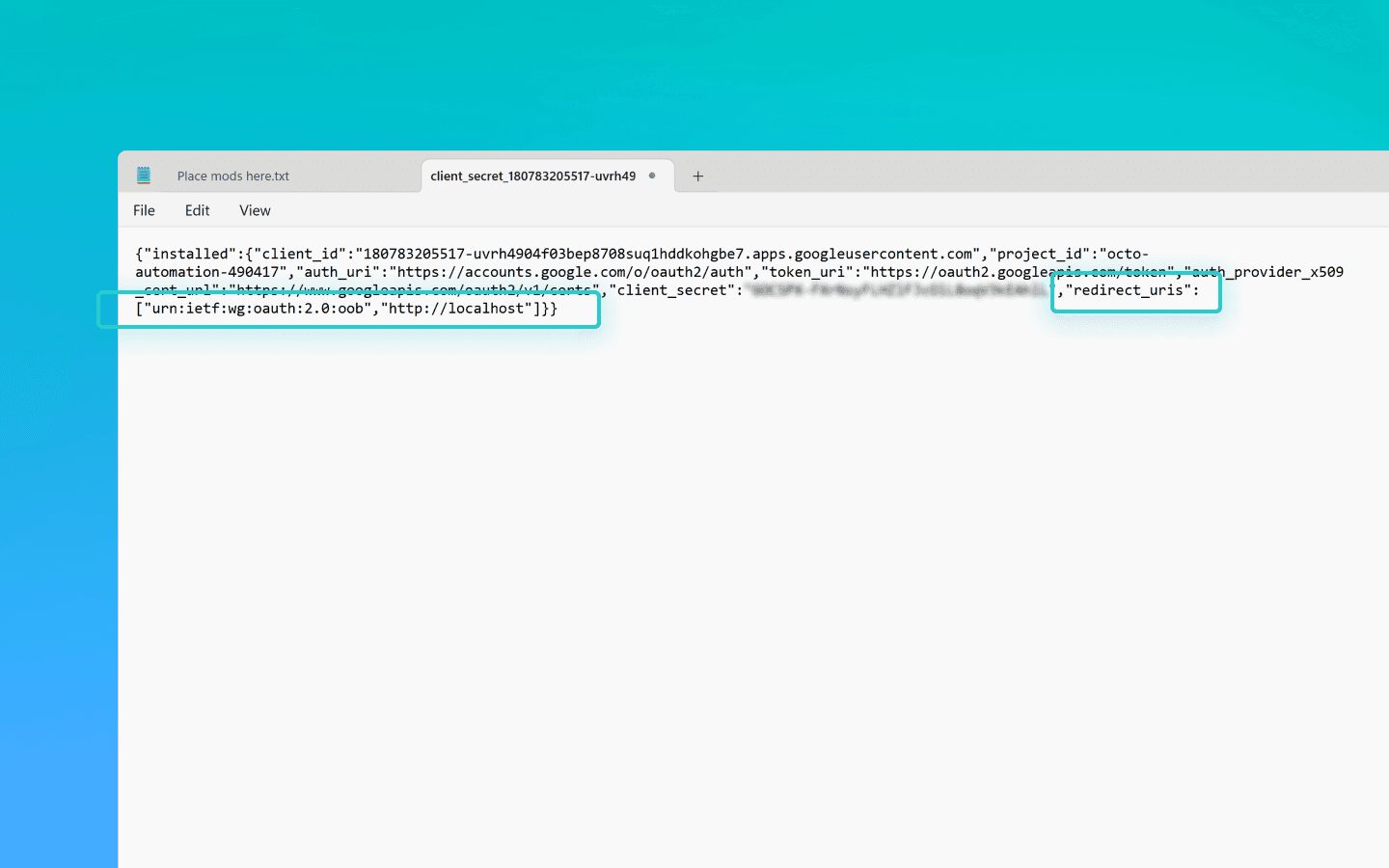
. Откройте ранее скачанный JSON-файл.
. Измените значение параметра redirect_uris с http://localhost на "redirect_uris": ["urn:ietf:wg:oauth:2.0:oob","http://localhost"].
Делайте замену аккуратно, чтобы не стереть скобки.
. Сохраните файл.
. Переименуйте файл в credentials.json.
. Добавьте его в папку octo_api.
Как получить файл token.json
Создайте в папке octo_api файл get_token.js и откройте в VS Code.
Введите в терминал VS Code команду Npm install googleapis.
Вставьте в файл get_token.js скрипт для генерации токена и сохраните.
Запустите скрипт командой node get_token.js.
Вы увидите ссылку в виде Open this URL in browser:
https://accounts.google.com/o/oauth2/…Откройте ссылку.
Войдите в свой аккаунт Google.
Нажмите кнопки согласия.
На последней странице Google покажет код авторизации.
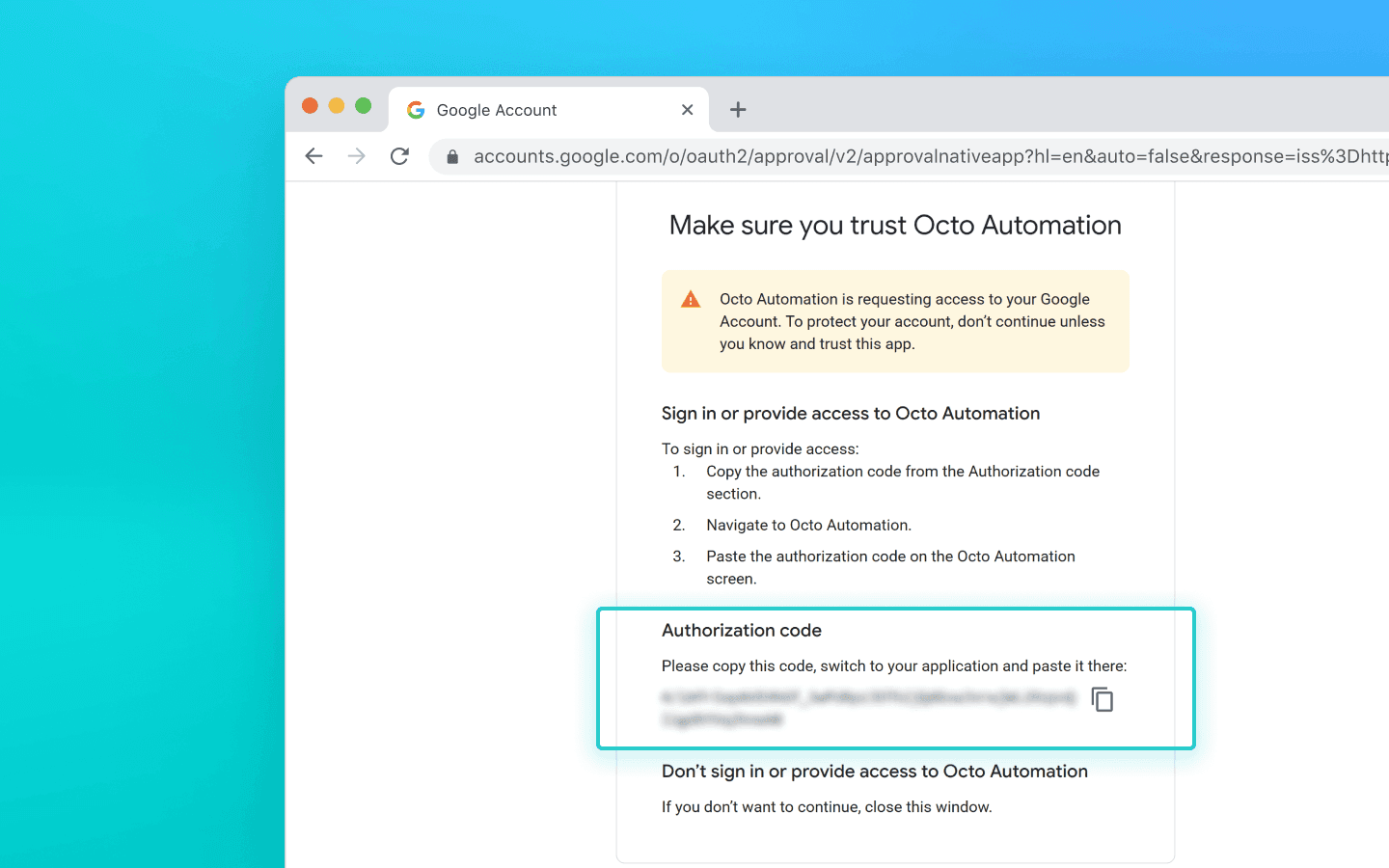
. Вставьте код в терминал и нажмите Enter.
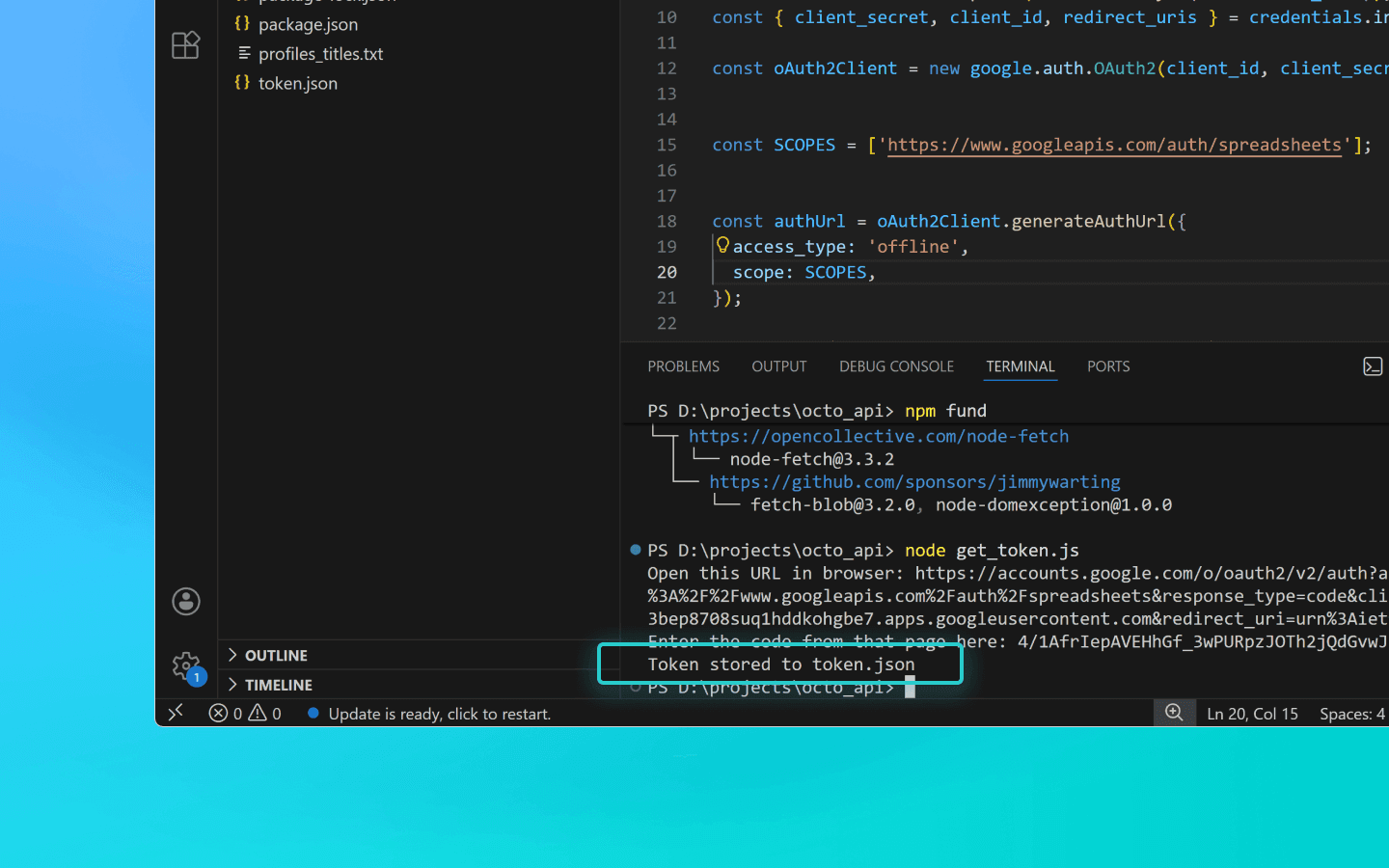
. После этого скрипт создаст файл token.json в папке, где вы запускали скрипт.
Скрипт генерации токена
const fs = require('fs'); const readline = require('readline'); const { google } = require('googleapis'); const CREDENTIALS_PATH = 'credentials.json'; const TOKEN_PATH = 'token.json'; const credentials = JSON.parse(fs.readFileSync(CREDENTIALS_PATH)); const { client_secret, client_id, redirect_uris } = credentials.installed; const oAuth2Client = new google.auth.OAuth2(client_id, client_secret, redirect_uris[0]); const SCOPES = ['https://www.googleapis.com/auth/spreadsheets']; const authUrl = oAuth2Client.generateAuthUrl({ access_type: 'offline', scope: SCOPES, }); console.log('Open this URL in browser:', authUrl); const rl = readline.createInterface({ input: process.stdin, output: process.stdout, }); rl.question('Enter the code from that page here: ', (code) => { rl.close(); oAuth2Client.getToken(code, (err, token) => { if (err) return console.error('Error retrieving access token', err); fs.writeFileSync(TOKEN_PATH, JSON.stringify(token)); console.log('Token stored to', TOKEN_PATH); }); });
const fs = require('fs'); const readline = require('readline'); const { google } = require('googleapis'); const CREDENTIALS_PATH = 'credentials.json'; const TOKEN_PATH = 'token.json'; const credentials = JSON.parse(fs.readFileSync(CREDENTIALS_PATH)); const { client_secret, client_id, redirect_uris } = credentials.installed; const oAuth2Client = new google.auth.OAuth2(client_id, client_secret, redirect_uris[0]); const SCOPES = ['https://www.googleapis.com/auth/spreadsheets']; const authUrl = oAuth2Client.generateAuthUrl({ access_type: 'offline', scope: SCOPES, }); console.log('Open this URL in browser:', authUrl); const rl = readline.createInterface({ input: process.stdin, output: process.stdout, }); rl.question('Enter the code from that page here: ', (code) => { rl.close(); oAuth2Client.getToken(code, (err, token) => { if (err) return console.error('Error retrieving access token', err); fs.writeFileSync(TOKEN_PATH, JSON.stringify(token)); console.log('Token stored to', TOKEN_PATH); }); });
Заключение
В примерах в статье мы использовали язык программирования Node.js, полезные сниппеты на других языках вы найдете в документации.
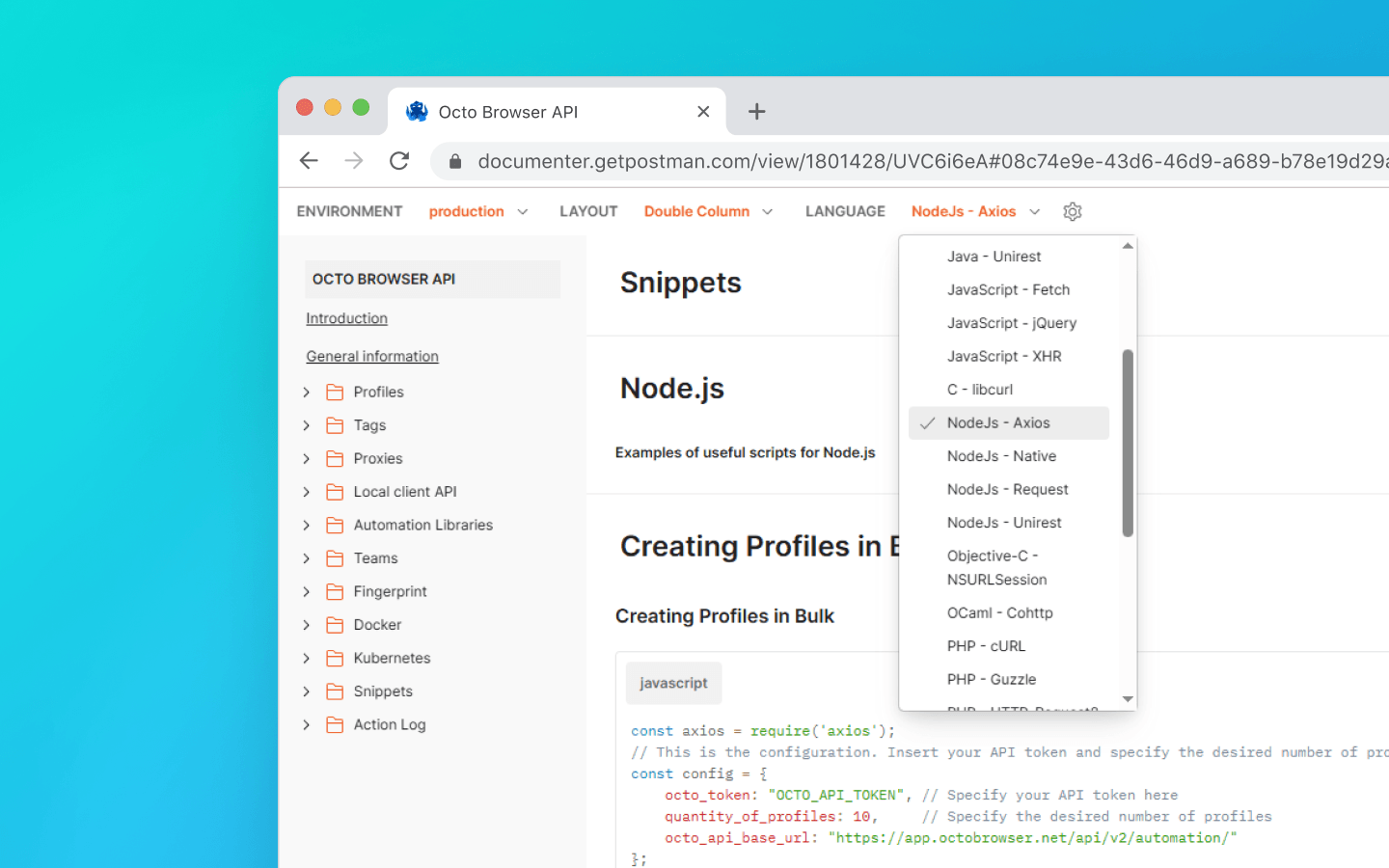
В этой статье мы рассмотрели:
как подготовить среду разработки;
как получить API-токен Octo Browser;
как получить UUID расширения;
как получить название профилей через API и добавить в текстовый документ;
как массово добавлять расширения, закладки и стартовые страницы в существующие профили;
как выгрузить данные профилей в Google Sheets.
Если у вас остались вопросы или вы не нашли нужного примера в документации — обращайтесь в службу поддержки в Telegram, чат на сайте или через виджет в клиенте.
Управляйте любым количеством аккаунтов без банов, рутины и лишних расходов.
Хотите попробовать Octo Browser со скидкой?
По промокоду OCTOBLOG получите 30% скидку на любую подписку. Предложение действительно только для новых пользователей.
Подготовка к работе
Скачайте и установите VS Code.
Скачайте и установите node.js.
Создайте папку в удобном для вас месте и назовите ее, к примеру, octo_api.
Откройте эту папку в VS Code.
Создайте файл с расширением .js. Лучше называть его по имени действия, которое будет выполнять код, чтобы не запутаться. Например, get_titles.js.
Откройте терминал и выполните команду npm install axios, чтобы установить зависимость для NodeJS.
Если VS Code выдает ошибку — откройте от имени администратора Window PowerShell, введите там команду Set-ExecutionPolicy -Scope CurrentUser -ExecutionPolicy RemoteSigned и подтвердите. Затем повторите предыдущий пункт.
Запустите клиент Octo Browser.
Где найти API-токен
Чтобы взаимодействовать с клиентом Octo Browser через API, вам потребуется API-токен. Он доступен пользователям с подпиской Base и выше. API-токен отображается в клиенте Octo Browser в настройках мастер-аккаунта на вкладке «Дополнительные» (другие члены команды API-токен не видят).
Ограничения API (Rate Limits)
Стоит учитывать, что API Octo Browser имеет ограничения на количество запросов. В приведенных сниппетах используется функция check_limits, которая проверяет заголовки API-лимитов и автоматически делает паузу, если осталось мало запросов. Это помогает избежать ошибок 429 Too Many Requests.
При запросах к Public API тратится 1 RPM и 1 RPH за один запрос. При запросах к Local API RPM/RPH не снимаются, кроме запросов POST Start Profile (1 RPM и 1 RPH) и POST One-time profile (4 RPM и 4 RPH).
Точное число профилей, которые вы можете запустить/cоздать/удалить на определенной подписке, полностью зависит от ваших скриптов и их логики. Вы можете самостоятельно рассчитать необходимое количество запросов для вашей схемы работы, исходя из информации о том, какие запросы влияют на количество RPH и RPM.
Некоторые API-запросы могут требовать более сложной обработки, а значит, их выполнение может стоить больше, чем один запрос из лимитов. Это необходимо для балансировки нагрузки на сервер и оптимальной производительности для всех пользователей.
RPM (Requests Per Minute) — запросы в минуту.
RPH (Requests Per Hour) — запросы в час.
Значения лимитов зависят от вашей подписки.
С подготовкой разобрались, переходим к полезным сниппетам.
Получение имен профилей и сохранение их в .txt-файл
Этот сниппет будет полезен, когда нужно быстро собрать список всех созданных профилей в одном месте. Помогает упростить учет профилей, проверку их фактического наличия и дальнейшую работу с ними.
В папке octo_api создайте файл get_titles.js в octo_api и скопируйте в него код сниппета.
В поле octo_token вместо OCTO_API_TOKEN вставьте свой API-токен из клиента Octo Browser.
Сохраните изменения в файле.
Введите в терминал команду node get_titles.js и запустите скрипт.
Названия профилей будут сохранены построчно в файл profiles_titles.txt в папке, где находится скрипт.
Сниппет для сохранения имен профилей в .txt-файл
const fs = require('fs').promises; const axios = require('axios'); //This is the configuration. Specify your Octo API Token here const config = { octo_token: "OCTO_API_TOKEN", // Specify your API token here octo_api_base_url: "https://app.octobrowser.net/api/v2/automation/", } const OCTO_REMOTE_API = axios.create({ baseURL: config.octo_api_base_url, timeout: 10000, headers: { 'X-Octo-Api-Token': config.octo_token, 'Content-Type': "application/json" } }); async function sleep(ms) { return new Promise(resolve => setTimeout(resolve, ms * 1000)); } async function check_limits(response) { function parse_int_safe(value) { const parsed = parseInt(value, 10); return isNaN(parsed) ? 0 : parsed; } const ratelimit_header = response.headers.ratelimit; if (!ratelimit_header) { console.warn('No ratelimit header found!'); return; } const limit_entries = ratelimit_header.split(',').map(entry => entry.trim()); for (const entry of limit_entries) { const name_match = entry.match(/^([^;]+)/); const r_match = entry.match(/;r=(\d+)/); const t_match = entry.match(/;t=(\d+)/); if (!r_match || !t_match) { console.warn(`Invalid ratelimit format: ${entry}`); continue; } const limit_name = name_match ? name_match[1] : 'unknown_limit'; const remaining_quantity = parse_int_safe(r_match[1]); const window_seconds = parse_int_safe(t_match[1]); if (remaining_quantity < 5) { const wait_time = window_seconds + 1; console.log(`Waiting ${wait_time} seconds due to ${limit_name} limit`); await sleep(wait_time); } } } async function get_total_pages() { const response = await OCTO_REMOTE_API.get('/profiles?page=0&page_len=10'); const total_profiles = response.data.total_count; const total_pages = Math.ceil(response.data.total_count / 100); console.log(`Total Profiles: ${total_profiles}\nTotal Pages: ${total_pages}`); await check_limits(response); return total_pages; } async function get_all_profiles_titles(total_pages) { let profiles = []; for (let i = 0; i < total_pages; i++) { let response = await OCTO_REMOTE_API.get(`/profiles?page=${i}&page_len=100&fields=title`); await check_limits(response); profiles.push(...response.data.data); } return profiles; } async function write_file(profiles) { const titles = profiles.map(item => item.title).filter(Boolean); try { await fs.writeFile('./profiles_titles.txt', titles.join('\n'), 'utf-8'); } catch (error) { console.error(`ERROR: While trying writing the file some error occured:\n${error}`); } } (async () => { const total_pages = await get_total_pages(); const profiles = await get_all_profiles_titles(total_pages); await write_file(profiles); console.log('Finished. Check profiles_titles.txt file...'); })()
Добавление расширений / стартовых страниц / закладок в профили
С помощью этой автоматизации вы сможете быстро привести конфигурацию профилей к единому виду и не добавлять одинаковые параметры вручную.
Для добавления расширений вам потребуются их UUID:
Откройте профиль с подключенным расширением.
В адресной строке профиля введите chrome://extensions/ и нажмите Enter.
На нужном расширении нажмите кнопку «Сведения» (Details).
Внизу страницы скопируйте UUID расширения вместе с версией.
Cпособы для получения UUID с помощью API вы можете найти в документации.
Затем вам нужно отредактировать код:
Создайте файл adding_info.js в папке octo_api.
Скопируйте в него сниппет.
В поле octo_token вставьте API-токен.
В поле extensions (расширения) добавьте UUID необходимых расширений.
В поле bookmarks (закладки) добавьте name — название закладки, URL — адрес сайта.
В поле start_pages (стартовые страницы) добавьте URL сайтов, которые хотите открывать автоматически при запуске профиля.
Если вам необходимо добавить не все, а только extensions/bookmarks/start_pages, — вы можете удалить ненужные вам параметры из сниппета:
data: {

        extensions: ["nkbihfbeogaeaoehlefnkodbefgpgknn@12.17.2"], //удаляем, если не нужно добавлять расширения

        bookmarks: [

            { name: "google", url: "https://google.com" },

            { name: "facebook", url: "https://facebook.com" }

        ],//удаляем, если не нужны закладки

        start_pages: ["https://google.com", "https://facebook.com"] //удаляем, если не нужны стартовые страницы

    }
Сохраните файл adding_info.js.
Запустите файл с помощью команды node adding_info.js.
Нужные расширения, закладки и стартовые страницы будут добавлены во все ваши профили. Если изменения требуются для отдельных профилей — смотрите пример в документации.
Перед запуском скрипта убедитесь, что профили, в которые необходимо добавить данные, не запущены. Запущенные профили обновлены не будут.
Сниппет для добавления расширений, стартовых страниц и закладок в профили
const axios = require('axios');
// This is the configuration. Specify your Octo API Token here; you can modify this for your personal needs
const config = {
    octo_token: "OCTO_API_TOKEN", // Specify your API token here
    octo_api_base_url: "https://app.octobrowser.net/api/v2/automation/",
    data: {
        "extensions": ["aapfglkgnhmiaabhiijkjpfmhllaodgp@4.2.3"],
        "bookmarks": [
            { "name": "google", "url": "https://google.com" },
            { "name": "facebook", "url": "https://facebook.com" }
        ],
        "start_pages": ["https://google.com", "https://facebook.com"]
    }
}
const OCTO_REMOTE_API = axios.create({
    baseURL: config.octo_api_base_url,
    timeout: 10000,
    headers: {
        'X-Octo-Api-Token': config.octo_token,
        'Content-Type': "application/json"
    }
});
//functions
async function sleep(ms) {
    return new Promise(resolve => setTimeout(resolve, ms * 1000));
}
async function check_limits(response) {
    function parse_int_safe(value) {
        const parsed = parseInt(value, 10);
        return isNaN(parsed) ? 0 : parsed;
    }
    const ratelimit_header = response.headers.ratelimit;
    if (!ratelimit_header) {
        console.warn('No ratelimit header found!');
        return;
    }
    const limit_entries = ratelimit_header.split(',').map(entry => entry.trim());
    for (const entry of limit_entries) {
        const name_match = entry.match(/^([^;]+)/);
        const r_match = entry.match(/;r=(\d+)/);
        const t_match = entry.match(/;t=(\d+)/);
        if (!r_match || !t_match) {
            console.warn(`Invalid ratelimit format: ${entry}`);
            continue;
        }
        const limit_name = name_match ? name_match[1] : 'unknown_limit';
        const remaining_quantity = parse_int_safe(r_match[1]);
        const window_seconds = parse_int_safe(t_match[1]);
        if (remaining_quantity < 5) {
            const wait_time = window_seconds + 1;
            console.log(`Waiting ${wait_time} seconds due to ${limit_name} limit`);
            await sleep(wait_time);
        }
    }
}
async function get_total_profiles() {
    const response = await OCTO_REMOTE_API.get('/profiles?page=0&page_len=10');
    const total_profiles = response.data.total_count;
    const total_pages = Math.ceil(response.data.total_count / 100);
    console.log(`Total Profiles: ${total_profiles}\nTotal Pages: ${total_pages}`);
    await check_limits(response);
    return total_pages;
}
async function get_all_profiles_uuids(total_pages) {
    let profiles = [];
    for (let i = 0; i < total_pages; i++) {
        let response = await OCTO_REMOTE_API.get(`/profiles?page=${i}&page_len=100`);
        await check_limits(response);
        profiles.push(...response.data.data);
    }
    return profiles;
}
async function patch_all_profiles(profiles) {
    let updated = [];
    let not_updated = [];
    for (let profile of profiles) {
        try {
            const response = await OCTO_REMOTE_API.patch(`/profiles/${profile.uuid}`, config.data);
            await check_limits(response);
            updated.push(profile);
            console.log(`Successfully updated ${profile.uuid}`);
        } catch (error) {
            not_updated.push(profile);
            console.error(`ERROR: Can't patch profile ${profile.uuid}`);
        }
    }
    return [updated, not_updated];
}
(async () => {
    const total = await get_total_profiles();
    const profiles = await get_all_profiles_uuids(total);
    const [updated, not_updated] = await patch_all_profiles(profiles);
    console.log(`Finished process:\nUpdated: ${updated.length}\nNot updated: ${not_updated.length}`);
})();
Выгрузка данных профилей в Google Sheets
Данные ваших профилей можно выгрузить в таблицу. Так удобнее структурировать информацию при работе, сортировать и анализировать данные. Можно выгрузить в следующие параметры профиля:
UUID,
теги,
имя,
описание.
Создайте файл google_sheets.js в папке octo_api.
Добавьте код сниппета в файл.
Заполните поле octo_token — API-токен можно найти в клиенте Octo.
Заполните поле table_id — это ID таблицы Google Sheets.
Заполните поле table_sheet_name — это название листа внутри таблицы Google Sheets, куда вам нужна выгрузка.
Сохраните изменения.
Добавьте в папку octo_api файлы credentials.json и token.json.
Запустите скрипт через терминал VS Code командой node google_sheets.js.
После выполнения скрипта данные будут загружены в указанную таблицу.
Сниппет для выгрузки данных профилей в Google Sheets
const axios = require('axios');
const { google } = require('googleapis');
const token = require('./token.json');
const credentials = require('./credentials.json');


const oAuth2Client = new google.auth.OAuth2(
    credentials.installed.client_id,
    credentials.installed.client_secret,
    credentials.installed.redirect_uris[0]
);


oAuth2Client.setCredentials(token);


//configuration
//Paste your Octo API token, spreadsheet ID and sheet name here
const config = {
    octo_token: "OCTO_API_TOKEN",
    table_id: "1pqnVysHymZSI5Lzx6odasdasAqE022fqUEf6q5LnOqAhylLSM",
    table_sheet_name: "Profiles",
    octo_api_base_url: "https://app.octobrowser.net/api/v2/automation/",
}


const OCTO_REMOTE_API = axios.create({
    baseURL: config.octo_api_base_url,
    timeout: 10000,
    headers: {
        'X-Octo-Api-Token': config.octo_token,
        'Content-Type': "application/json"
    }
});


//functions
async function check_limits(response) {
    function parse_int_safe(value) {
        const parsed = parseInt(value, 10);
        return isNaN(parsed) ? 0 : parsed;
    }
    const ratelimit_header = response.headers.ratelimit;
    if (!ratelimit_header) {
        console.warn('No ratelimit header found!');
        return;
    }
    const limit_entries = ratelimit_header.split(',').map(entry => entry.trim());
    for (const entry of limit_entries) {
        const name_match = entry.match(/^([^;]+)/);
        const r_match = entry.match(/;r=(\d+)/);
        const t_match = entry.match(/;t=(\d+)/);
        if (!r_match || !t_match) {
            console.warn(`Invalid ratelimit format: ${entry}`);
            continue;
        }
        const limit_name = name_match ? name_match[1] : 'unknown_limit';
        const remaining_quantity = parse_int_safe(r_match[1]);
        const window_seconds = parse_int_safe(t_match[1]);
        if (remaining_quantity < 5) {
            const wait_time = window_seconds + 1;
            console.log(`Waiting ${wait_time} seconds due to ${limit_name} limit`);
            await sleep(wait_time);
        }
    }
}


async function sleep(ms) {
    return new Promise(resolve => setTimeout(resolve, ms * 1000));
}


async function get_total_pages() {
    const response = await OCTO_REMOTE_API.get('/profiles?page=0&page_len=10');
    const total_profiles = response.data.total_count;
    const total_pages = Math.ceil(response.data.total_count / 100);
    console.log(`Total Profiles: ${total_profiles}\nTotal Pages: ${total_pages}`);
    await check_limits(response);
    return total_pages;
}


async function get_all_profiles_data(total_pages) {
    let profiles = [];
    for (let i = 0; i < total_pages; i++) {
        let response = await OCTO_REMOTE_API.get(`/profiles?page=${i}&page_len=100&fields=title,description,tags`);
        await check_limits(response);
        profiles.push(...response.data.data);
    }
    return profiles;
}


async function fill_sheet_with_data(oAuth2Client, spreadsheet_id, list_name, data) {
    const sheets = google.sheets({ version: 'v4', auth: oAuth2Client });


    try {
        const sheetInfo = await sheets.spreadsheets.get({
            spreadsheetId: spreadsheet_id,
        });


        const sheetExists = sheetInfo.data.sheets.some(
            sheet => sheet.properties.title === list_name
        );


        if (!sheetExists) {
            await sheets.spreadsheets.batchUpdate({
                spreadsheetId: spreadsheet_id,
                resource: {
                    requests: [{
                        addSheet: {
                            properties: {
                                title: list_name
                            }
                        }
                    }]
                }
            });
            console.log(`New sheet created: "${list_name}".`);
        }


        const headers = ['Uuid', 'Tags', 'Title', 'Description'];
        const values = data.map(item => [
            item.uuid,
            Array.isArray(item.tags) ? item.tags.join(', ') : item.tags,
            item.title,
            item.description || ''
        ]);


        await sheets.spreadsheets.values.update({
            spreadsheetId: spreadsheet_id,
            range: `${list_name}!A1:D1`,
            valueInputOption: 'RAW',
            resource: {
                values: [headers]
            }
        });


        await sheets.spreadsheets.values.update({
            spreadsheetId: spreadsheet_id,
            range: `${list_name}!A2:D${values.length + 1}`,
            valueInputOption: 'RAW',
            resource: {
                values: values
            }
        });


        console.log(`Data successfully added to the sheet "${list_name}".`);


    } catch (err) {
        console.error('An error occurred when updating the spreadsheet:', err);
        throw err;
    }
}


(async () => {
    const total_pages = await get_total_pages();
    const profiles_data = await get_all_profiles_data(total_pages);
    await fill_sheet_with_data(oAuth2Client, config.table_id, config.table_sheet_name, profiles_data);
})()
Как получить table_id
Откройте или создайте таблицу в Google Sheets.
Скопируйте ID таблицы — это часть в URL между
/d/и/edit.
Например, если ссылка: https://docs.google.com/spreadsheets/d/1GoPnhkStxFFxDzGZjjXSyjT_H_msHlSDx51tBROewOA/edit, то table_id: 1GoPnhkStxFFxDzGZjjXSyjT_H_msHlSDx51tBROewOA.
Как получить файл credentials.json
Авторизуйтесь в персональный (не состоящий в организации) Gmail-аккаунт.
Перейдите по ссылке https://console.cloud.google.com/.
Выберите из списка любую европейскую страну и нажмите Agree and continue.
Кликните Select a project, далее New project.
Введите любое название проекта и нажмите Create.
Перейдите по ссылке https://console.cloud.google.com/auth. Кликните Get Started.
Укажите любое App Name, вашу почту и нажмите Next.
Выберите External, еще раз укажите свою почту, кликните Next, активируйте чекбокс с согласием, затем нажмите Continue и Finish.
Перейдите по ссылке https://console.cloud.google.com/auth/audience.
В разделе Test Users нажмите кнопку Add Users.
. Добавьте вашу почту и нажмите Save.
. На странице https://console.cloud.google.com/auth/overview нажмите Create OAuth Client.
. Выберите из списка Desktop app, введите любое название и кликните на Create.
. Появится всплывающее окно, из которого нужно скачать JSON-файл.
. Перейдите по ссылке https://console.cloud.google.com/apis/library.
. В строку поиска впишите Google Sheets API.
. Выберите найденный API, затем нажмите Enable.
. Откройте ранее скачанный JSON-файл.
. Измените значение параметра redirect_uris с http://localhost на "redirect_uris": ["urn:ietf:wg:oauth:2.0:oob","http://localhost"].
Делайте замену аккуратно, чтобы не стереть скобки.
. Сохраните файл.
. Переименуйте файл в credentials.json.
. Добавьте его в папку octo_api.
Как получить файл token.json
Создайте в папке octo_api файл get_token.js и откройте в VS Code.
Введите в терминал VS Code команду Npm install googleapis.
Вставьте в файл get_token.js скрипт для генерации токена и сохраните.
Запустите скрипт командой node get_token.js.
Вы увидите ссылку в виде Open this URL in browser:
https://accounts.google.com/o/oauth2/…Откройте ссылку.
Войдите в свой аккаунт Google.
Нажмите кнопки согласия.
На последней странице Google покажет код авторизации.
. Вставьте код в терминал и нажмите Enter.
. После этого скрипт создаст файл token.json в папке, где вы запускали скрипт.
Скрипт генерации токена
const fs = require('fs');
const readline = require('readline');
const { google } = require('googleapis');

const CREDENTIALS_PATH = 'credentials.json';
const TOKEN_PATH = 'token.json';


const credentials = JSON.parse(fs.readFileSync(CREDENTIALS_PATH));
const { client_secret, client_id, redirect_uris } = credentials.installed;

const oAuth2Client = new google.auth.OAuth2(client_id, client_secret, redirect_uris[0]);


const SCOPES = ['https://www.googleapis.com/auth/spreadsheets'];


const authUrl = oAuth2Client.generateAuthUrl({
  access_type: 'offline',
  scope: SCOPES,
});

console.log('Open this URL in browser:', authUrl);

const rl = readline.createInterface({
  input: process.stdin,
  output: process.stdout,
});

rl.question('Enter the code from that page here: ', (code) => {
  rl.close();
  oAuth2Client.getToken(code, (err, token) => {
    if (err) return console.error('Error retrieving access token', err);
    fs.writeFileSync(TOKEN_PATH, JSON.stringify(token));
    console.log('Token stored to', TOKEN_PATH);
  });
});
Заключение
В примерах в статье мы использовали язык программирования Node.js, полезные сниппеты на других языках вы найдете в документации.
В этой статье мы рассмотрели:
как подготовить среду разработки;
как получить API-токен Octo Browser;
как получить UUID расширения;
как получить название профилей через API и добавить в текстовый документ;
как массово добавлять расширения, закладки и стартовые страницы в существующие профили;
как выгрузить данные профилей в Google Sheets.
Если у вас остались вопросы или вы не нашли нужного примера в документации — обращайтесь в службу поддержки в Telegram, чат на сайте или через виджет в клиенте.
Следите за последними новостями Octo Browser
Нажимая кнопку, вы соглашаетесь с нашей политикой конфиденциальности.
Следите за последними новостями Octo Browser
Нажимая кнопку, вы соглашаетесь с нашей политикой конфиденциальности.
Следите за последними новостями Octo Browser
Нажимая кнопку, вы соглашаетесь с нашей политикой конфиденциальности.

Присоединяйтесь к Octo Browser сейчас
Вы можете обращаться за помощью к нашим специалистам службы поддержки в чате в любое время.
Присоединяйтесь к Octo Browser сейчас
Вы можете обращаться за помощью к нашим специалистам службы поддержки в чате в любое время.
Присоединяйтесь к Octo Browser сейчас
Вы можете обращаться за помощью к нашим специалистам службы поддержки в чате в любое время.