VPN in Octo Browser: how it differs from proxies
VPNs and proxies solve a similar practical task: they allow a profile to access the Internet through a different IP address. Technically, however, they work differently, which affects the traffic route and the properties of the connection itself. In this article, we'll look at how both options work, what the website and the user's network can see, how to check that a VPN is working, and how to configure it for a profile in Octo Browser.
Contents
Proxies and VPNs connect to the network differently
Proxies are more commonly used by default when working with profiles. VPNs are usually seen as a tool for other tasks — for example, accessing a service or hiding traffic from your ISP. But the key difference between them is not their intended use, but how they are integrated into the network connection. The other differences follow from this.
A proxy acts as an intermediary at the connection level. The browser does not connect directly to the website: it connects to the proxy server, which then establishes a separate connection to the requested address. As a result, there are two connections between the browser and the website: “browser — proxy” and “proxy — website”, linked together on the proxy server.
A full VPN tunnel operates at the IP packet level. The user's computer establishes the connection to the website itself, but its packets are not sent directly to the Internet: they are encrypted, travel through the tunnel to an exit node, and from there enter the regular network. The website sees the IP address of the exit node, but the connection itself does not terminate there — the packets are forwarded to the user's computer.
A proxy changes which side connects to the website; a VPN changes the route the connection takes.
IP address and connection parameters
An IP address contains a lot of information about a connection. It can indicate who the address belongs to: a residential ISP, mobile operator, hosting provider, or VPN service. The IP ranges of major VPN providers are known and tracked by specialized databases, so in many cases, a website can identify VPN use based on the IP address alone.
However, the reputation of an IP address and the way the connection is established are two different sources of information. The first indicates which network the address is associated with. The second shows how the connection itself is organized and whether there is an intermediary server along the route where the connection terminates and is then re-established. This distinction is what we'll focus on next.
When using a proxy, the connection visible to the website starts at the proxy server, not at the user's device. Its network parameters therefore describe the “proxy — website” segment — for example, connection establishment time and latency between these two points. At the same time, the time it takes for a browser request to reach the server and return depends on the entire route, including the “user — proxy” segment.
Comparing these metrics can reveal a characteristic discrepancy. A connection to the server may be established with latency corresponding to a nearby client, while browser requests travel a significantly longer route. This check does not require information about the IP address's reputation: the signal is the mismatch between the connection parameters themselves. The type of proxy used does not fundamentally change this pattern — a residential proxy also establishes a separate connection to the website.
With a VPN tunnel, the picture is different. The user's device establishes an end-to-end connection with the website, while the exit node simply forwards the packets. Therefore, both connection establishment time and request latency depend on the full route to the user. The characteristic discrepancy that occurs when using a proxy should not appear here.
How a VPN protects profile traffic
So far, we've looked at which connection characteristics a website can analyze. From the user's network perspective, the difference between a proxy and a VPN is also significant.
A regular proxy does not encrypt traffic; it simply forwards it. Everything between you and the proxy server — your home router, office network, public Wi-Fi, ISP, etc. — can see which websites you connect to. The page contents are protected by HTTPS, but the list of addresses remains visible.
A VPN works differently: profile traffic enters an encrypted tunnel and then exits to the Internet through an exit node. On the segment before the exit node, an external observer sees encrypted traffic with the VPN server rather than individual connections between the profile and the destination websites.
Octo Browser supports WireGuard and AmneziaWG. AmneziaWG additionally masks characteristic features of VPN traffic, making this type of connection harder to distinguish from regular network traffic.
The tunnel carries all of the profile's network traffic, including UDP, rather than only the browser's HTTP and HTTPS requests.
How the pricing models differ
Proxies and VPNs usually use different pricing models. For proxies, especially residential and mobile ones, payment based on the amount of transferred traffic is common: the cost depends on how many gigabytes pass through the profile. VPNs are more often paid for a period of use, without separate charges for each gigabyte.
The difference becomes noticeable in scenarios involving large amounts of data: for example, video downloads, media work, or long sessions in heavy web interfaces. With traffic-based pricing, the cost increases with the amount of data transferred, while with a time-based model, the amount of data does not affect the price.
VPN for profiles
A system-wide VPN usually routes all traffic from the device through a single exit node: browsers, messengers, email clients, and other applications. This does not work for multiple profiles because they all have to use the same VPN connection.
In Octo Browser, a VPN is configured separately for each profile. Each profile can have its own configuration and exit node, while multiple profiles can work simultaneously through different VPN connections. Other profiles can continue using proxies if needed.
A VPN works only inside the selected profile. Traffic from other applications and browsers on the device continues to use the regular system connection.
Network fingerprint
In addition to routing traffic through a VPN, you can control the network fingerprint of the profile's connection. Different operating systems form certain network packet parameters differently. Based on the combination of these characteristics, a website can determine the likely operating system on the other end of the connection.
This network fingerprint exists separately from the data that the browser reports through web interfaces. This can create a mismatch — for example, the profile is identified as Windows, while the network connection parameters indicate a different operating system.
In the VPN connection settings, you can select a network fingerprint matching the profile's operating system, or explicitly choose Windows, macOS, or Android. You can also leave the original fingerprint unchanged.
However, the VPN must work as a complete tunnel. Some services marketed as VPNs actually terminate the connection on their side and establish a new one, following an approach similar to a proxy. In this case, the website sees the network fingerprint of the provider's server, and the fingerprint selected in the profile does not reach the final connection. We'll explain how to check this in the next section.
How to check that a VPN is working
You can check whether a VPN works as a complete tunnel using network tests. To do this, launch a profile with the VPN enabled and open detectme.pro. Two tests are important here.
WSS vs TCP Latency Test compares latency at different levels of the connection. If the VPN works as a tunnel, there should be no characteristic discrepancy between them. If the connection terminates on an intermediary server and is then established again, the test may reveal this mismatch.
TCP/IP Fingerprint Test determines the operating system based on network packet parameters. The result should match the network fingerprint selected in the profile settings. If the test identifies Linux, for example, instead of the configured OS, this may indicate that the VPN service establishes a new connection on its side and the profile's network fingerprint does not reach the website. You can additionally verify the result at browserleaks.com/tcp.
If the results do not match the profile settings, the cause may be the architecture of the VPN service itself. In that case, the connection behavior cannot be changed on the Octo Browser side — you'll need a different VPN service.
How to connect a VPN to an Octo Browser profile
Open the desired profile and add a new connection.
Switch to the VPN tab.
Upload a
.conffile or paste the configuration as plain text.Save the connection and assign it to the profile.
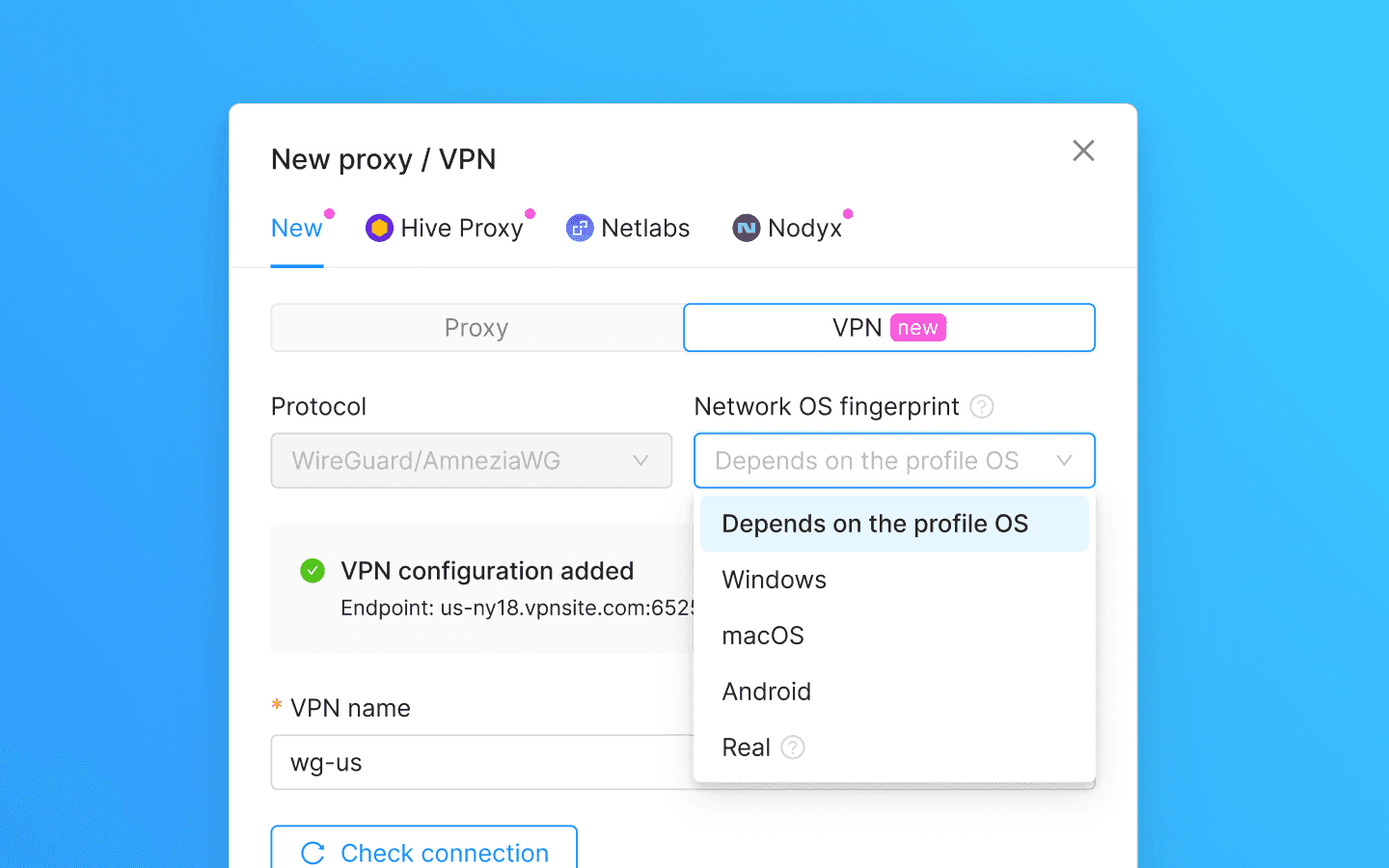
You can separately configure OS fingerprint spoofing at the network level.
You can save a VPN to the shared “My proxies and VPNs” list and then use it with other profiles. The same VPN configuration can be assigned to multiple profiles simultaneously, but we recommend running it on only one device at a time.
You can use different VPNs for different profiles and run them in parallel. VPNs are marked with the VPN tag in the interface, making them easy to distinguish from proxies.
Conclusion
VPNs and proxies solve a similar task, but they work differently — and this is important to consider when choosing a connection for a profile. A VPN gives you more control over the network connection itself: traffic travels through a tunnel, and the network fingerprint can be aligned with the profile's operating system.
At the same time, proxies remain a familiar and convenient option for many scenarios. In Octo Browser, both types of connections can be used in parallel and selected according to the specific task.
If you use a VPN, it's worth checking separately that the service really works as a full tunnel and does not replace the connection on its own side. This directly affects which network fingerprint the website ultimately sees.
Would you like to try Octo Browser at discount?
Use the promo code OCTOBLOG to get 30% off any subscription. This offer is valid only for new users.
Proxies and VPNs connect to the network differently
Proxies are more commonly used by default when working with profiles. VPNs are usually seen as a tool for other tasks — for example, accessing a service or hiding traffic from your ISP. But the key difference between them is not their intended use, but how they are integrated into the network connection. The other differences follow from this.
A proxy acts as an intermediary at the connection level. The browser does not connect directly to the website: it connects to the proxy server, which then establishes a separate connection to the requested address. As a result, there are two connections between the browser and the website: “browser — proxy” and “proxy — website”, linked together on the proxy server.
A full VPN tunnel operates at the IP packet level. The user's computer establishes the connection to the website itself, but its packets are not sent directly to the Internet: they are encrypted, travel through the tunnel to an exit node, and from there enter the regular network. The website sees the IP address of the exit node, but the connection itself does not terminate there — the packets are forwarded to the user's computer.
A proxy changes which side connects to the website; a VPN changes the route the connection takes.
IP address and connection parameters
An IP address contains a lot of information about a connection. It can indicate who the address belongs to: a residential ISP, mobile operator, hosting provider, or VPN service. The IP ranges of major VPN providers are known and tracked by specialized databases, so in many cases, a website can identify VPN use based on the IP address alone.
However, the reputation of an IP address and the way the connection is established are two different sources of information. The first indicates which network the address is associated with. The second shows how the connection itself is organized and whether there is an intermediary server along the route where the connection terminates and is then re-established. This distinction is what we'll focus on next.
When using a proxy, the connection visible to the website starts at the proxy server, not at the user's device. Its network parameters therefore describe the “proxy — website” segment — for example, connection establishment time and latency between these two points. At the same time, the time it takes for a browser request to reach the server and return depends on the entire route, including the “user — proxy” segment.
Comparing these metrics can reveal a characteristic discrepancy. A connection to the server may be established with latency corresponding to a nearby client, while browser requests travel a significantly longer route. This check does not require information about the IP address's reputation: the signal is the mismatch between the connection parameters themselves. The type of proxy used does not fundamentally change this pattern — a residential proxy also establishes a separate connection to the website.
With a VPN tunnel, the picture is different. The user's device establishes an end-to-end connection with the website, while the exit node simply forwards the packets. Therefore, both connection establishment time and request latency depend on the full route to the user. The characteristic discrepancy that occurs when using a proxy should not appear here.
How a VPN protects profile traffic
So far, we've looked at which connection characteristics a website can analyze. From the user's network perspective, the difference between a proxy and a VPN is also significant.
A regular proxy does not encrypt traffic; it simply forwards it. Everything between you and the proxy server — your home router, office network, public Wi-Fi, ISP, etc. — can see which websites you connect to. The page contents are protected by HTTPS, but the list of addresses remains visible.
A VPN works differently: profile traffic enters an encrypted tunnel and then exits to the Internet through an exit node. On the segment before the exit node, an external observer sees encrypted traffic with the VPN server rather than individual connections between the profile and the destination websites.
Octo Browser supports WireGuard and AmneziaWG. AmneziaWG additionally masks characteristic features of VPN traffic, making this type of connection harder to distinguish from regular network traffic.
The tunnel carries all of the profile's network traffic, including UDP, rather than only the browser's HTTP and HTTPS requests.
How the pricing models differ
Proxies and VPNs usually use different pricing models. For proxies, especially residential and mobile ones, payment based on the amount of transferred traffic is common: the cost depends on how many gigabytes pass through the profile. VPNs are more often paid for a period of use, without separate charges for each gigabyte.
The difference becomes noticeable in scenarios involving large amounts of data: for example, video downloads, media work, or long sessions in heavy web interfaces. With traffic-based pricing, the cost increases with the amount of data transferred, while with a time-based model, the amount of data does not affect the price.
VPN for profiles
A system-wide VPN usually routes all traffic from the device through a single exit node: browsers, messengers, email clients, and other applications. This does not work for multiple profiles because they all have to use the same VPN connection.
In Octo Browser, a VPN is configured separately for each profile. Each profile can have its own configuration and exit node, while multiple profiles can work simultaneously through different VPN connections. Other profiles can continue using proxies if needed.
A VPN works only inside the selected profile. Traffic from other applications and browsers on the device continues to use the regular system connection.
Network fingerprint
In addition to routing traffic through a VPN, you can control the network fingerprint of the profile's connection. Different operating systems form certain network packet parameters differently. Based on the combination of these characteristics, a website can determine the likely operating system on the other end of the connection.
This network fingerprint exists separately from the data that the browser reports through web interfaces. This can create a mismatch — for example, the profile is identified as Windows, while the network connection parameters indicate a different operating system.
In the VPN connection settings, you can select a network fingerprint matching the profile's operating system, or explicitly choose Windows, macOS, or Android. You can also leave the original fingerprint unchanged.
However, the VPN must work as a complete tunnel. Some services marketed as VPNs actually terminate the connection on their side and establish a new one, following an approach similar to a proxy. In this case, the website sees the network fingerprint of the provider's server, and the fingerprint selected in the profile does not reach the final connection. We'll explain how to check this in the next section.
How to check that a VPN is working
You can check whether a VPN works as a complete tunnel using network tests. To do this, launch a profile with the VPN enabled and open detectme.pro. Two tests are important here.
WSS vs TCP Latency Test compares latency at different levels of the connection. If the VPN works as a tunnel, there should be no characteristic discrepancy between them. If the connection terminates on an intermediary server and is then established again, the test may reveal this mismatch.
TCP/IP Fingerprint Test determines the operating system based on network packet parameters. The result should match the network fingerprint selected in the profile settings. If the test identifies Linux, for example, instead of the configured OS, this may indicate that the VPN service establishes a new connection on its side and the profile's network fingerprint does not reach the website. You can additionally verify the result at browserleaks.com/tcp.
If the results do not match the profile settings, the cause may be the architecture of the VPN service itself. In that case, the connection behavior cannot be changed on the Octo Browser side — you'll need a different VPN service.
How to connect a VPN to an Octo Browser profile
Open the desired profile and add a new connection.
Switch to the VPN tab.
Upload a
.conffile or paste the configuration as plain text.Save the connection and assign it to the profile.
You can separately configure OS fingerprint spoofing at the network level.
You can save a VPN to the shared “My proxies and VPNs” list and then use it with other profiles. The same VPN configuration can be assigned to multiple profiles simultaneously, but we recommend running it on only one device at a time.
You can use different VPNs for different profiles and run them in parallel. VPNs are marked with the VPN tag in the interface, making them easy to distinguish from proxies.
Conclusion
VPNs and proxies solve a similar task, but they work differently — and this is important to consider when choosing a connection for a profile. A VPN gives you more control over the network connection itself: traffic travels through a tunnel, and the network fingerprint can be aligned with the profile's operating system.
At the same time, proxies remain a familiar and convenient option for many scenarios. In Octo Browser, both types of connections can be used in parallel and selected according to the specific task.
If you use a VPN, it's worth checking separately that the service really works as a full tunnel and does not replace the connection on its own side. This directly affects which network fingerprint the website ultimately sees.
Would you like to try Octo Browser at discount?
Use the promo code OCTOBLOG to get 30% off any subscription. This offer is valid only for new users.
Stay up to date with the latest Octo Browser news
By clicking the button you agree to our Privacy Policy.
Stay up to date with the latest Octo Browser news
By clicking the button you agree to our Privacy Policy.
Stay up to date with the latest Octo Browser news
By clicking the button you agree to our Privacy Policy.

Join Octo Browser now
Or contact Customer Service at any time with any questions you might have.
Join Octo Browser now
Or contact Customer Service at any time with any questions you might have.
Join Octo Browser now
Or contact Customer Service at any time with any questions you might have.