DNS, WebRTC, and TLS leaks: how to prevent your IP address and digital fingerprint from being exposed


Markus_automation
Expert in data parsing and automation
You may change your IP address, spoof your fingerprint, and work through an anti-detect browser — yet websites still look for ways to figure out who you are. And often they succeed because of hidden leaks of your IP address or digital fingerprint.
These nuances become even more critical when working with multiple accounts, since any extra similarities can reveal a connection between them. Read this article to understand the most common types of leaks — DNS, WebRTC, and TLS — and learn how to deal with them.
Contents
Maintain your online anonymity with Octo Browser. Your real digital fingerprint cannot be tracked.
Would you like to try Octo Browser at discount?
Use the promo code OCTOBLOG to get 30% off any subscription. This offer is valid only for new users.
DNS leaks: how DNS can reveal your IP
DNS (Domain Name System) is the system that converts domain names into IP addresses. Every time you visit a website, your computer sends a DNS request to find out the IP address of the target site’s servers.
The problem arises when these DNS requests bypass a secure tunnel and go directly to your ISP’s servers. This is exactly how a DNS leak occurs: your real DNS servers continue to reveal information about you despite IP masking. In such cases, even when you are connected through a proxy or VPN, any resource that performs a check can see requests sent to your ISP’s DNS servers, determine your real geographic location, and ultimately raise suspicions about your IP address.
In other words, DNS requests that bypass a proxy can easily reveal your real location, undermining the anonymity of the proxy connection and raising red flags for the service checking you.
The main causes of DNS leaks are improper configuration or specific network behavior. Some proxy services do not route DNS requests at all, or your operating system may have DNS providers hardcoded.
You can check for DNS leaks using special services such as DNS Leak Test or Browserleaks. They display a list of DNS servers handling your requests. If you see DNS servers from your country or servers used by your home ISP, your anonymity has been compromised.
How to protect yourself from DNS leaks
First of all, make sure that the proxy you use routes DNS requests through a secure channel. As for VPN services, many of them include built-in DNS leak protection. If you are configuring DNS manually, you can explicitly set reliable public DNS servers in your network settings, such as Cloudflare DNS (1.1.1.1) or Google DNS (8.8.8.8). This ensures that name resolution requests go to neutral DNS servers rather than your ISP’s DNS. There are also proxifier tools and firewalls that intercept all system DNS requests and force them through the VPN tunnel.
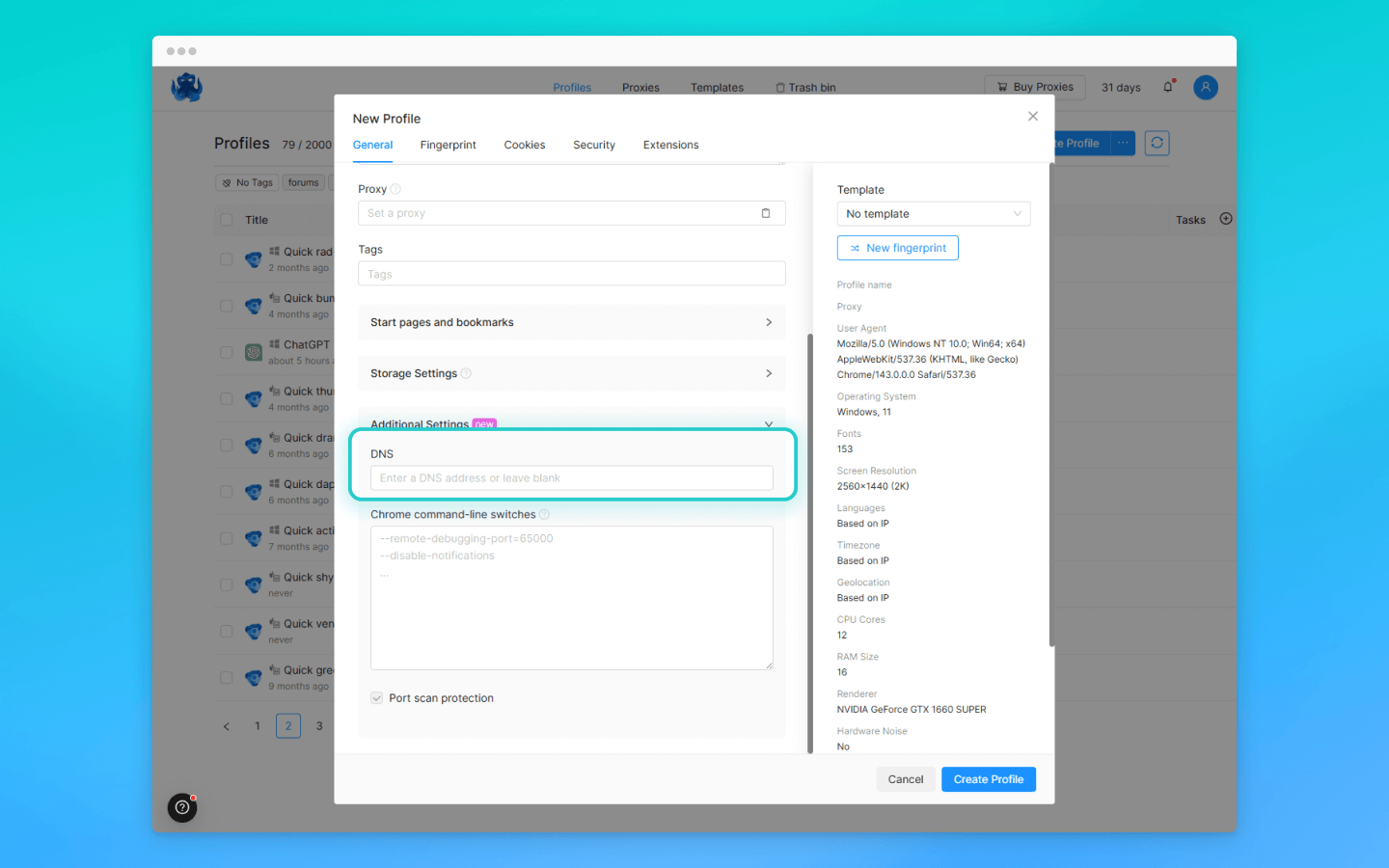
What about anti-detect browsers? Octo Browser, for example, solves this problem at the profile level: by default, all DNS requests are bound to the proxy in use, so regular users do not need to configure anything. For advanced users, Octo allows you to manually specify a custom DNS server in the profile settings. The system is designed so that the browser cannot “ask” the local ISP anything — all DNS requests go through the same route as the rest of the traffic.
WebRTC leaks: how the browser exposes your IP address via P2P
WebRTC (Web Real-Time Communication) is a technology for transmitting audio, video, and data directly between browsers (peer-to-peer). It enables low latency and encrypted traffic for video calls, web conferences, and online games.
However, WebRTC has a major downside: it allows any website to obtain your real IP address, even if you are using a proxy. A WebRTC leak works as follows: when the browser establishes a P2P connection, it uses the ICE protocol and sends requests to STUN servers to determine your network addresses (both local and external) for communication. This process does not require special permissions — unlike access to the camera or geolocation, there are no pop-up prompts. As a result, a user may not even realize that a website has discovered their real IP address using a hidden script.
What is even more interesting is that even when you use a VPN, the browser may report your real external ISP IP address to the STUN server, bypassing the VPN tunnel. From an anonymity standpoint, this is a critical vulnerability: a single WebRTC request can destroy your entire spoofing setup. That said, with proper configuration, your IP address will not be leaked.
How to protect yourself from WebRTC leaks
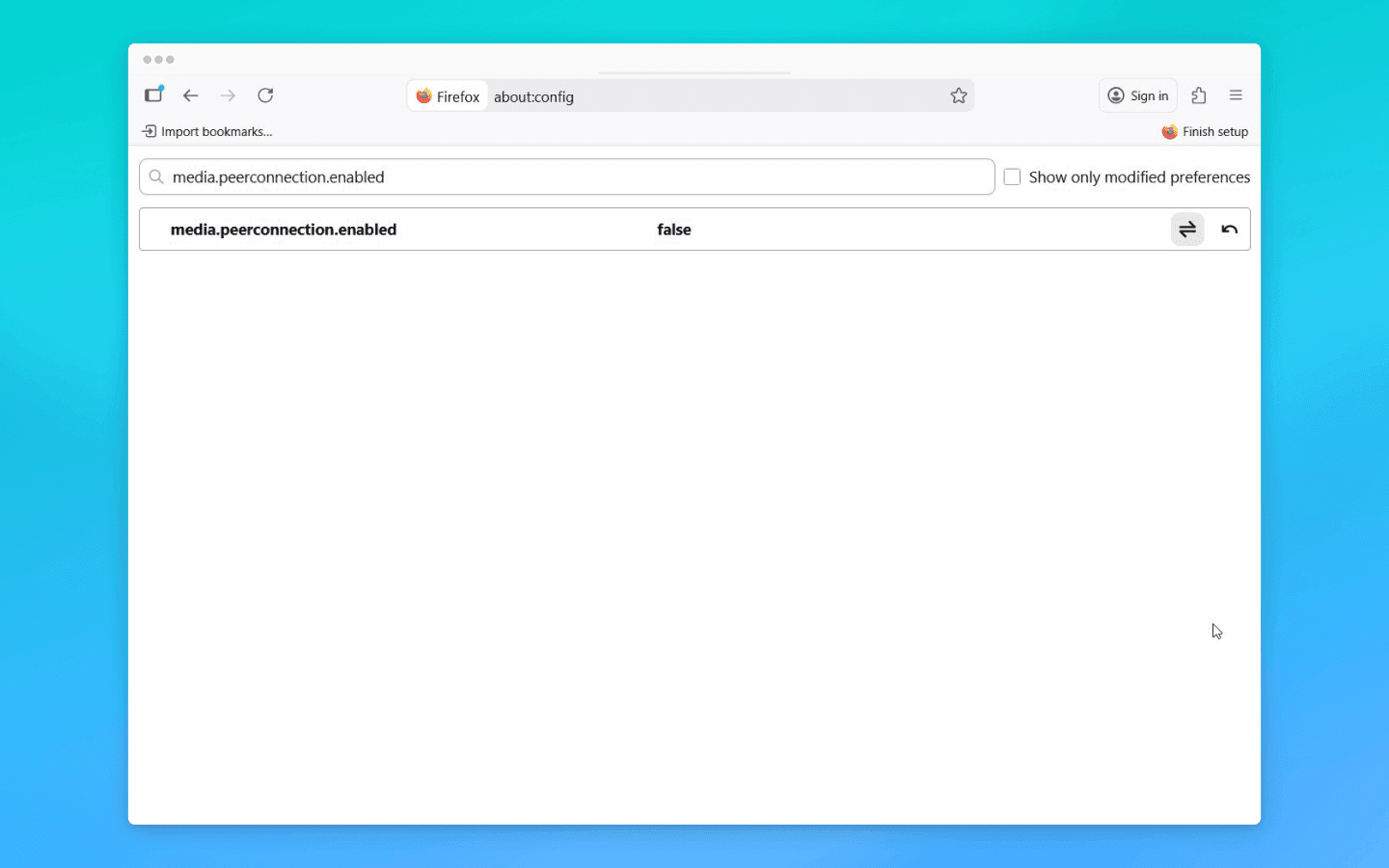
The most radical option is to disable WebRTC in the browser entirely. In that case, no P2P channels will be established, and website scripts will not be able to obtain your IP address via this technology. In Firefox, there is a hidden setting: on the about:config page, you can set the media.peerconnection.enabled parameter to false, which completely disables WebRTC.
In Chrome or Opera, there is no built-in toggle like this, but the issue can be solved using extensions (such as WebRTC Leak Prevent or WebRTC Control) or network blockers like uBlock Origin, which include an option to disable WebRTC. With the help of such extensions, you can block the browser from exchanging WebRTC UDP packets, eliminating the leak.
However, it is important to understand that completely disabling WebRTC may break the functionality of some services (Google Meet, web versions of popular messengers). Additionally, from a spoofing perspective, fully disabling WebRTC may look rather suspicious.
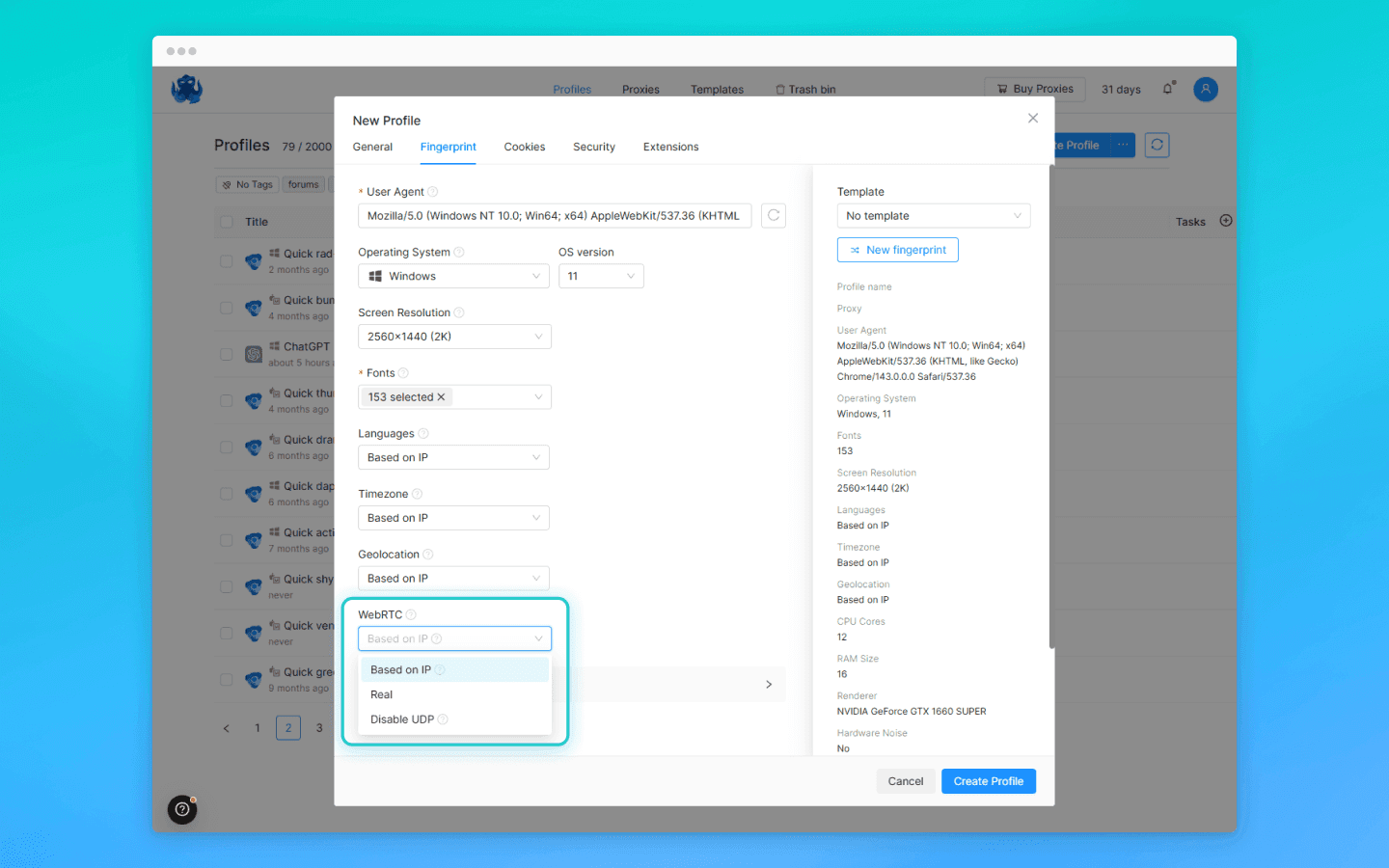
The second approach is to allow WebRTC but control which IP address it exposes. This is how many anti-detect browsers handle it. In Octo Browser, you can flexibly configure WebRTC behavior for each profile. By default, it is set to “Based on IP,” meaning WebRTC automatically substitutes your IP address with the external IP of the proxy. As a result, websites see the proxy server’s address rather than your real one.
In addition, Octo includes a “Disable UDP” option that completely blocks all UDP traffic outside the proxy. Whether you should use it depends on your specific situation. In most cases, the optimal solution is proper WebRTC proxying.
TLS leaks: the TLS fingerprint and how to avoid leaving one
In addition to your IP address, a TLS fingerprint can reveal a lot about your environment. It is a kind of passive identifier of your browser or application. It is based on the characteristics of the TLS connection that are not encrypted and are visible to any server when an HTTPS connection is established.
When a browser connects over HTTPS, it first sends the server a ClientHello message. This message contains the protocol version, the list of supported cipher suites, the set of TLS extensions, and key exchange parameters. Each browser has its own typically stable combination of these values. Together, they form a recognizable TLS fingerprint.
Chrome sends its ciphers and extensions in a specific order. A Java application or a bot running via OpenSSL will send a different set of parameters. As a result, the combination of cipher suites, extensions, and supported curves creates a unique fingerprint that allows the server to determine which client and which system established the connection.
Why does this matter? Many anti-bot systems and fraud monitoring tools use the TLS fingerprint to detect automated or suspicious connections. This method does not require executing scripts on the page; it is enough to passively “listen” to the ClientHello. If you connect to a website not via a regular browser but, for example, via a Python script using a standard TLS library, your TLS fingerprint will be rare and unlike that of millions of regular Chrome or Firefox users. The website may flag the connection as potentially unwanted and, at best, start showing CAPTCHAs, or, at worst, block access entirely.
A TLS leak is the invisible exposure of your technical “uniqueness” through the specifics of an encrypted connection.
How to protect yourself from TLS leaks
You cannot simply disable these parameters: encryption must be established, and ClientHello will be sent in any case. The task is different: to make sure your fingerprint does not stand out among thousands of legitimate ones. The simplest way is to use a modern, popular browser or a high-quality anti-detect browser that accurately mimics it.
Since the TLS fingerprint is determined by the encryption library, it needs to be the same as the one used by the majority of users. For example, Chromium-based browsers (Chrome, Edge, Opera) on Windows have one fingerprint per version; Safari on macOS has another; Firefox a third, and so on. If you use these browsers, your TLS fingerprint will be shared with a huge number of people and will not raise suspicion.
Problems start when something non-standard appears in the chain: an outdated operating system without modern ciphers, a proxy that interferes with encryption, or an automation tool with its own TLS implementation. In such cases, action is required: either emulate the behavior of a real browser or update the environment. There are libraries that allow you to spoof ClientHello to match the fingerprints of real browsers. Overall, this is the most effective approach.
When using an anti-detect browser like Octo Browser, this problem does not exist in principle. It is built on the Octium browser kernel (a Chromium fork) of the latest version, so Octo’s TLS behavior is identical to that of modern Chrome. Each Octo profile uses Chromium libraries for encryption and sends the same set of ciphers and extensions as the original Chrome browser of the corresponding version. This means your TLS fingerprint will not be unique; it will match the fingerprint of thousands of regular Chrome users on the same operating system version. That is exactly what proper spoofing requires.
The main recommendation is not to introduce inconsistent changes into the environment yourself. Switching the browser kernel or manually disabling important TLS extensions can break fingerprint consistency. The Octo team recommends using default profile generation settings for a reason: all parameters there are balanced for maximum consistency. This matters not only for eliminating TLS leaks but also for higher-quality overall spoofing.
Conclusion
Online anonymity is a multi-layered task. Hiding your IP address with a proxy or VPN alone is not enough. It is important to eliminate all channels through which websites can obtain your real IP address or digital fingerprint. DNS, WebRTC, and TLS leaks are three major vectors of de-anonymization that anyone who values privacy should understand.
The most optimal and straightforward way to address leaks is to use a professional anti-detect browser. Solutions like Octo Browser handle most of the work for you: they automatically replace the WebRTC address with a safe one, prevent DNS leaks, synchronize time zone and language with the proxy, and generate a credible and consistent fingerprint. As a result, there is no need to manually tweak every browser setting; it is enough to follow basic rules and rely on built-in protection mechanisms.
Maintain your online anonymity with Octo Browser. Your real digital fingerprint cannot be tracked.
Would you like to try Octo Browser at discount?
Use the promo code OCTOBLOG to get 30% off any subscription. This offer is valid only for new users.
DNS leaks: how DNS can reveal your IP
DNS (Domain Name System) is the system that converts domain names into IP addresses. Every time you visit a website, your computer sends a DNS request to find out the IP address of the target site’s servers.
The problem arises when these DNS requests bypass a secure tunnel and go directly to your ISP’s servers. This is exactly how a DNS leak occurs: your real DNS servers continue to reveal information about you despite IP masking. In such cases, even when you are connected through a proxy or VPN, any resource that performs a check can see requests sent to your ISP’s DNS servers, determine your real geographic location, and ultimately raise suspicions about your IP address.
In other words, DNS requests that bypass a proxy can easily reveal your real location, undermining the anonymity of the proxy connection and raising red flags for the service checking you.
The main causes of DNS leaks are improper configuration or specific network behavior. Some proxy services do not route DNS requests at all, or your operating system may have DNS providers hardcoded.
You can check for DNS leaks using special services such as DNS Leak Test or Browserleaks. They display a list of DNS servers handling your requests. If you see DNS servers from your country or servers used by your home ISP, your anonymity has been compromised.
How to protect yourself from DNS leaks
First of all, make sure that the proxy you use routes DNS requests through a secure channel. As for VPN services, many of them include built-in DNS leak protection. If you are configuring DNS manually, you can explicitly set reliable public DNS servers in your network settings, such as Cloudflare DNS (1.1.1.1) or Google DNS (8.8.8.8). This ensures that name resolution requests go to neutral DNS servers rather than your ISP’s DNS. There are also proxifier tools and firewalls that intercept all system DNS requests and force them through the VPN tunnel.
What about anti-detect browsers? Octo Browser, for example, solves this problem at the profile level: by default, all DNS requests are bound to the proxy in use, so regular users do not need to configure anything. For advanced users, Octo allows you to manually specify a custom DNS server in the profile settings. The system is designed so that the browser cannot “ask” the local ISP anything — all DNS requests go through the same route as the rest of the traffic.
WebRTC leaks: how the browser exposes your IP address via P2P
WebRTC (Web Real-Time Communication) is a technology for transmitting audio, video, and data directly between browsers (peer-to-peer). It enables low latency and encrypted traffic for video calls, web conferences, and online games.
However, WebRTC has a major downside: it allows any website to obtain your real IP address, even if you are using a proxy. A WebRTC leak works as follows: when the browser establishes a P2P connection, it uses the ICE protocol and sends requests to STUN servers to determine your network addresses (both local and external) for communication. This process does not require special permissions — unlike access to the camera or geolocation, there are no pop-up prompts. As a result, a user may not even realize that a website has discovered their real IP address using a hidden script.
What is even more interesting is that even when you use a VPN, the browser may report your real external ISP IP address to the STUN server, bypassing the VPN tunnel. From an anonymity standpoint, this is a critical vulnerability: a single WebRTC request can destroy your entire spoofing setup. That said, with proper configuration, your IP address will not be leaked.
How to protect yourself from WebRTC leaks
The most radical option is to disable WebRTC in the browser entirely. In that case, no P2P channels will be established, and website scripts will not be able to obtain your IP address via this technology. In Firefox, there is a hidden setting: on the about:config page, you can set the media.peerconnection.enabled parameter to false, which completely disables WebRTC.
In Chrome or Opera, there is no built-in toggle like this, but the issue can be solved using extensions (such as WebRTC Leak Prevent or WebRTC Control) or network blockers like uBlock Origin, which include an option to disable WebRTC. With the help of such extensions, you can block the browser from exchanging WebRTC UDP packets, eliminating the leak.
However, it is important to understand that completely disabling WebRTC may break the functionality of some services (Google Meet, web versions of popular messengers). Additionally, from a spoofing perspective, fully disabling WebRTC may look rather suspicious.
The second approach is to allow WebRTC but control which IP address it exposes. This is how many anti-detect browsers handle it. In Octo Browser, you can flexibly configure WebRTC behavior for each profile. By default, it is set to “Based on IP,” meaning WebRTC automatically substitutes your IP address with the external IP of the proxy. As a result, websites see the proxy server’s address rather than your real one.
In addition, Octo includes a “Disable UDP” option that completely blocks all UDP traffic outside the proxy. Whether you should use it depends on your specific situation. In most cases, the optimal solution is proper WebRTC proxying.
TLS leaks: the TLS fingerprint and how to avoid leaving one
In addition to your IP address, a TLS fingerprint can reveal a lot about your environment. It is a kind of passive identifier of your browser or application. It is based on the characteristics of the TLS connection that are not encrypted and are visible to any server when an HTTPS connection is established.
When a browser connects over HTTPS, it first sends the server a ClientHello message. This message contains the protocol version, the list of supported cipher suites, the set of TLS extensions, and key exchange parameters. Each browser has its own typically stable combination of these values. Together, they form a recognizable TLS fingerprint.
Chrome sends its ciphers and extensions in a specific order. A Java application or a bot running via OpenSSL will send a different set of parameters. As a result, the combination of cipher suites, extensions, and supported curves creates a unique fingerprint that allows the server to determine which client and which system established the connection.
Why does this matter? Many anti-bot systems and fraud monitoring tools use the TLS fingerprint to detect automated or suspicious connections. This method does not require executing scripts on the page; it is enough to passively “listen” to the ClientHello. If you connect to a website not via a regular browser but, for example, via a Python script using a standard TLS library, your TLS fingerprint will be rare and unlike that of millions of regular Chrome or Firefox users. The website may flag the connection as potentially unwanted and, at best, start showing CAPTCHAs, or, at worst, block access entirely.
A TLS leak is the invisible exposure of your technical “uniqueness” through the specifics of an encrypted connection.
How to protect yourself from TLS leaks
You cannot simply disable these parameters: encryption must be established, and ClientHello will be sent in any case. The task is different: to make sure your fingerprint does not stand out among thousands of legitimate ones. The simplest way is to use a modern, popular browser or a high-quality anti-detect browser that accurately mimics it.
Since the TLS fingerprint is determined by the encryption library, it needs to be the same as the one used by the majority of users. For example, Chromium-based browsers (Chrome, Edge, Opera) on Windows have one fingerprint per version; Safari on macOS has another; Firefox a third, and so on. If you use these browsers, your TLS fingerprint will be shared with a huge number of people and will not raise suspicion.
Problems start when something non-standard appears in the chain: an outdated operating system without modern ciphers, a proxy that interferes with encryption, or an automation tool with its own TLS implementation. In such cases, action is required: either emulate the behavior of a real browser or update the environment. There are libraries that allow you to spoof ClientHello to match the fingerprints of real browsers. Overall, this is the most effective approach.
When using an anti-detect browser like Octo Browser, this problem does not exist in principle. It is built on the Octium browser kernel (a Chromium fork) of the latest version, so Octo’s TLS behavior is identical to that of modern Chrome. Each Octo profile uses Chromium libraries for encryption and sends the same set of ciphers and extensions as the original Chrome browser of the corresponding version. This means your TLS fingerprint will not be unique; it will match the fingerprint of thousands of regular Chrome users on the same operating system version. That is exactly what proper spoofing requires.
The main recommendation is not to introduce inconsistent changes into the environment yourself. Switching the browser kernel or manually disabling important TLS extensions can break fingerprint consistency. The Octo team recommends using default profile generation settings for a reason: all parameters there are balanced for maximum consistency. This matters not only for eliminating TLS leaks but also for higher-quality overall spoofing.
Conclusion
Online anonymity is a multi-layered task. Hiding your IP address with a proxy or VPN alone is not enough. It is important to eliminate all channels through which websites can obtain your real IP address or digital fingerprint. DNS, WebRTC, and TLS leaks are three major vectors of de-anonymization that anyone who values privacy should understand.
The most optimal and straightforward way to address leaks is to use a professional anti-detect browser. Solutions like Octo Browser handle most of the work for you: they automatically replace the WebRTC address with a safe one, prevent DNS leaks, synchronize time zone and language with the proxy, and generate a credible and consistent fingerprint. As a result, there is no need to manually tweak every browser setting; it is enough to follow basic rules and rely on built-in protection mechanisms.
Stay up to date with the latest Octo Browser news
By clicking the button you agree to our Privacy Policy.
Stay up to date with the latest Octo Browser news
By clicking the button you agree to our Privacy Policy.
Stay up to date with the latest Octo Browser news
By clicking the button you agree to our Privacy Policy.

Join Octo Browser now
Or contact Customer Service at any time with any questions you might have.
Join Octo Browser now
Or contact Customer Service at any time with any questions you might have.
Join Octo Browser now
Or contact Customer Service at any time with any questions you might have.