Octo Browser 3.0: interface update and new tools for workflow organization

Update 3.0 is the next step in evolving our browser’s core foundation: easy navigation, profile organization, and account management. We redesigned the interface to make room for new sections and additional data in navigation. We introduced folders, changing the way profiles are organized and access is managed within teams. We also added seamless switching between Octo accounts to remove friction for users working across multiple teams.
Interface update
The architecture of the Octo Browser interface remained unchanged since its launch. We added features and redesigned individual sections, but the foundation stayed the same: a horizontal menu at the top with everything else below it. It worked well, but with every update the space became more limited. Some sections were already running out of room, and when we started designing folders, it became clear that adding new elements to the old structure without compromises would not be possible. So, we decided to redesign the navigation.
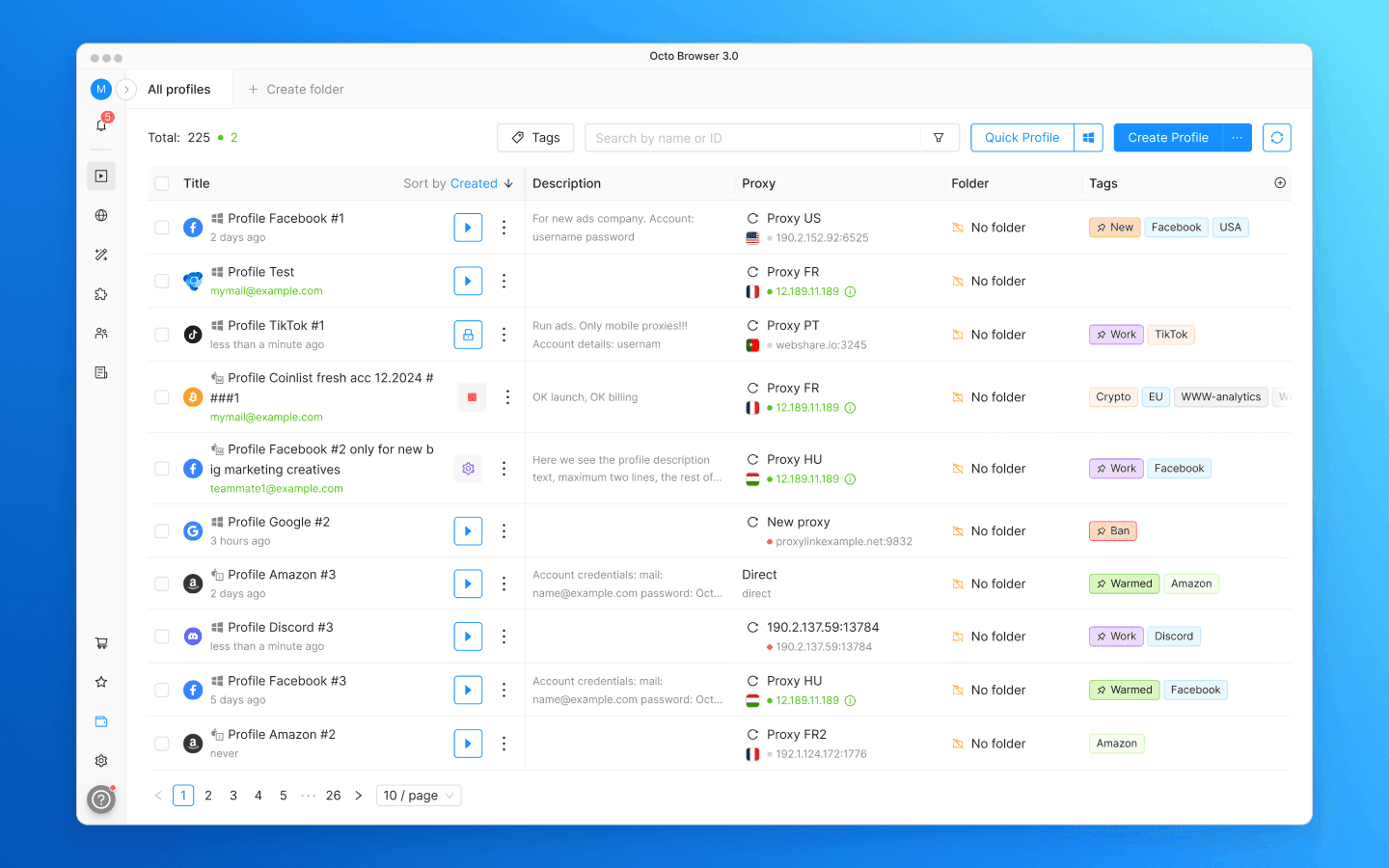
In Update 3.0, navigation has moved to a sidebar. Vertical space is not as limited as horizontal space: sections can be added as the product grows without pushing each other out. Meanwhile, the main workspace on the right now uses the full height of the window.
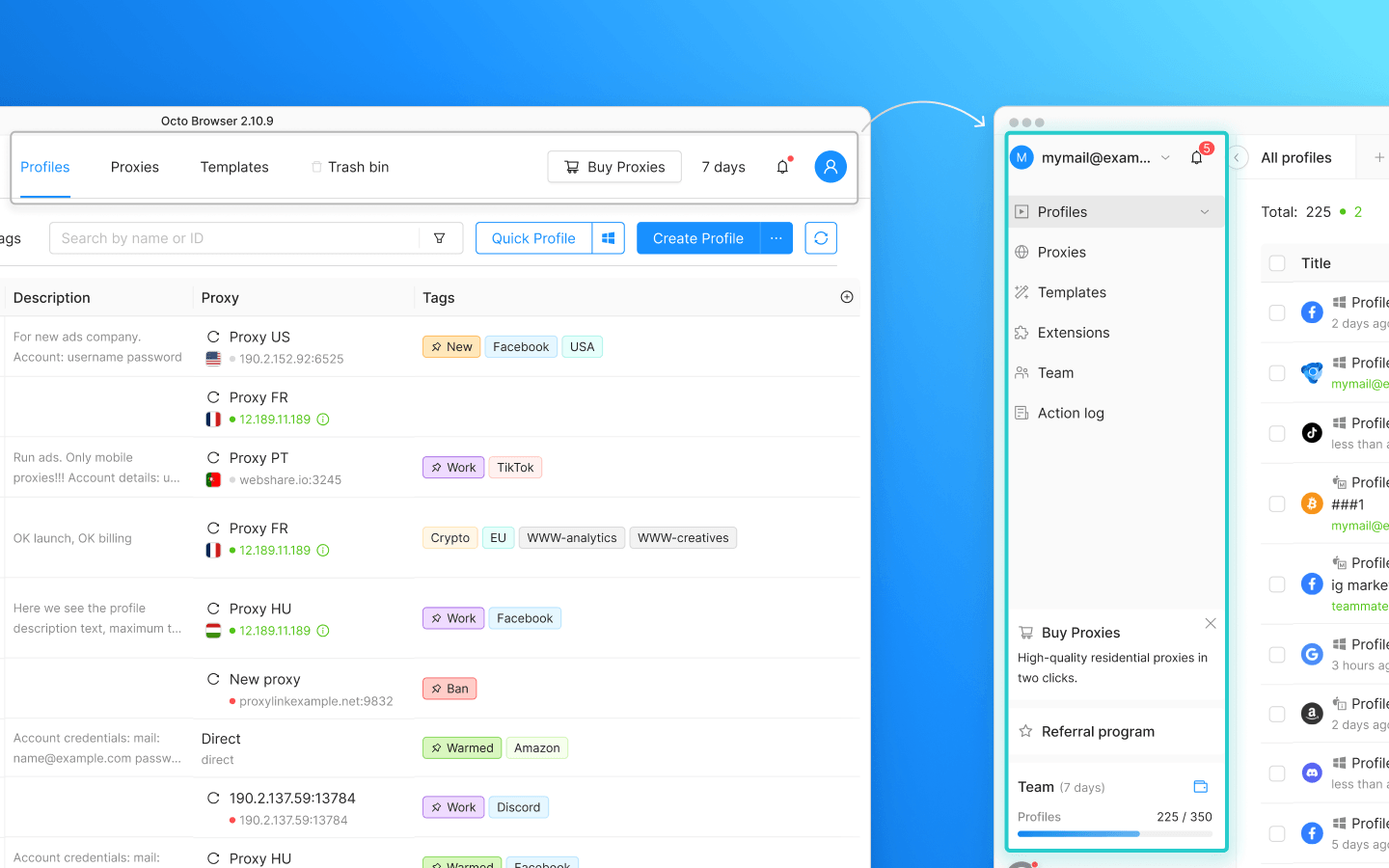
“Profiles,” “Proxies,” “Templates,” and “Trash bin” are now located in the left sidebar. “Team” and “Action log,” which were previously hidden inside the profile menu, have also moved there. A new “Extensions” section has been added: previously, managing the extensions list required going into profile settings, but now it is accessible directly from the main menu.
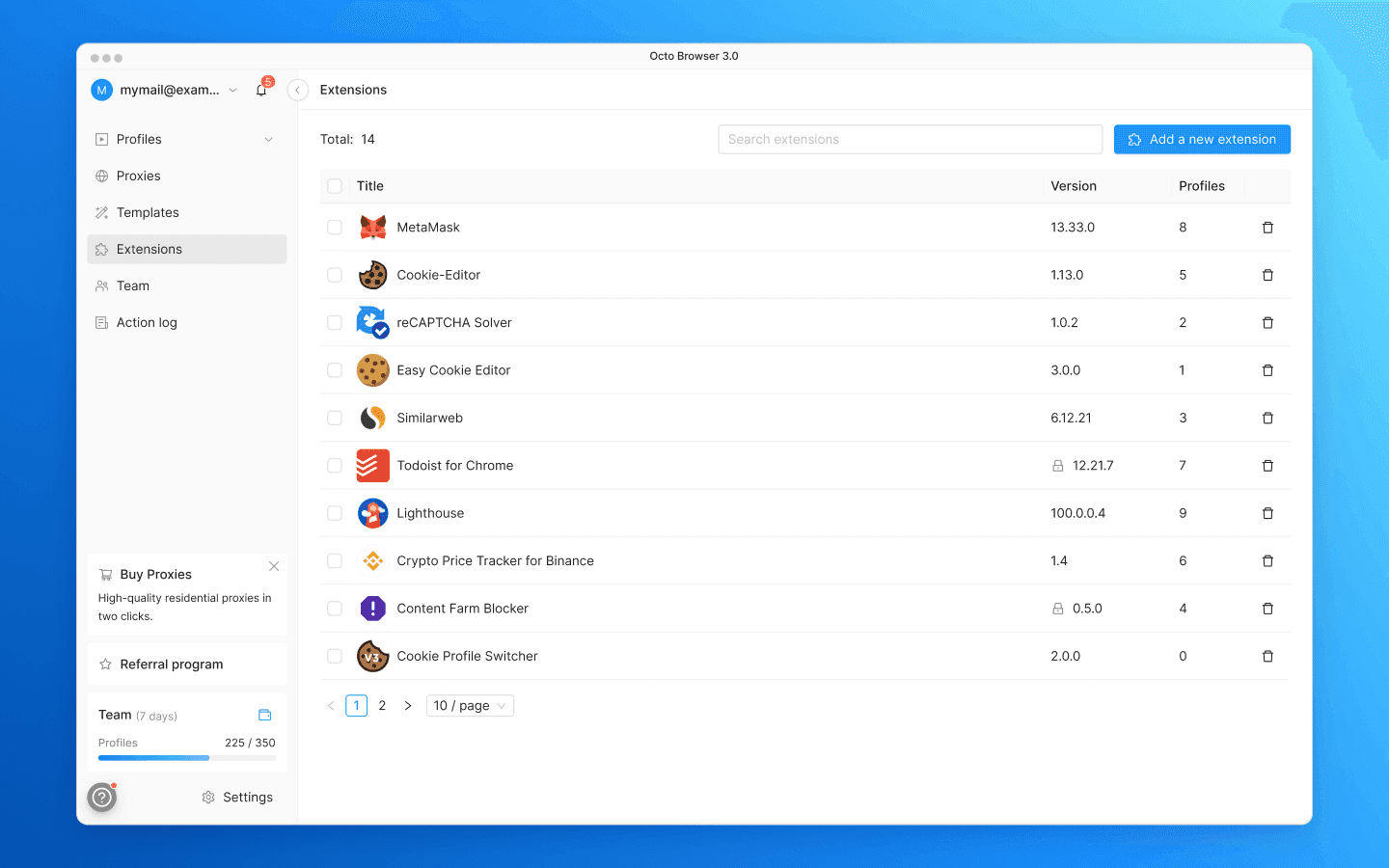
Account settings and the notifications bell have moved to the upper part of the menu, above the main sections. Opening account settings no longer interrupts your workflow: when you close the settings window, you return to the section you came from. You can also switch between Octo accounts from the account menu at the top, but more on that below.
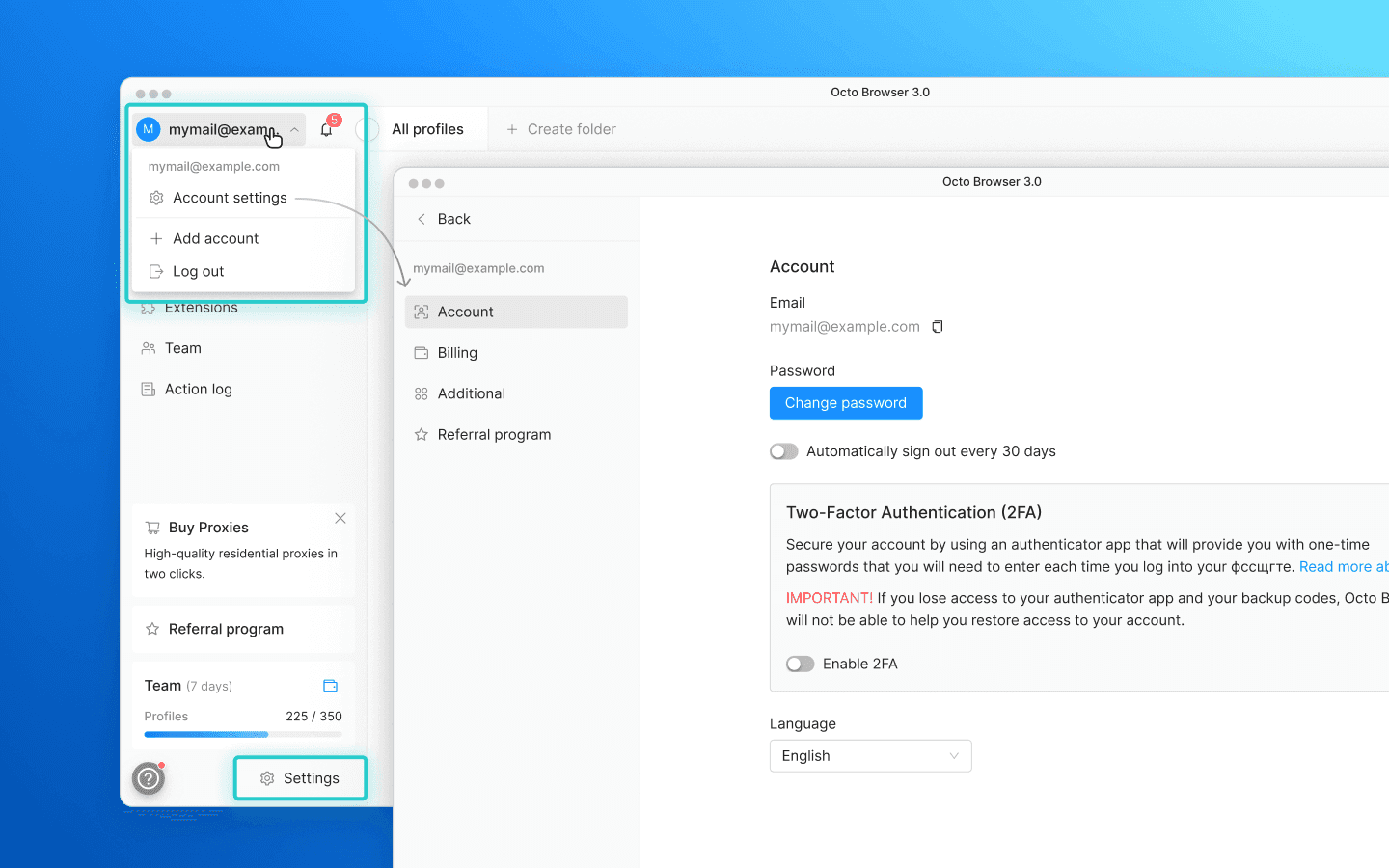
A subscription status indicator has been added to the bottom part of the sidebar. It shows how many profiles are being used and how many days remain in your subscription. You can also open subscription settings from there.
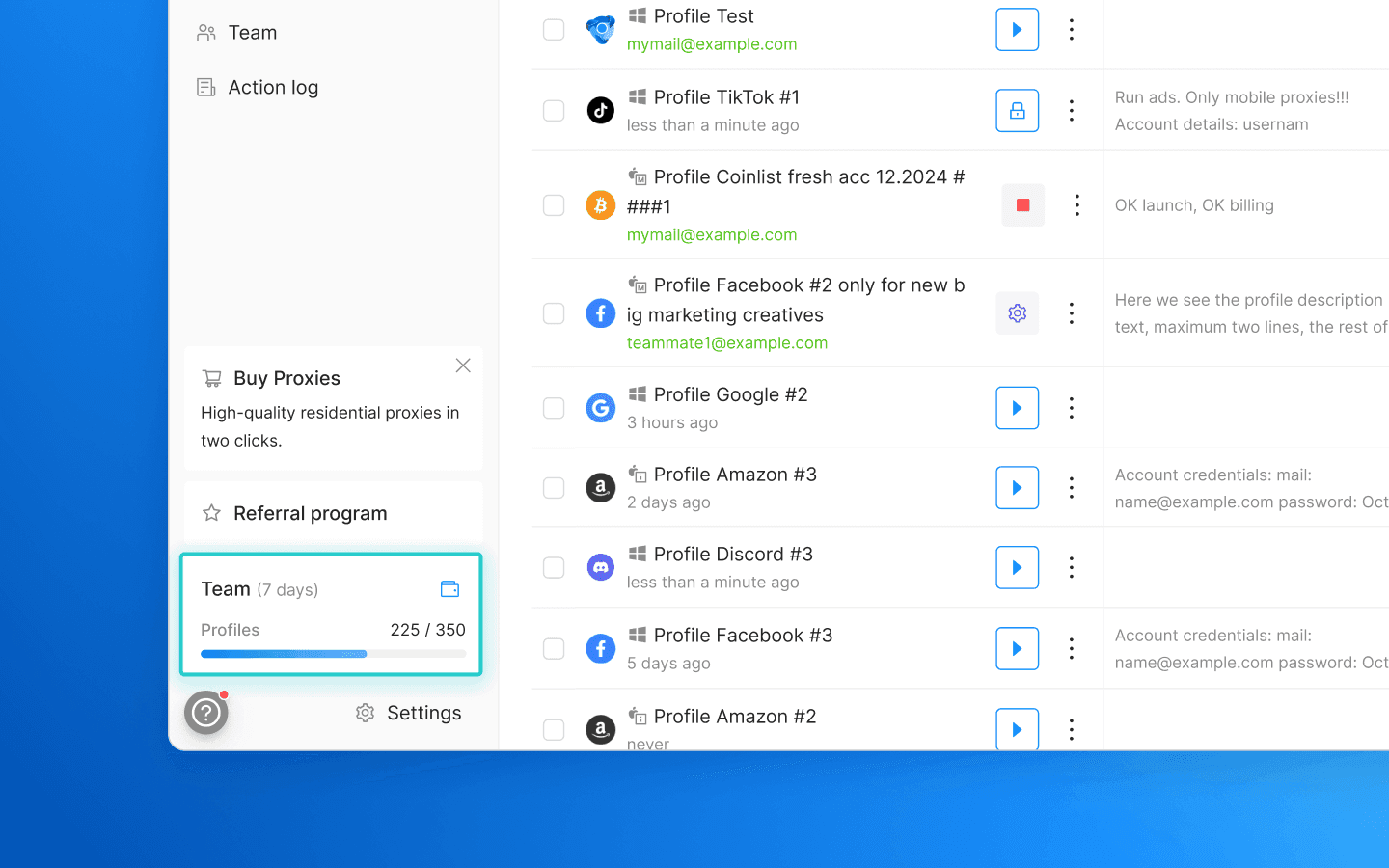
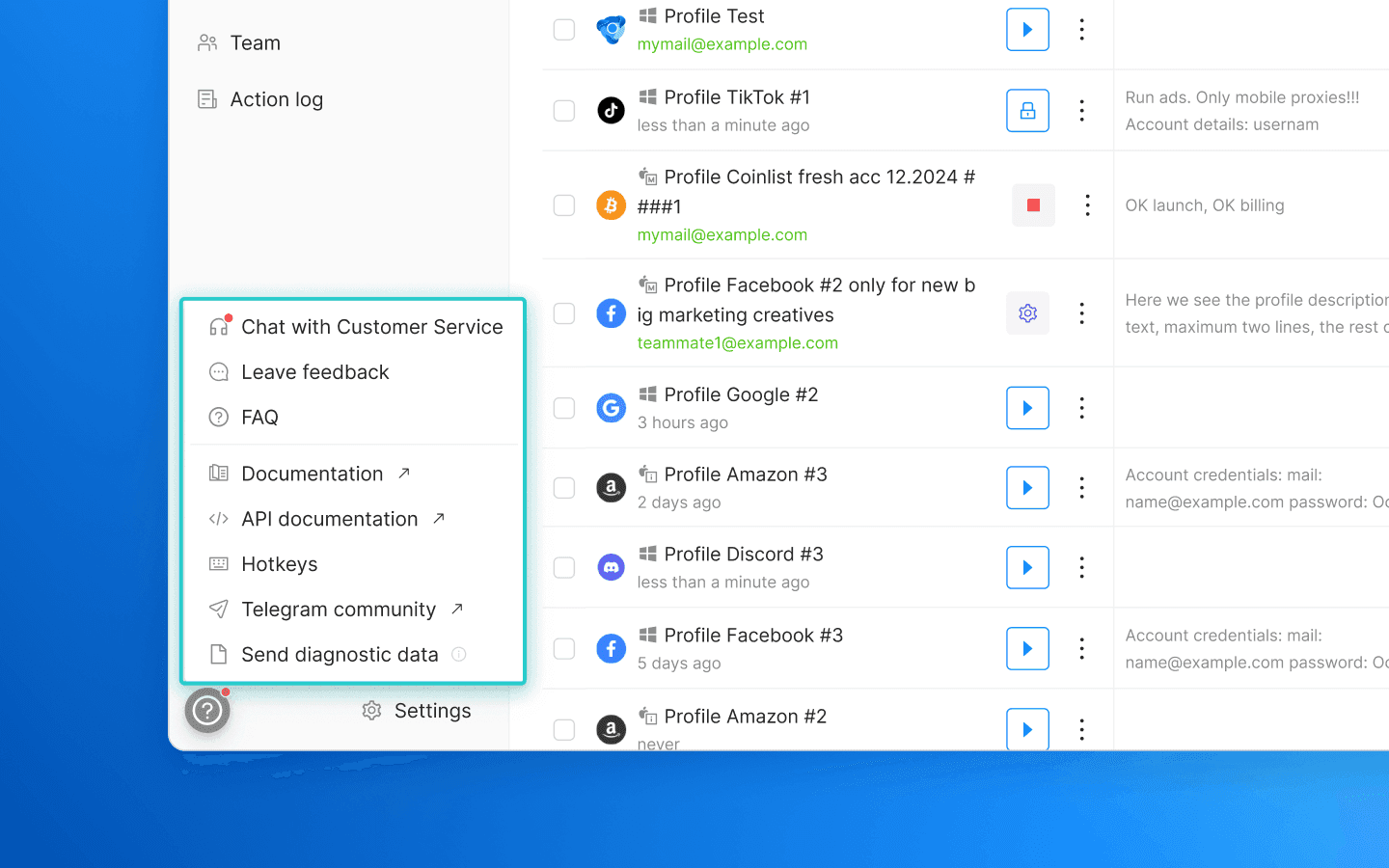
The help menu in the bottom-left corner has been updated. In addition to the customer service chat, it now contains all useful links to documentation and help resources.
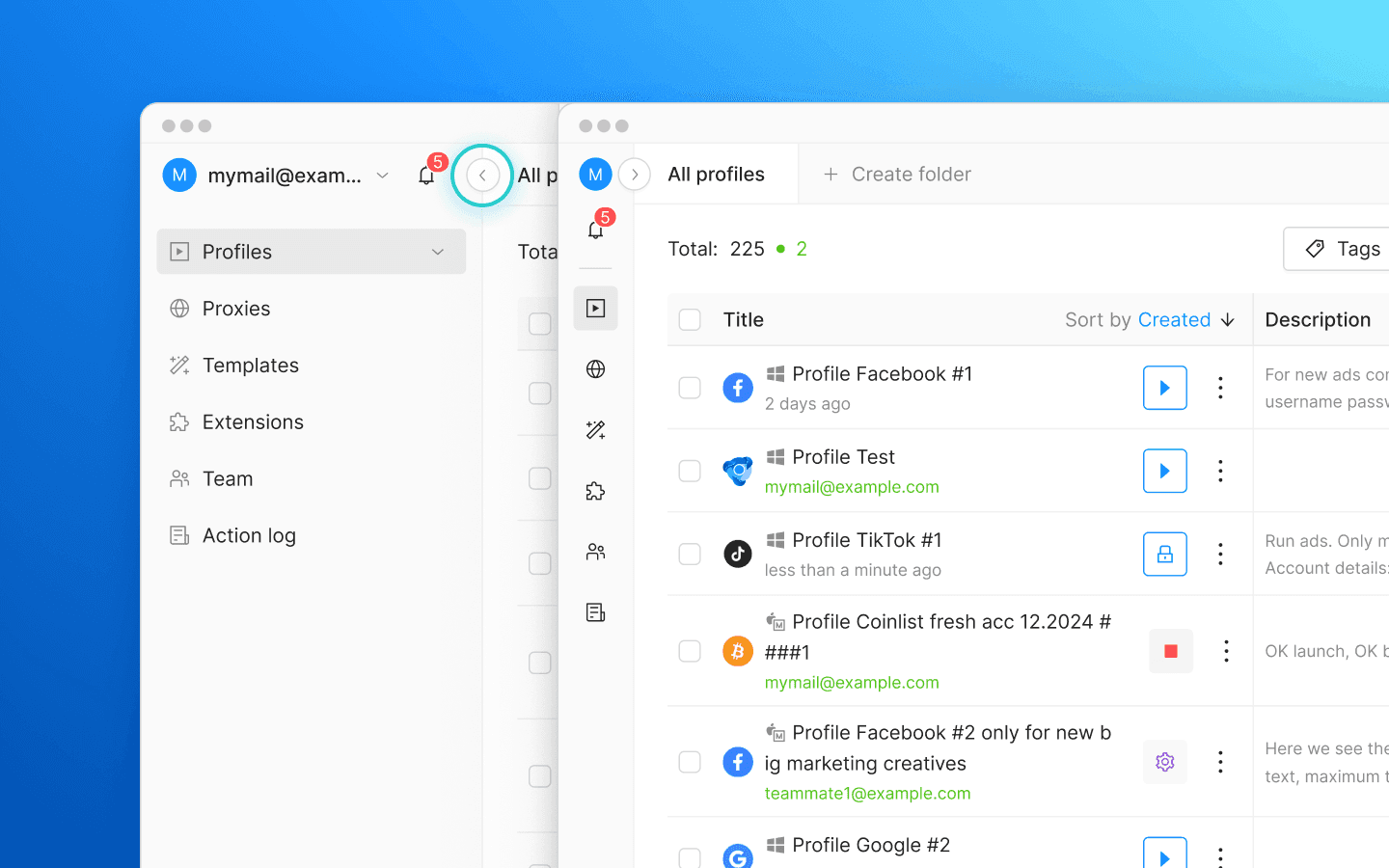
The sidebar can collapse into a compact set of icons whenever you need more workspace. It also collapses automatically when the window becomes too narrow.
The location of sections has changed, but their content remains the same: the same “Profiles,” “Proxies,” and “Templates,” now placed inside the sidebar.
Profile folders
Before Octo 3.0, tags were the only way to organize profiles and manage access rights in a team. Tags are a flexible tool, but with a large number of profiles and growing teams, working with them often turned into constant switching between tag filters and increasingly complex access settings. Folders allow profiles to be grouped in a more familiar way, making it easier to switch between them and configure access rights.
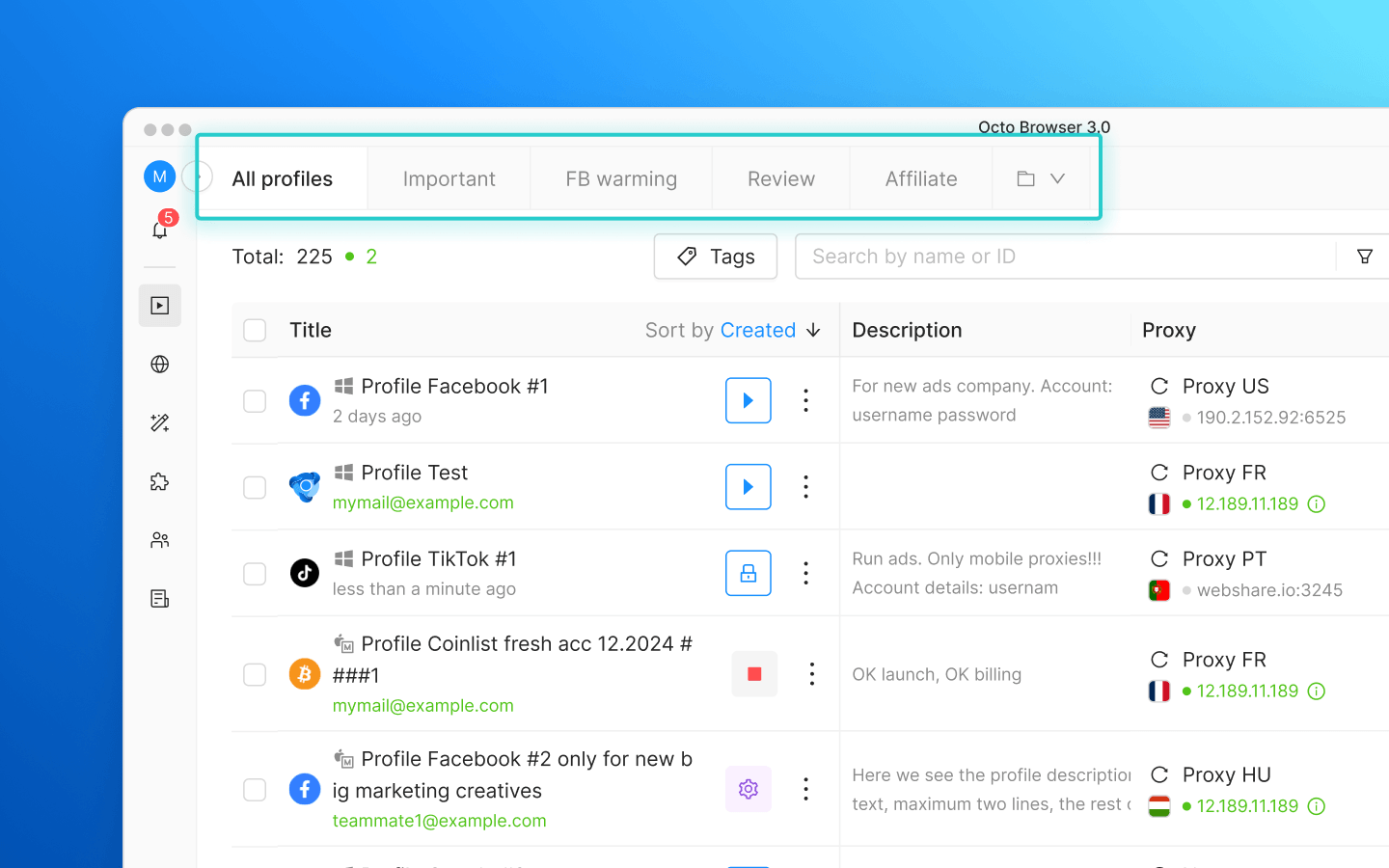
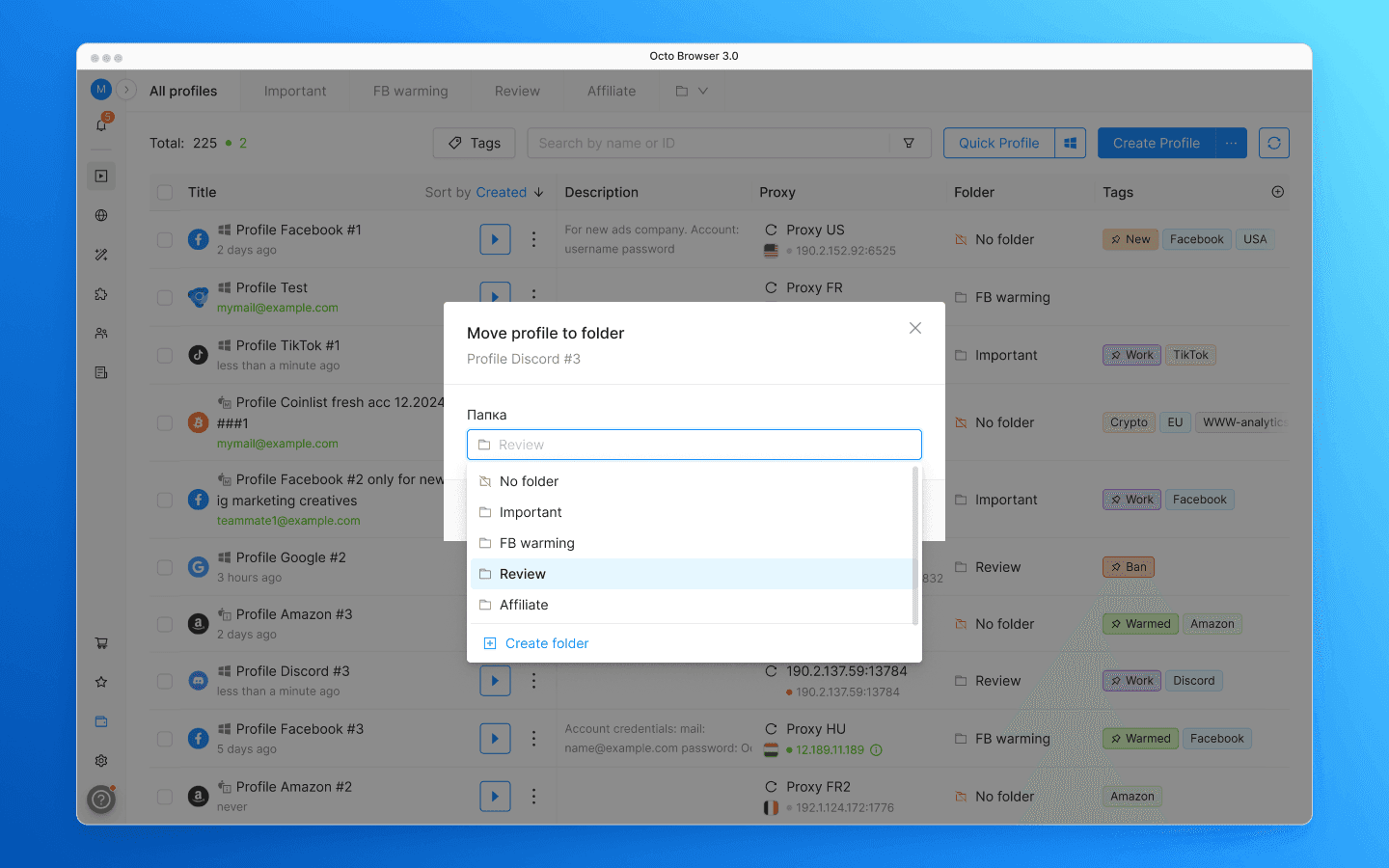
Folders appear as tabs above the profile list. Create a folder, move profiles into it, and configure which team members can access it. The “All profiles” tab will always display the full list of everything you have access to.
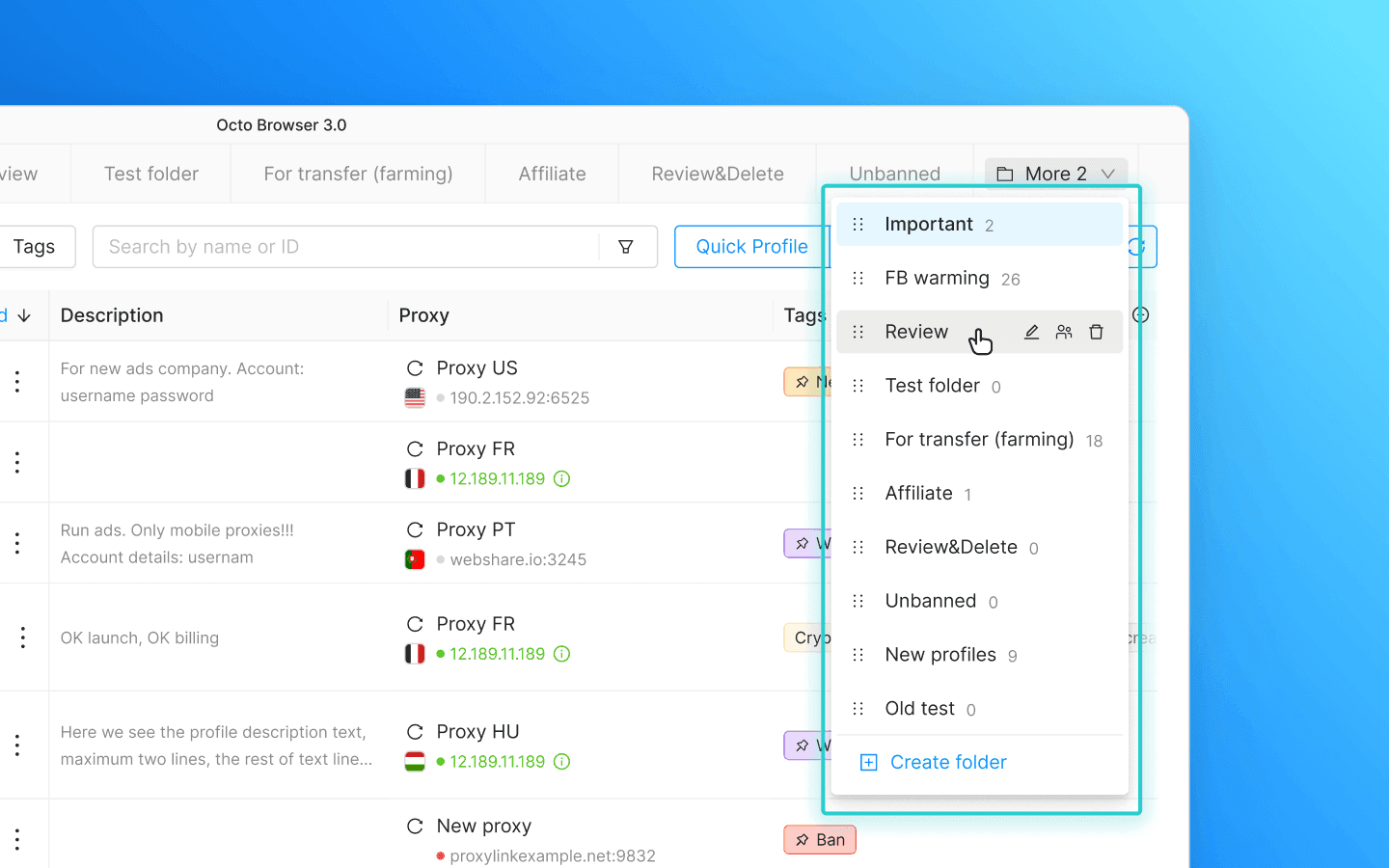
When there are too many folders to fit into the row of tabs, the extra folders move into a dropdown list. From there, you can also reorder folders using drag-and-drop, rename them, or delete them. When a folder is deleted, profiles are not purged: they are simply removed from the folder and remain available in the general “All profiles” list.
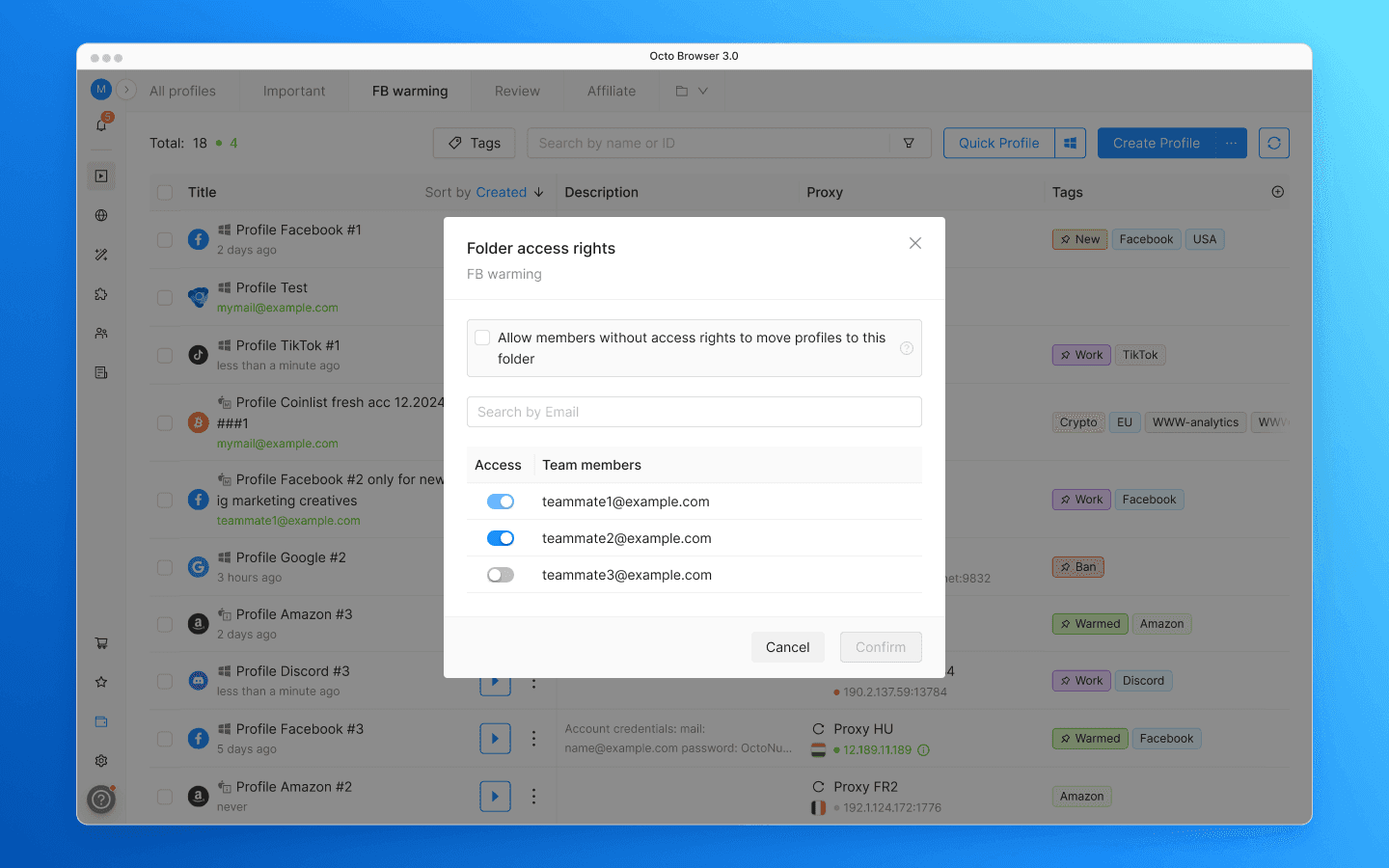
Folder access is configured separately for each team member. You can also allow users without folder access to move profiles into it without being able to view its contents. This is useful when profiles need to be transferred between people working with different folders.
The “All profiles” tab now also supports additional filtering by folders.
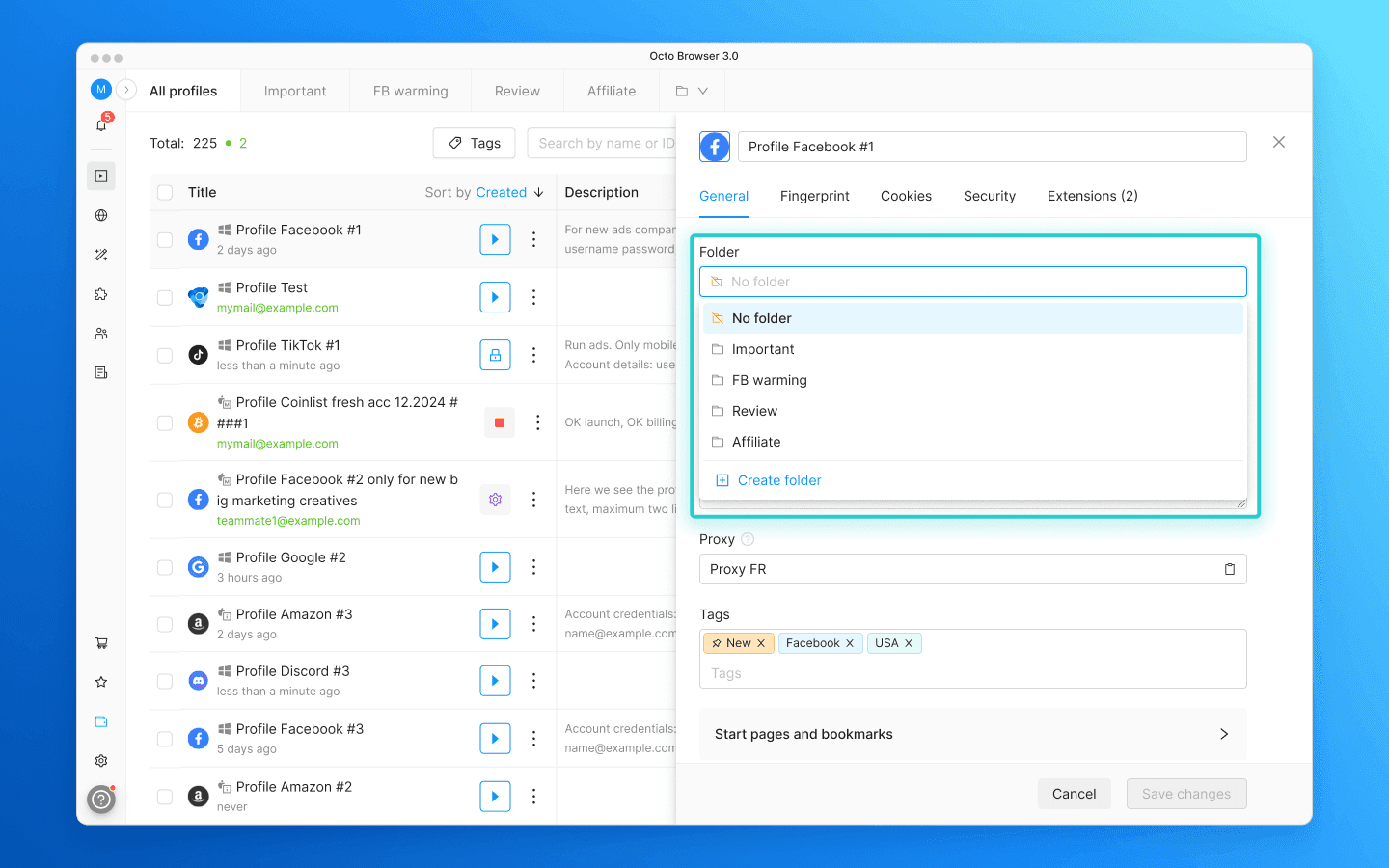
Folders are integrated into all major workflows. A new “Folder” column has been added to the Profile list, allowing profiles to be moved with a single click. The same action is available from the profile context menu and through bulk actions. When creating or editing a profile, the folder can be specified in the “General” tab settings. Folders can also be assigned in templates, during bulk profile creation, and when importing profiles from a file. Folders are available through the API as well; consult the documentation for details.
The maximum number of folders depends on your subscription tier.
Folder-based access rights management is enabled for all new teams and for teams that previously did not use tags to manage profile access.
If your team already uses tags for access management, everything will continue working as before. You can switch to folder-based access rights management in the team settings. Read more about switching access rights management here.
Switching between accounts
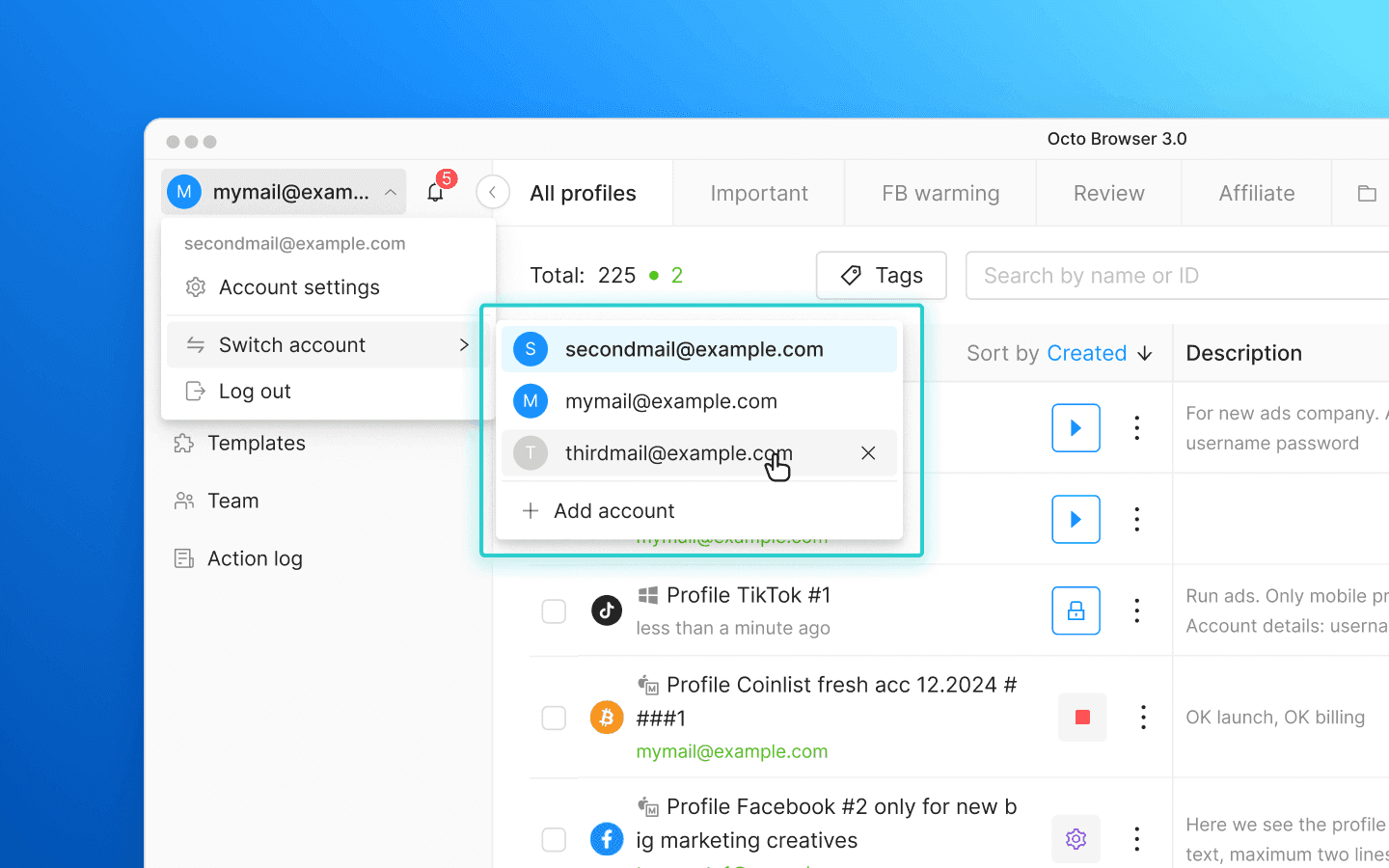
If you work with multiple Octo accounts (for example, managing different teams or separating work and personal accounts), previously you had to log out and enter your login credentials every time you wanted to switch accounts. Now you can add multiple Octo accounts and switch between them in just a couple of clicks.
You can add an account or switch to an already existing one using the menu in the upper-left corner.
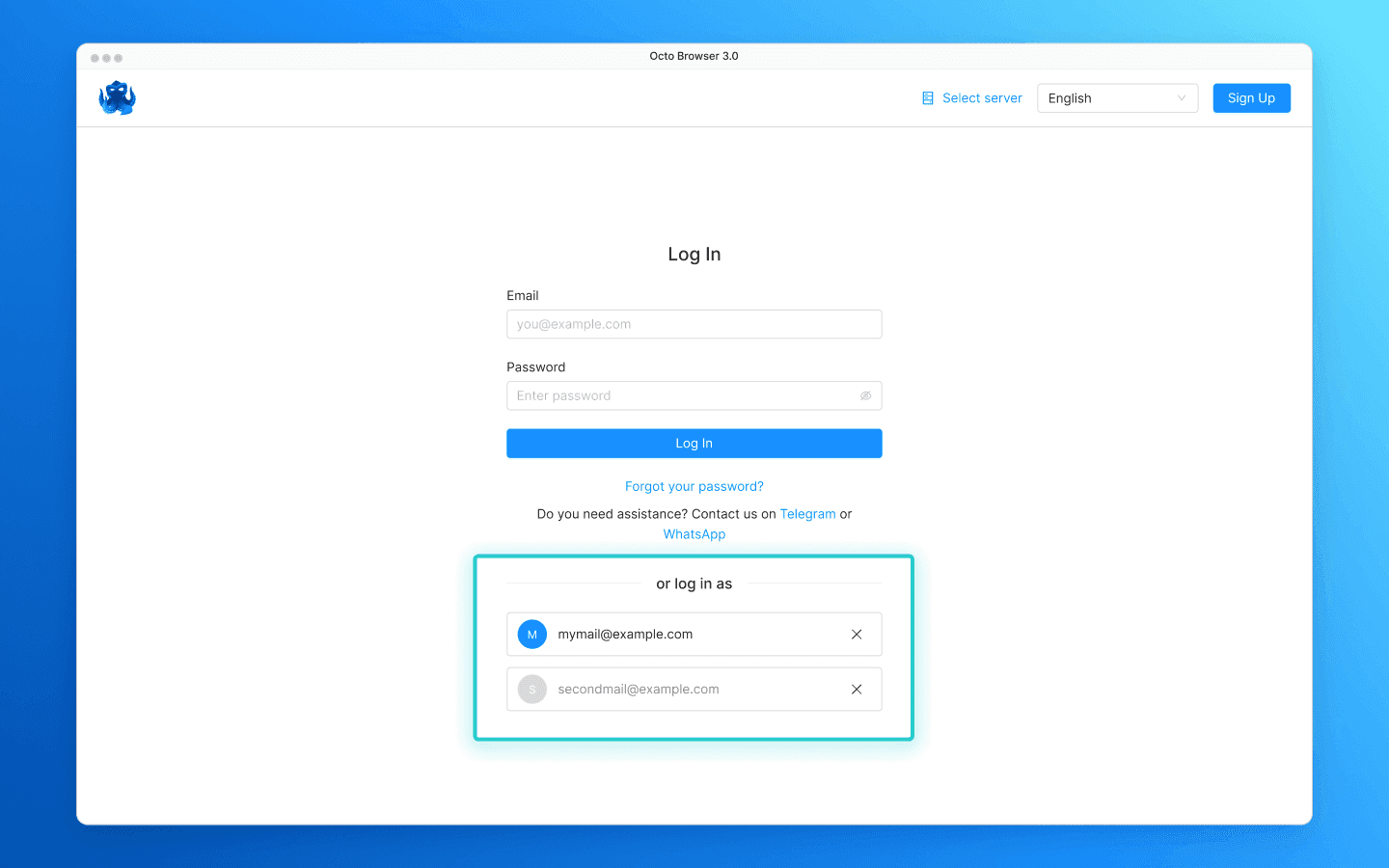
Added accounts are also displayed on the login screen. This is convenient if you have logged out and want to quickly switch to another account without entering the email manually. Unneeded accounts can be removed from the list using the close icon.
Team settings
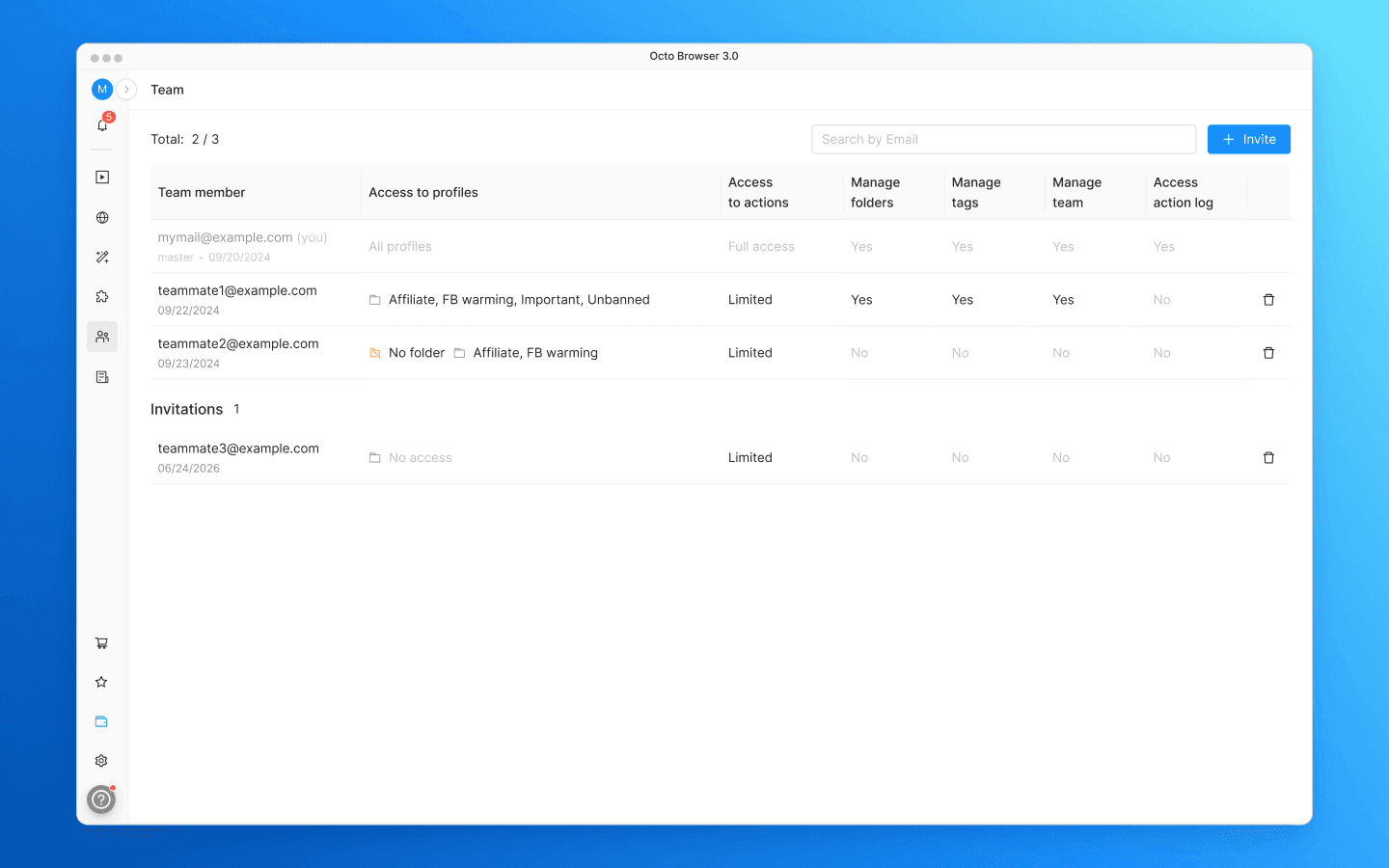
The team management section has been redesigned. Previously, assigned permissions were displayed as strings that were cut off by column boundaries, sometimes making it difficult to quickly understand which baseline permissions each participant had.
Now baseline permissions are visible directly in the team table; you do not need to open each participant’s settings.
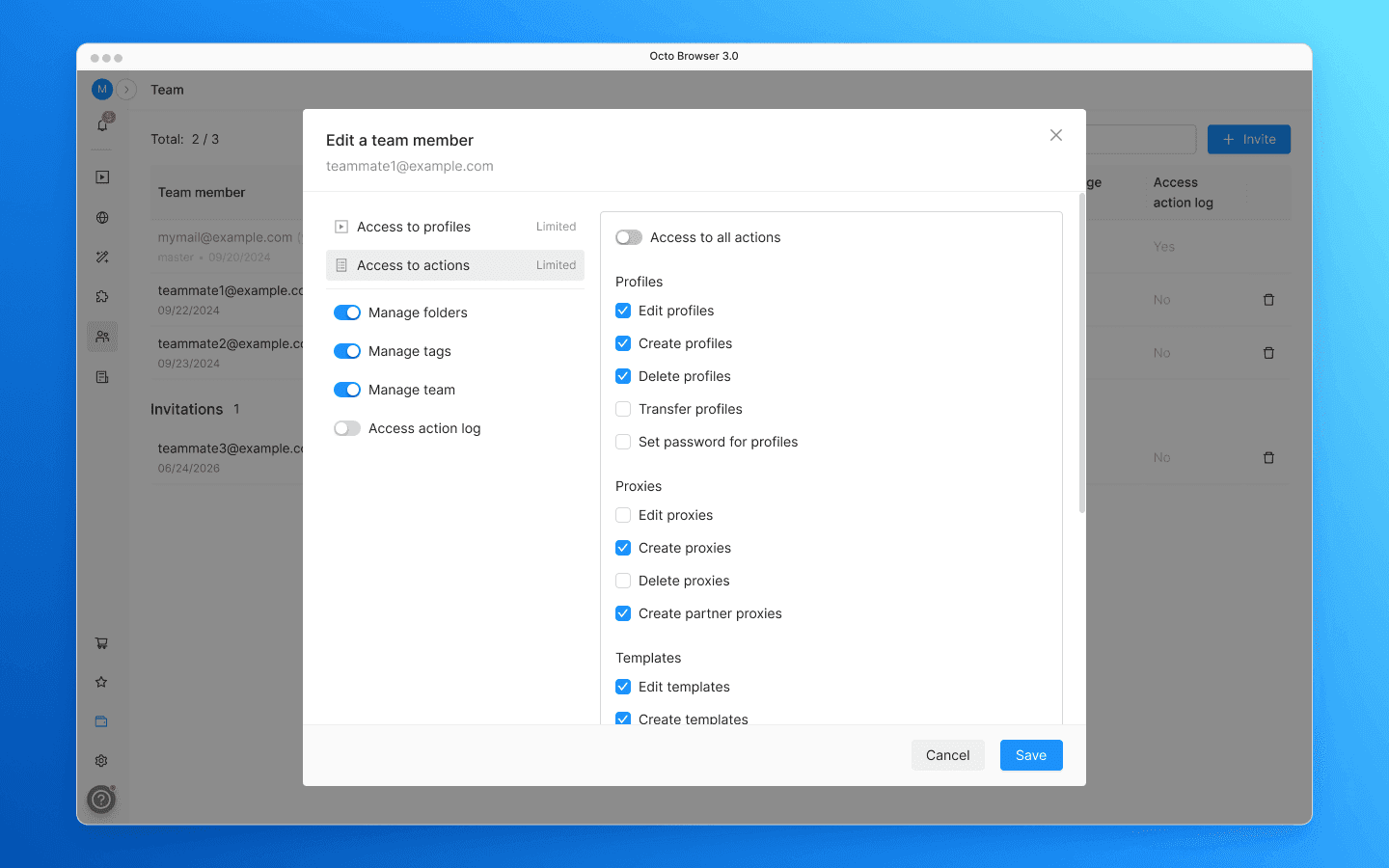
Team member settings are now divided into two tabs: “Access to profiles” and “Access to actions.” The first tab controls which profiles a team member can see: all profiles or only profiles in specified folders. The second tab controls which actions they are allowed to perform with profiles, proxies, templates, extensions, and tasks. Action permissions are grouped into categories with checkboxes, making it immediately clear which permissions are enabled and which are not.
Other improvements and fixes
Bulk actions with the profile list are now available in the bulk profile creation table.
After installing major Octo Browser updates, users now see a detailed changelog.
Notifications no longer cover the input field of the customer service chat.
Would you like to try Octo Browser at discount?
Use the promo code OCTOBLOG to get 30% off any subscription. This offer is valid only for new users.
Interface update
The architecture of the Octo Browser interface remained unchanged since its launch. We added features and redesigned individual sections, but the foundation stayed the same: a horizontal menu at the top with everything else below it. It worked well, but with every update the space became more limited. Some sections were already running out of room, and when we started designing folders, it became clear that adding new elements to the old structure without compromises would not be possible. So, we decided to redesign the navigation.
In Update 3.0, navigation has moved to a sidebar. Vertical space is not as limited as horizontal space: sections can be added as the product grows without pushing each other out. Meanwhile, the main workspace on the right now uses the full height of the window.
“Profiles,” “Proxies,” “Templates,” and “Trash bin” are now located in the left sidebar. “Team” and “Action log,” which were previously hidden inside the profile menu, have also moved there. A new “Extensions” section has been added: previously, managing the extensions list required going into profile settings, but now it is accessible directly from the main menu.
Account settings and the notifications bell have moved to the upper part of the menu, above the main sections. Opening account settings no longer interrupts your workflow: when you close the settings window, you return to the section you came from. You can also switch between Octo accounts from the account menu at the top, but more on that below.
A subscription status indicator has been added to the bottom part of the sidebar. It shows how many profiles are being used and how many days remain in your subscription. You can also open subscription settings from there.
The help menu in the bottom-left corner has been updated. In addition to the customer service chat, it now contains all useful links to documentation and help resources.
The sidebar can collapse into a compact set of icons whenever you need more workspace. It also collapses automatically when the window becomes too narrow.
The location of sections has changed, but their content remains the same: the same “Profiles,” “Proxies,” and “Templates,” now placed inside the sidebar.
Profile folders
Before Octo 3.0, tags were the only way to organize profiles and manage access rights in a team. Tags are a flexible tool, but with a large number of profiles and growing teams, working with them often turned into constant switching between tag filters and increasingly complex access settings. Folders allow profiles to be grouped in a more familiar way, making it easier to switch between them and configure access rights.
Folders appear as tabs above the profile list. Create a folder, move profiles into it, and configure which team members can access it. The “All profiles” tab will always display the full list of everything you have access to.
When there are too many folders to fit into the row of tabs, the extra folders move into a dropdown list. From there, you can also reorder folders using drag-and-drop, rename them, or delete them. When a folder is deleted, profiles are not purged: they are simply removed from the folder and remain available in the general “All profiles” list.
Folder access is configured separately for each team member. You can also allow users without folder access to move profiles into it without being able to view its contents. This is useful when profiles need to be transferred between people working with different folders.
The “All profiles” tab now also supports additional filtering by folders.
Folders are integrated into all major workflows. A new “Folder” column has been added to the Profile list, allowing profiles to be moved with a single click. The same action is available from the profile context menu and through bulk actions. When creating or editing a profile, the folder can be specified in the “General” tab settings. Folders can also be assigned in templates, during bulk profile creation, and when importing profiles from a file. Folders are available through the API as well; consult the documentation for details.
The maximum number of folders depends on your subscription tier.
Folder-based access rights management is enabled for all new teams and for teams that previously did not use tags to manage profile access.
If your team already uses tags for access management, everything will continue working as before. You can switch to folder-based access rights management in the team settings. Read more about switching access rights management here.
Switching between accounts
If you work with multiple Octo accounts (for example, managing different teams or separating work and personal accounts), previously you had to log out and enter your login credentials every time you wanted to switch accounts. Now you can add multiple Octo accounts and switch between them in just a couple of clicks.
You can add an account or switch to an already existing one using the menu in the upper-left corner.
Added accounts are also displayed on the login screen. This is convenient if you have logged out and want to quickly switch to another account without entering the email manually. Unneeded accounts can be removed from the list using the close icon.
Team settings
The team management section has been redesigned. Previously, assigned permissions were displayed as strings that were cut off by column boundaries, sometimes making it difficult to quickly understand which baseline permissions each participant had.
Now baseline permissions are visible directly in the team table; you do not need to open each participant’s settings.
Team member settings are now divided into two tabs: “Access to profiles” and “Access to actions.” The first tab controls which profiles a team member can see: all profiles or only profiles in specified folders. The second tab controls which actions they are allowed to perform with profiles, proxies, templates, extensions, and tasks. Action permissions are grouped into categories with checkboxes, making it immediately clear which permissions are enabled and which are not.
Other improvements and fixes
Bulk actions with the profile list are now available in the bulk profile creation table.
After installing major Octo Browser updates, users now see a detailed changelog.
Notifications no longer cover the input field of the customer service chat.
Would you like to try Octo Browser at discount?
Use the promo code OCTOBLOG to get 30% off any subscription. This offer is valid only for new users.
Stay up to date with the latest Octo Browser news
By clicking the button you agree to our Privacy Policy.
Stay up to date with the latest Octo Browser news
By clicking the button you agree to our Privacy Policy.
Stay up to date with the latest Octo Browser news
By clicking the button you agree to our Privacy Policy.

Join Octo Browser now
Or contact Customer Service at any time with any questions you might have.
Join Octo Browser now
Or contact Customer Service at any time with any questions you might have.
Join Octo Browser now
Or contact Customer Service at any time with any questions you might have.