How anonymity checkers Pixelscan, BrowserLeaks, Whoer, and CreepJS work

Markus_automation
Expert in data parsing and automation
Over the past few years, the approach to digital privacy has changed significantly. Online platforms have begun tracking user behavior much more strictly and actively implementing identification technologies. One of the most important of these technologies is the browser fingerprint, a method that allows identifying a user by the unique characteristics of their device and browser.
Unlike cookies, fingerprinting works passively: the system quietly queries dozens of browser API parameters, from installed fonts to the GPU, and builds a unique digital signature that survives both cache clearing and IP address changes.
As browser fingerprinting technology evolved, specialized services for assessing it, known as checkers, began to appear. They allow you to quickly test and see how unique your browser looks and what data it exposes. However, many users mistakenly perceive the results of such checks as a final and objective measure of anonymity. In this article, we will examine the architecture of leading checkers, explore what exactly they check, and determine whether their results can be considered comprehensive.
Contents
The best way to stay anonymous online is to change not only your IP address, but also the browser fingerprint.
Try Octo Browser.
Would you like to try Octo Browser at discount?
Use the promo code OCTOBLOG to get 30% off any subscription. This offer is valid only for new users.
The basics: Whoer and network anonymity
Whoer is one of the simplest checkers. You open the website, and it shows all information about your Internet connection and browser, from IP address to system time.
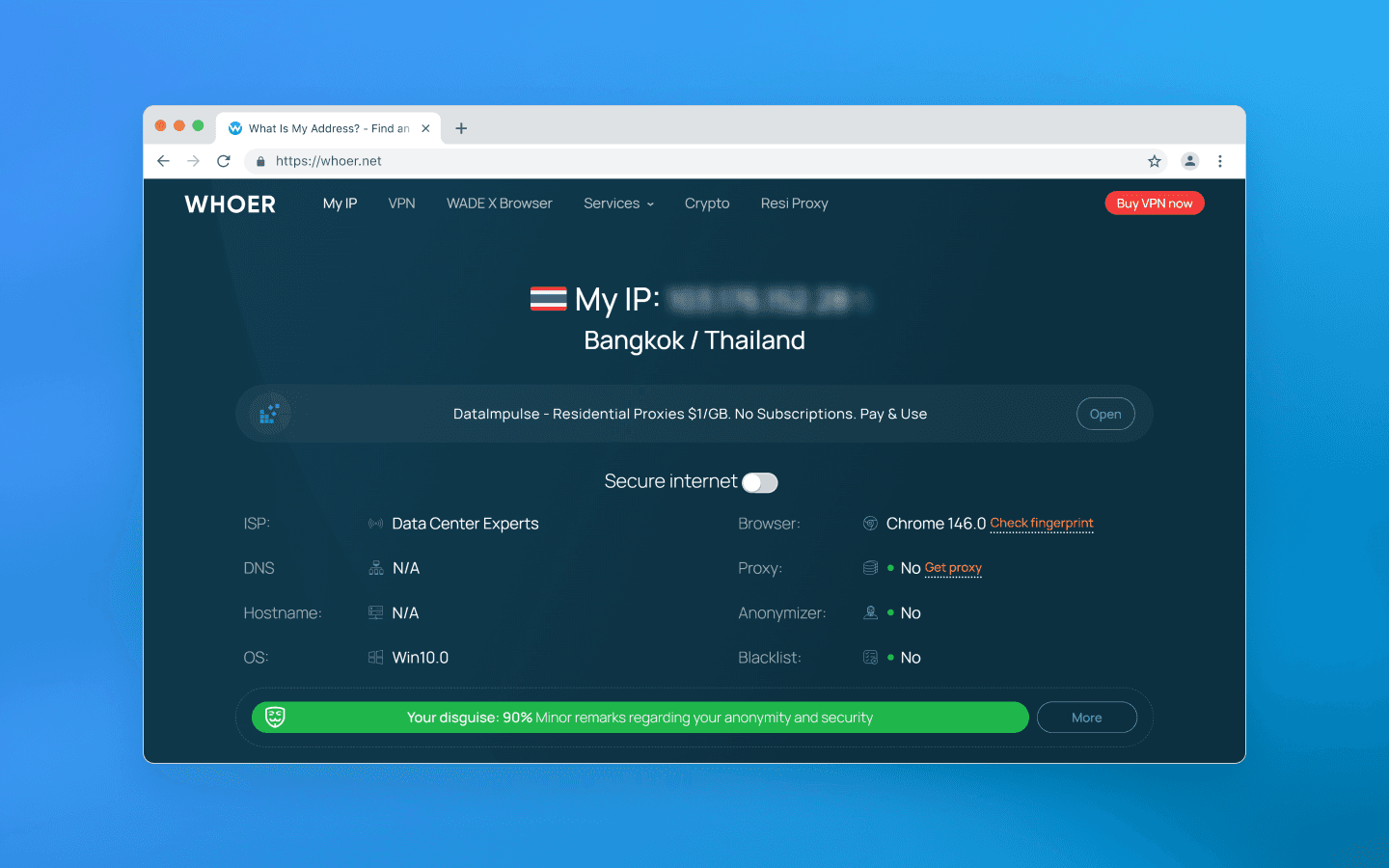
It is usually used to make sure that a VPN, proxy, or anti-detect browser is configured correctly and does not leak real data. Whoer does not analyze GPU rendering or other hardware-level parameters; instead, it focuses on visible identity, i.e. network parameters that your connection openly exposes to the server.
What is checked:
Geo-consistency: if your profile mimics a California resident, Whoer checks whether the IP belongs to a US address pool and whether the system time zone matches the declared state. It also compares system time settings and language with the actual time in the IP’s time zone.
DNS leaks: Whoer checks whether your requests to websites are routed through your real home Internet provider instead of the configured VPN or proxy.
WebRTC: Whoer attempts to retrieve your real local and public IP address through peer-to-peer browser connections and detect IP leaks via WebRTC.
Basic browser fingerprint: Whoer checks the OS version, browser version, whether JavaScript is enabled, installed plugins, and basic screen parameters.
Whoer positions itself as a universal anonymity and security scanner for a wide audience. Its main feature is providing a quick and clear answer to the question of how websites see you.
Whoer gamified the data presentation process and introduced its own anonymity percentage score. It evaluates your spoofing on a 100-point scale. At 90–100%, you look like a regular user from the declared country. If the result is somewhere around 40–70%, the service highlights warnings in red or yellow, showing which parameters expose you and giving tips on how to fix them (e.g., disable WebRTC or change the system time zone).
However, Whoer does not go deeper than this; that is what other services are for. That said, if you need to quickly check your proxies for network leaks, Whoer handles this task perfectly.
Deep audit: BrowserLeaks and hardware entropy
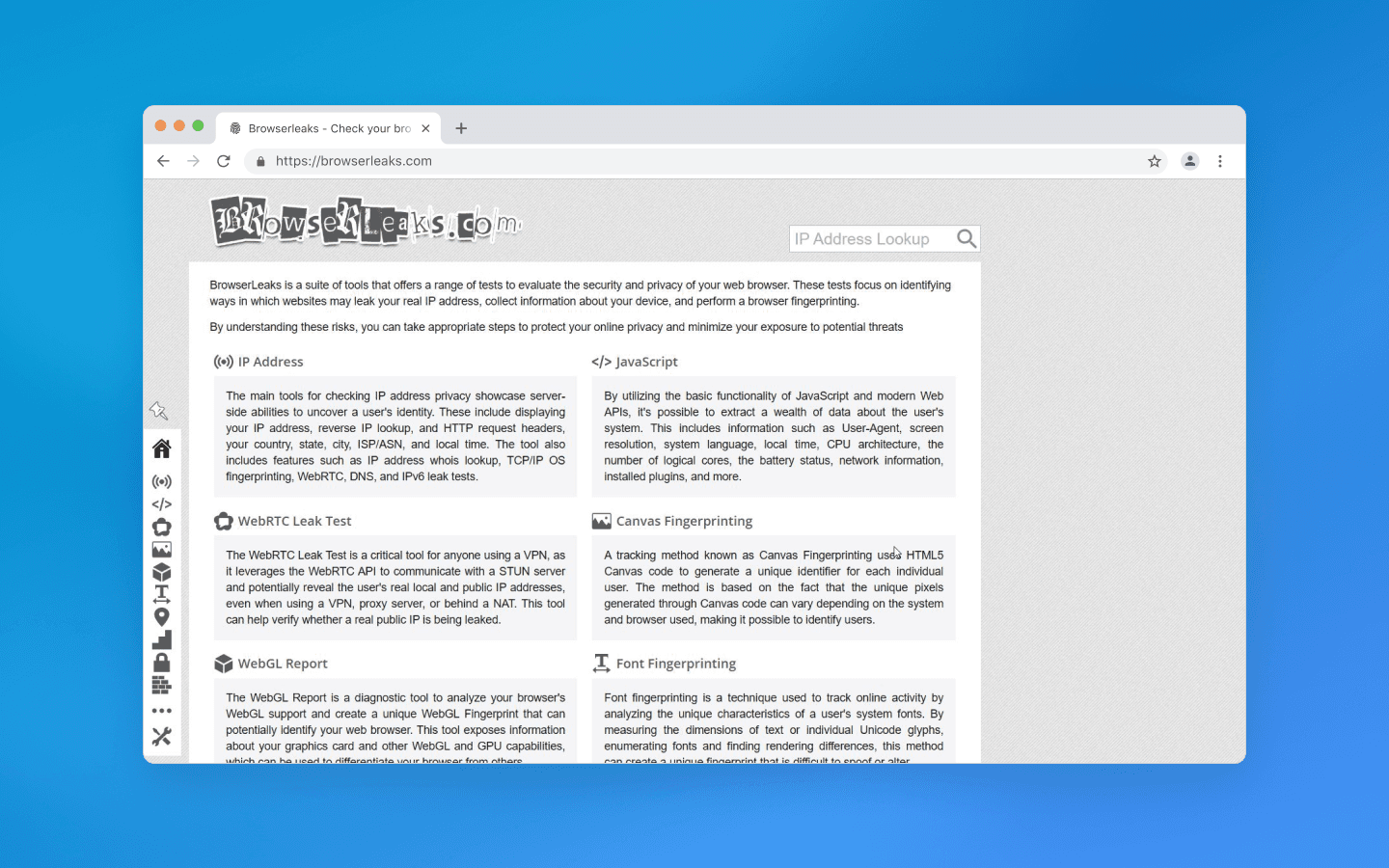
While Whoer performs a basic check of network parameters and provides a general anonymity score, BrowserLeaks goes much deeper and is focused on technical analysis. The service collects and displays a wide range of parameters related to the browser, device, and runtime environment.
At the same time, this solution does not give evaluations, it simply shows actual values, the data that almost any website can collect about your browser. Interpreting these parameters requires technical understanding.
Among other things, BrowserLeaks checks graphics rendering parameters (e.g., via Canvas and WebGL), analyzes audio processing, detects available system fonts, and collects various network and system characteristics that can be used to form a browser fingerprint.
Canvas fingerprinting
Canvas fingerprinting is the most well-known and widespread hardware tracking method, which BrowserLeaks easily reproduces.
It gives the browser a hidden command to render a complex image on an invisible <canvas> element. Usually, this is a text string with specific fonts, shadow overlays, and intersecting semi-transparent contrasting colors. Based on the rendering result, the checker infers your browser and operating system.
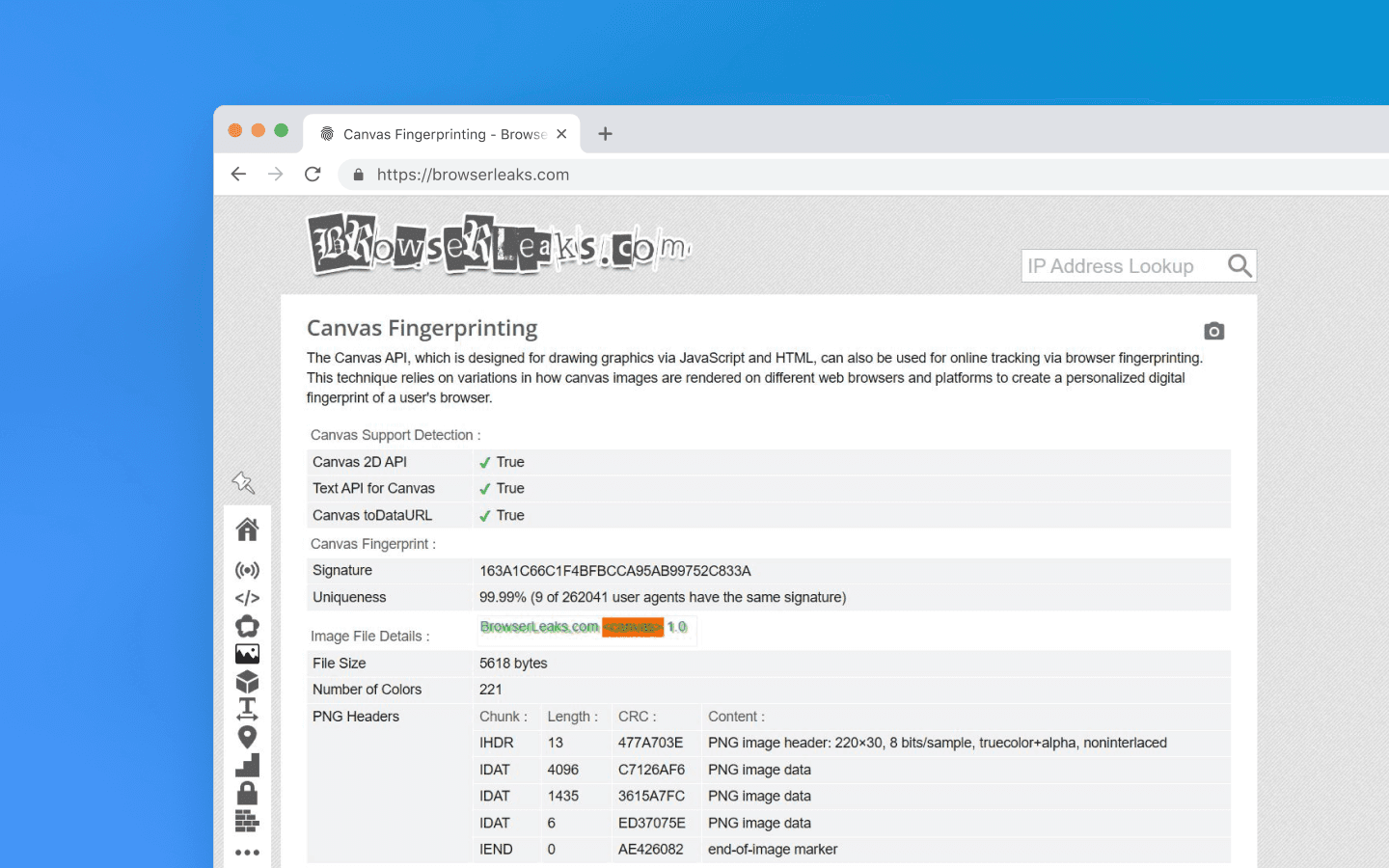
Unlike cookies, which are easy to delete, or an IP address, which is easy to change, a Canvas fingerprint relies on the physical parameters of your device. It survives cache clearing, time zone shifts, and incognito mode.
If, for example, you create multiple accounts on a service using the same device, simply changing proxies, Canvas will link them all into a single chain. The hardware is the same, so the image hash will match every time.
Different operating systems use their own font smoothing algorithms (ClearType in Windows, Quartz in macOS, FreeType in Linux), which affects the final output. Drivers of different GPUs also round pixels differently and handle floating-point calculations in their own way when blending layers and shadows. Together, this forms a unique Canvas.
The cross-platforming myth
Let’s simulate the following situation: you create a profile in an anti-detect browser and choose macOS in the profile settings, even though your device runs Windows.
Your anti-detect browser changes the User-Agent, injects the correct navigator.platform (MacIntel) headers , and adjusts the screen resolution to Mac standards. But when a Canvas rendering is requested, the checker shows your actual Windows. Why does this happen?
The vast majority of anti-detect browsers are built on Chromium. Graphics rendering there is handled by the Skia engine. But for rendering fonts and shadows, Skia calls low-level APIs of your operating system.
On Windows, it uses DirectWrite and the ClearType algorithm.
On macOS, it uses CoreText and Quartz, Apple’s closed rendering engine.
For your Windows-based anti-detect browser to render Canvas like a Mac would, developers would have to remove DirectWrite calls from the browser and somehow embed Apple’s closed, proprietary code tied to their processor architecture. This is technically impossible.
If you have ever read anti-detect browser documentation, you may have noticed that it often recommends using the same operating system as your real one. It rarely explains why.
Technically speaking, though, there is a workaround: you can disable GPU hardware acceleration, and the CPU renders the image via the Google SwiftShader library. Yes, you will get a different Canvas hash, but if you open the WebGL section on BrowserLeaks, the Unmasked Renderer will show SwiftShader instead of a GPU. However, regular users do not disable hardware acceleration, so this will attract the attention of anti-fraud systems anyway.
In addition to Canvas, BrowserLeaks allows you to check a large number of other parameters. The data it shows is exactly what any website you visit can see. The key is to interpret these values correctly and understand where they reveal your real device.
Consistency police: Pixelscan
While BrowserLeaks shows what you have, Pixelscan checks whether you are lying. Modern anti-fraud systems do not ban you for fingerprint uniqueness (millions of legitimate users can be unique), but for logical contradictions within the fingerprint. For example, if your User-Agent says Windows, but navigator.platform returns Linux, Pixelscan will show an error.
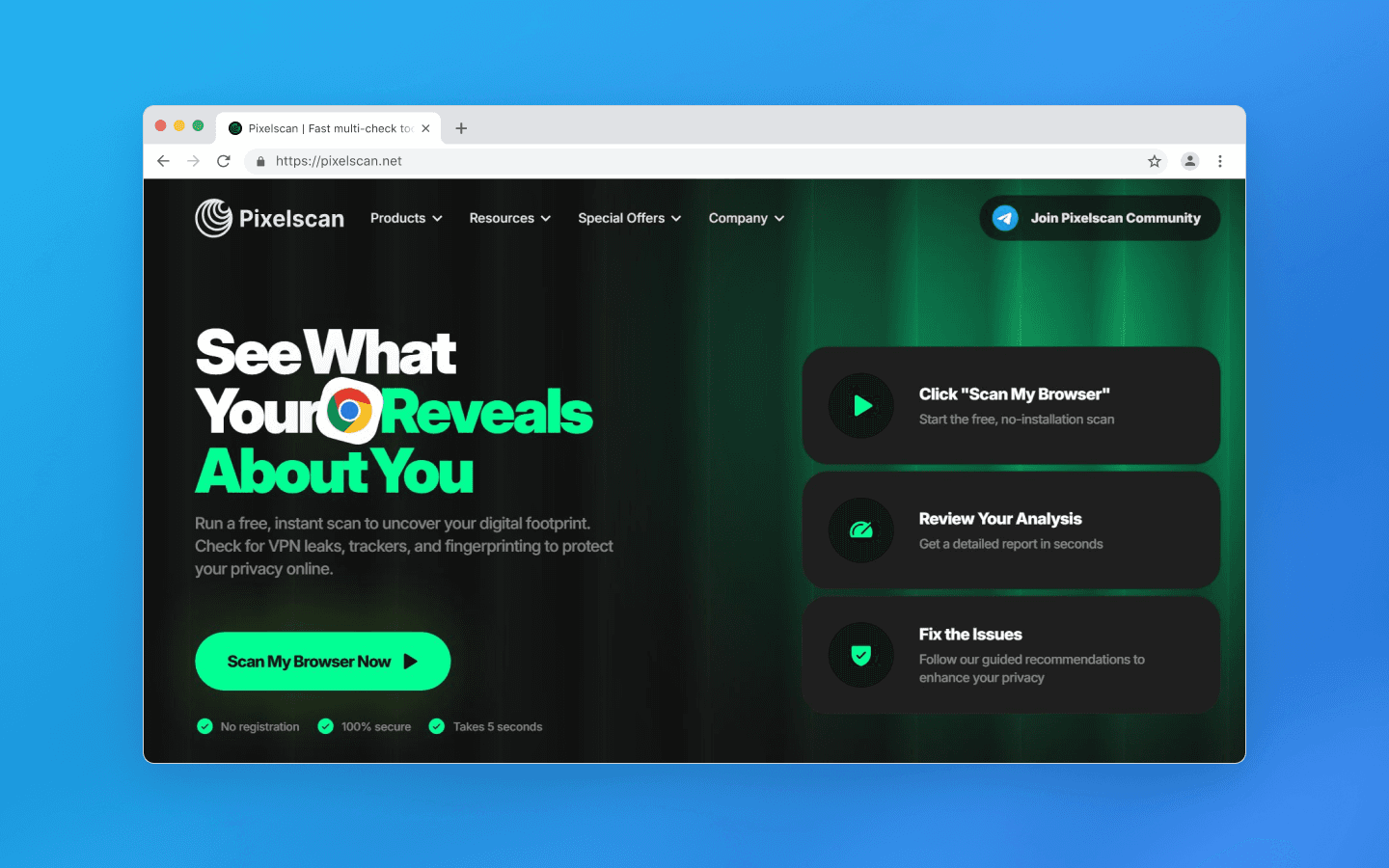
Octo Browser, lets you set any values for hardwareConcurrency (number of CPU cores) and deviceMemory (RAM size). But in reality, these parameters are correlated.
Or, for example, your profile settings specify a screen resolution of 1920×1080. But the Pixelscan script sees that the browser viewport is exactly 1920×1080 as well. For a regular user, part of the screen is always occupied by the Windows taskbar, browser frame, or tabs.
When you open a clean local Chrome without extensions, PixelScan may sometimes show an Inconsistent status. There can be several reasons for this, but most are related to data desynchronization:
Network dynamics. You switched from Wi-Fi to LTE, or the system changed the time zone.
Privacy-oriented browsers. Brave or extensions like uBlock aggressively restrict APIs in the name of privacy, breaking the natural coherence of the fingerprint.
Relocation. You moved to another region, but your device time zone did not change. The checker sees a mismatch between your IP time and device time.
Pixelscan compares your system time with the time zone determined from your IP address using its own geolocation database. However, GeoIP databases (MaxMind, IP2Location, etc.) may contain outdated or inaccurate data, and each service uses its own version. If Pixelscan incorrectly determines the country, its time check will also be based on the wrong region. Therefore, Pixelscan results should not be considered absolute due to possible discrepancies in geo databases.
Main advantages of Pixelscan include:
Comprehensiveness. The checker does not just look at fingerprint parameters individually but analyzes their coherence and consistency. This is exactly what anti-fraud systems at Facebook, Google, and Amazon do.
Automation detection. Pixelscan is excellent at detecting traces of automation frameworks like Puppeteer or Playwright, often used to build bots.
Real fingerprints. Pixelscan compares your Canvas hash against a huge database of real devices. If your hash is 100% unique, meaning no one else in the world has it, that is a bad sign. A good profile should blend in with the crowd, not stand out as one of a kind.
Pixelscan is an excellent training tool, but it is important to remember that the goal of an anti-detect browser is not getting green checkmarks in a checker, but the absence of bans in your target service. Sometimes a profile with a couple of warnings lasts longer than a perfect but suspiciously sterile account.
Advanced detection: CreepJS
CreepJS is not a commercial product but an open-source project created by security researchers. It does not need fancy UI elements. Instead, it aggressively and deeply inspects your browser’s JavaScript engine. This checker looks for the very fact of interference in the browser kernel and digs much deeper than standard checks to find traces of spoofing and automation.
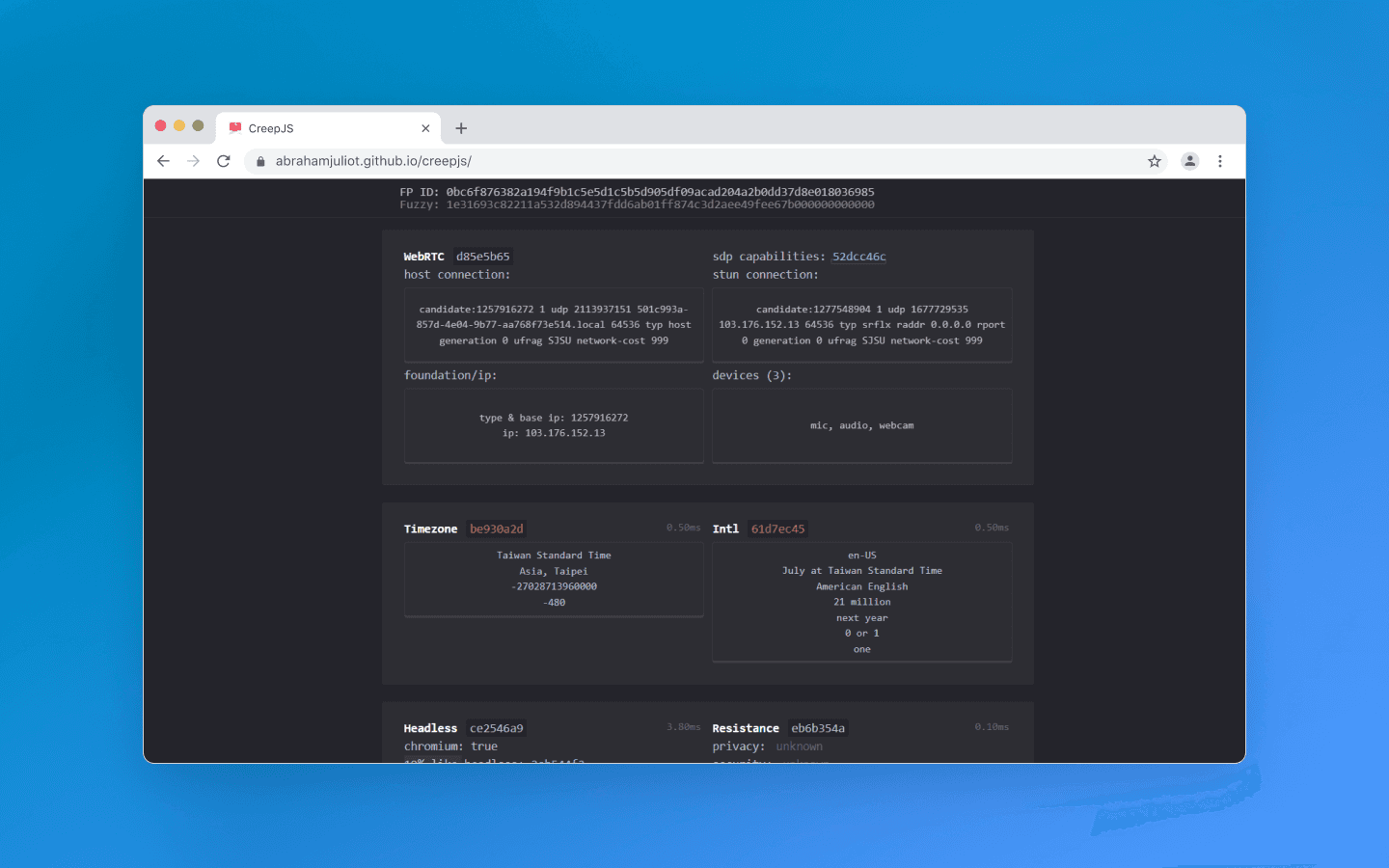
Regular checkers simply take a hash of the rendered Canvas image. CreepJS can analyze the image texture itself and detect mathematical noise-injection algorithms. For example, adding random color noise over pixels is an outdated workaround that CreepJS highlights.
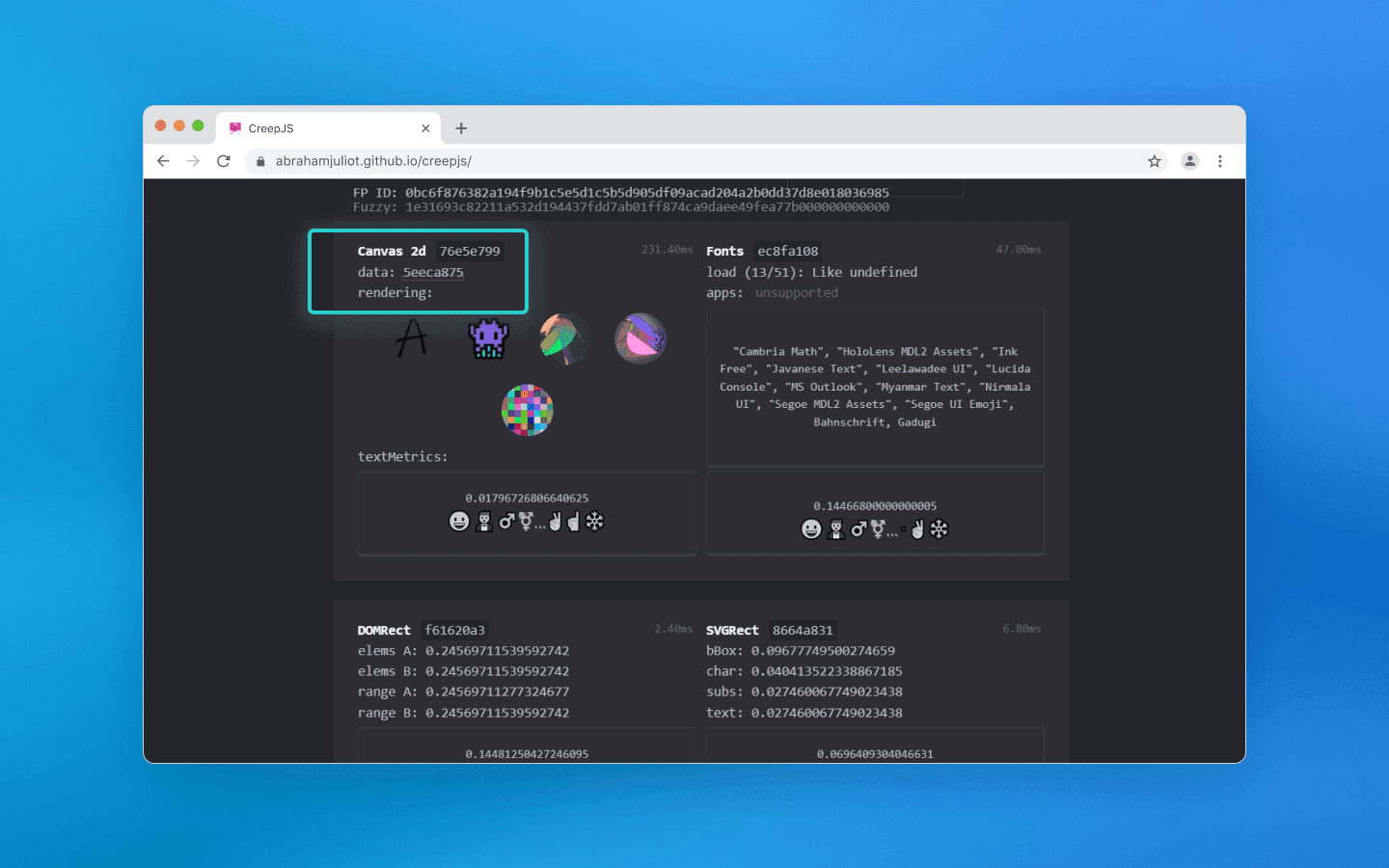
A clean profile
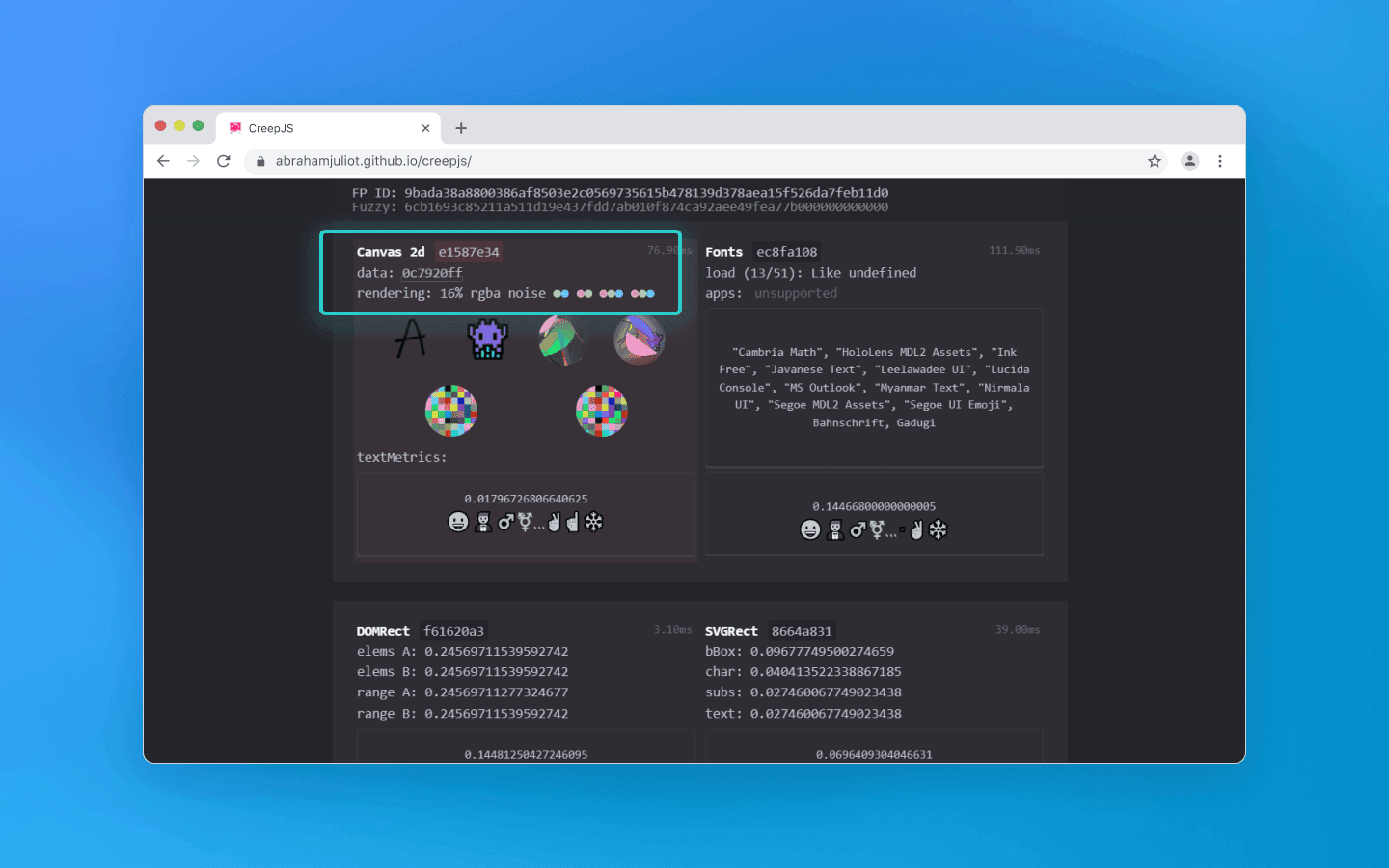
Profile with noise
The checker also looks for flags of hidden browser control via Puppeteer, Playwright, or Selenium. It checks whether the browser is running in headless mode without a graphical interface, verifies the presence of the webdriver object, and analyzes how naturally window parameters behave.
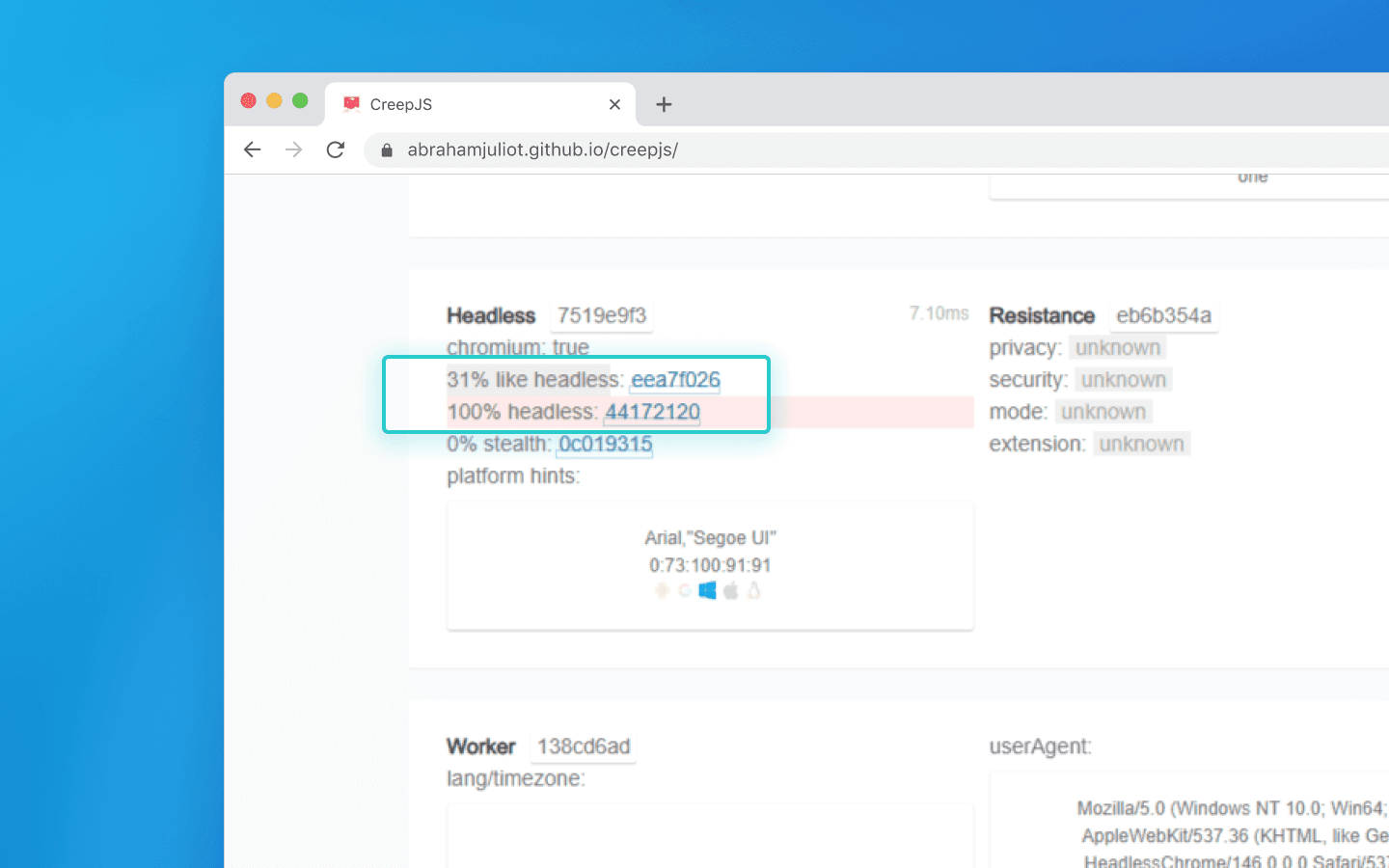
If you run a high-quality anti-detect browser like Octo Browser manually, you will pass this test without issues. But if you automate your workflows via Puppeteer, a cheap anti-detect browser will immediately raise a webdriver: true red flag, while top-tier solutions can even spoof script-based browser control.
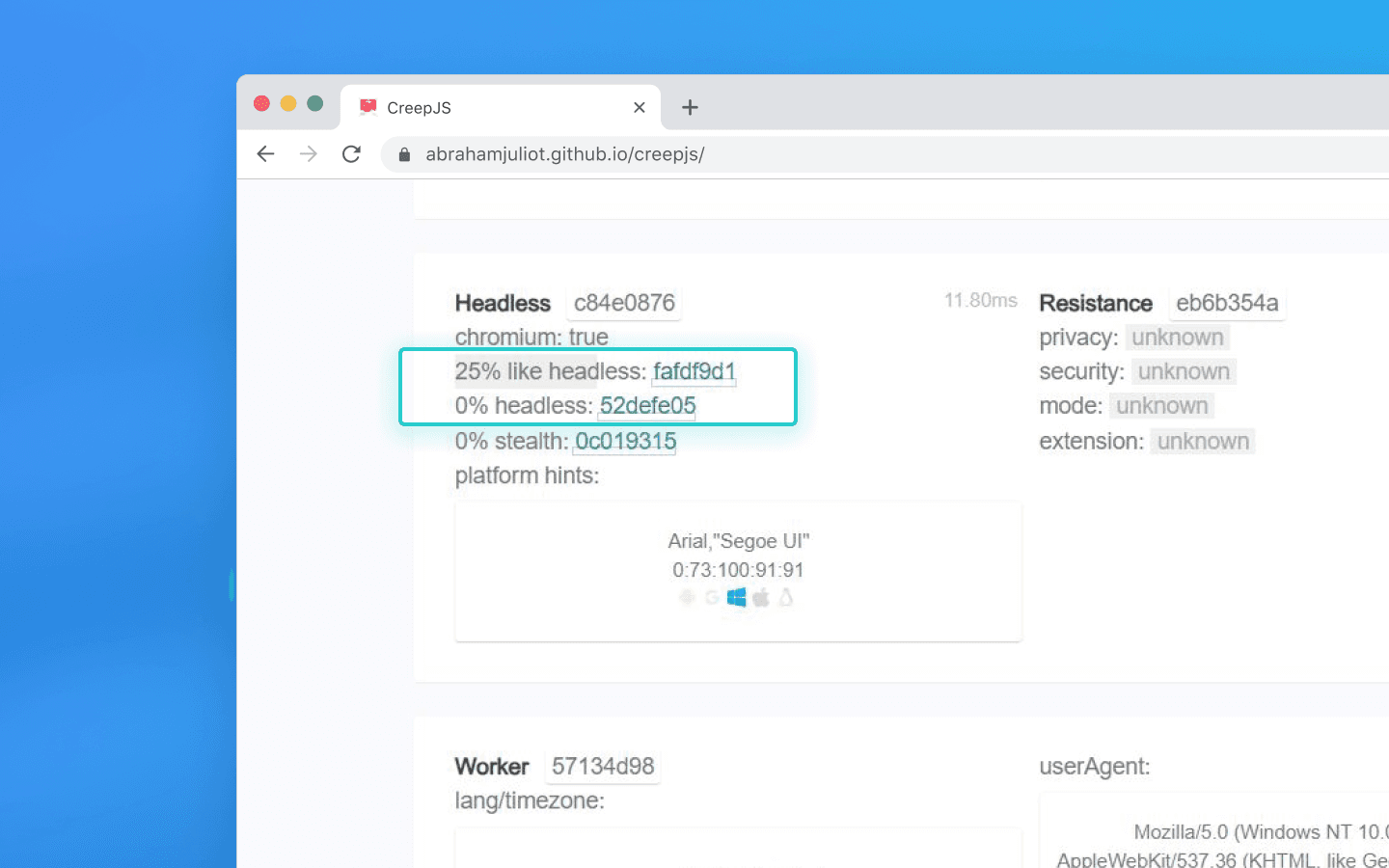
What else does CreepJS detect? The script runs the browser through dozens of stress tests:
Prototype tampering. If a cheap extension rewrites a native JS function (for example, to hide the real battery), CreepJS triggers an error in that function and reads the Stack Trace. Native code produces a system error, while a fake one reveals the script path.
Engine math. CreepJS forces the browser to compute complex fractions (sines, cosines). Different engine versions round numbers slightly differently, which exposes spoofing.
Software rendering. The script analyzes how WebGL is rendered, detecting software emulators often used on cheap bot farm servers.
CreepJS is an objective solution that is extremely difficult to fool. If it detects prototype tampering or math spoofing, the vulnerability is real.
But does a lot of red text mean an instant ban on Google, Facebook, or crypto exchanges? No. Here is why CreepJS results should not be treated as absolute:
Commercial anti-fraud works differently. Ad networks need real users who generate revenue. They do not ban solely for using privacy extensions that limit APIs (which CreepJS hates).
False positives. Even a perfectly clean, regular Chrome can appear suspicious in reports if you install a strict ad blocker (like uBlock), change the time zone, or disable third-party cookies.
Bans are based on the whole picture. Large platforms consider the overall context, meaning IP address, account history, behavior, and fingerprint taken together. If your fingerprint is slightly unusual but you behave like a real user with a high-quality proxy, you will be fine.
Conclusions
Can checkers be trusted after all? Yes, but you need to understand they are just diagnostic tools:
Whoer quickly checks whether your connection leaks your real IP or DNS.
BrowserLeaks shows you all technical data your browser voluntarily exposes to websites.
Pixelscan detects inconsistencies between declared profile characteristics and real hardware.
CreepJS identifies deep programmatic interference in browser behavior and bot usage.
Solution | What it checks | Output format | Who and what it is useful for |
Whoer.net | Basic network (IP, DNS, VPN or proxy behavior) | Clear percentage-based rating | For quick Internet connection checks |
BrowserLeaks | All browser and hardware parameters visible to websites | Raw data without evaluation | For developers performing deep technical analysis |
Pixelscan | Logical inconsistencies in profile settings | Status: passed or suspicious | For QA and automation specialists to verify profile quality |
CreepJS | Deep code-level interference in the browser | Percentage-based trust score and list of errors | For security specialists conducting strict stress tests |
Top-level automation today is not about becoming invisible by shutting down all APIs, but about creating consistent profiles that fully blend in with millions of real Internet users.
The best way to stay anonymous online is to change not only your IP address, but also the browser fingerprint.
Try Octo Browser.
Would you like to try Octo Browser at discount?
Use the promo code OCTOBLOG to get 30% off any subscription. This offer is valid only for new users.
The basics: Whoer and network anonymity
Whoer is one of the simplest checkers. You open the website, and it shows all information about your Internet connection and browser, from IP address to system time.
It is usually used to make sure that a VPN, proxy, or anti-detect browser is configured correctly and does not leak real data. Whoer does not analyze GPU rendering or other hardware-level parameters; instead, it focuses on visible identity, i.e. network parameters that your connection openly exposes to the server.
What is checked:
Geo-consistency: if your profile mimics a California resident, Whoer checks whether the IP belongs to a US address pool and whether the system time zone matches the declared state. It also compares system time settings and language with the actual time in the IP’s time zone.
DNS leaks: Whoer checks whether your requests to websites are routed through your real home Internet provider instead of the configured VPN or proxy.
WebRTC: Whoer attempts to retrieve your real local and public IP address through peer-to-peer browser connections and detect IP leaks via WebRTC.
Basic browser fingerprint: Whoer checks the OS version, browser version, whether JavaScript is enabled, installed plugins, and basic screen parameters.
Whoer positions itself as a universal anonymity and security scanner for a wide audience. Its main feature is providing a quick and clear answer to the question of how websites see you.
Whoer gamified the data presentation process and introduced its own anonymity percentage score. It evaluates your spoofing on a 100-point scale. At 90–100%, you look like a regular user from the declared country. If the result is somewhere around 40–70%, the service highlights warnings in red or yellow, showing which parameters expose you and giving tips on how to fix them (e.g., disable WebRTC or change the system time zone).
However, Whoer does not go deeper than this; that is what other services are for. That said, if you need to quickly check your proxies for network leaks, Whoer handles this task perfectly.
Deep audit: BrowserLeaks and hardware entropy
While Whoer performs a basic check of network parameters and provides a general anonymity score, BrowserLeaks goes much deeper and is focused on technical analysis. The service collects and displays a wide range of parameters related to the browser, device, and runtime environment.
At the same time, this solution does not give evaluations, it simply shows actual values, the data that almost any website can collect about your browser. Interpreting these parameters requires technical understanding.
Among other things, BrowserLeaks checks graphics rendering parameters (e.g., via Canvas and WebGL), analyzes audio processing, detects available system fonts, and collects various network and system characteristics that can be used to form a browser fingerprint.
Canvas fingerprinting
Canvas fingerprinting is the most well-known and widespread hardware tracking method, which BrowserLeaks easily reproduces.
It gives the browser a hidden command to render a complex image on an invisible <canvas> element. Usually, this is a text string with specific fonts, shadow overlays, and intersecting semi-transparent contrasting colors. Based on the rendering result, the checker infers your browser and operating system.
Unlike cookies, which are easy to delete, or an IP address, which is easy to change, a Canvas fingerprint relies on the physical parameters of your device. It survives cache clearing, time zone shifts, and incognito mode.
If, for example, you create multiple accounts on a service using the same device, simply changing proxies, Canvas will link them all into a single chain. The hardware is the same, so the image hash will match every time.
Different operating systems use their own font smoothing algorithms (ClearType in Windows, Quartz in macOS, FreeType in Linux), which affects the final output. Drivers of different GPUs also round pixels differently and handle floating-point calculations in their own way when blending layers and shadows. Together, this forms a unique Canvas.
The cross-platforming myth
Let’s simulate the following situation: you create a profile in an anti-detect browser and choose macOS in the profile settings, even though your device runs Windows.
Your anti-detect browser changes the User-Agent, injects the correct navigator.platform (MacIntel) headers , and adjusts the screen resolution to Mac standards. But when a Canvas rendering is requested, the checker shows your actual Windows. Why does this happen?
The vast majority of anti-detect browsers are built on Chromium. Graphics rendering there is handled by the Skia engine. But for rendering fonts and shadows, Skia calls low-level APIs of your operating system.
On Windows, it uses DirectWrite and the ClearType algorithm.
On macOS, it uses CoreText and Quartz, Apple’s closed rendering engine.
For your Windows-based anti-detect browser to render Canvas like a Mac would, developers would have to remove DirectWrite calls from the browser and somehow embed Apple’s closed, proprietary code tied to their processor architecture. This is technically impossible.
If you have ever read anti-detect browser documentation, you may have noticed that it often recommends using the same operating system as your real one. It rarely explains why.
Technically speaking, though, there is a workaround: you can disable GPU hardware acceleration, and the CPU renders the image via the Google SwiftShader library. Yes, you will get a different Canvas hash, but if you open the WebGL section on BrowserLeaks, the Unmasked Renderer will show SwiftShader instead of a GPU. However, regular users do not disable hardware acceleration, so this will attract the attention of anti-fraud systems anyway.
In addition to Canvas, BrowserLeaks allows you to check a large number of other parameters. The data it shows is exactly what any website you visit can see. The key is to interpret these values correctly and understand where they reveal your real device.
Consistency police: Pixelscan
While BrowserLeaks shows what you have, Pixelscan checks whether you are lying. Modern anti-fraud systems do not ban you for fingerprint uniqueness (millions of legitimate users can be unique), but for logical contradictions within the fingerprint. For example, if your User-Agent says Windows, but navigator.platform returns Linux, Pixelscan will show an error.
Octo Browser, lets you set any values for hardwareConcurrency (number of CPU cores) and deviceMemory (RAM size). But in reality, these parameters are correlated.
Or, for example, your profile settings specify a screen resolution of 1920×1080. But the Pixelscan script sees that the browser viewport is exactly 1920×1080 as well. For a regular user, part of the screen is always occupied by the Windows taskbar, browser frame, or tabs.
When you open a clean local Chrome without extensions, PixelScan may sometimes show an Inconsistent status. There can be several reasons for this, but most are related to data desynchronization:
Network dynamics. You switched from Wi-Fi to LTE, or the system changed the time zone.
Privacy-oriented browsers. Brave or extensions like uBlock aggressively restrict APIs in the name of privacy, breaking the natural coherence of the fingerprint.
Relocation. You moved to another region, but your device time zone did not change. The checker sees a mismatch between your IP time and device time.
Pixelscan compares your system time with the time zone determined from your IP address using its own geolocation database. However, GeoIP databases (MaxMind, IP2Location, etc.) may contain outdated or inaccurate data, and each service uses its own version. If Pixelscan incorrectly determines the country, its time check will also be based on the wrong region. Therefore, Pixelscan results should not be considered absolute due to possible discrepancies in geo databases.
Main advantages of Pixelscan include:
Comprehensiveness. The checker does not just look at fingerprint parameters individually but analyzes their coherence and consistency. This is exactly what anti-fraud systems at Facebook, Google, and Amazon do.
Automation detection. Pixelscan is excellent at detecting traces of automation frameworks like Puppeteer or Playwright, often used to build bots.
Real fingerprints. Pixelscan compares your Canvas hash against a huge database of real devices. If your hash is 100% unique, meaning no one else in the world has it, that is a bad sign. A good profile should blend in with the crowd, not stand out as one of a kind.
Pixelscan is an excellent training tool, but it is important to remember that the goal of an anti-detect browser is not getting green checkmarks in a checker, but the absence of bans in your target service. Sometimes a profile with a couple of warnings lasts longer than a perfect but suspiciously sterile account.
Advanced detection: CreepJS
CreepJS is not a commercial product but an open-source project created by security researchers. It does not need fancy UI elements. Instead, it aggressively and deeply inspects your browser’s JavaScript engine. This checker looks for the very fact of interference in the browser kernel and digs much deeper than standard checks to find traces of spoofing and automation.
Regular checkers simply take a hash of the rendered Canvas image. CreepJS can analyze the image texture itself and detect mathematical noise-injection algorithms. For example, adding random color noise over pixels is an outdated workaround that CreepJS highlights.
A clean profile
Profile with noise
The checker also looks for flags of hidden browser control via Puppeteer, Playwright, or Selenium. It checks whether the browser is running in headless mode without a graphical interface, verifies the presence of the webdriver object, and analyzes how naturally window parameters behave.
If you run a high-quality anti-detect browser like Octo Browser manually, you will pass this test without issues. But if you automate your workflows via Puppeteer, a cheap anti-detect browser will immediately raise a webdriver: true red flag, while top-tier solutions can even spoof script-based browser control.
What else does CreepJS detect? The script runs the browser through dozens of stress tests:
Prototype tampering. If a cheap extension rewrites a native JS function (for example, to hide the real battery), CreepJS triggers an error in that function and reads the Stack Trace. Native code produces a system error, while a fake one reveals the script path.
Engine math. CreepJS forces the browser to compute complex fractions (sines, cosines). Different engine versions round numbers slightly differently, which exposes spoofing.
Software rendering. The script analyzes how WebGL is rendered, detecting software emulators often used on cheap bot farm servers.
CreepJS is an objective solution that is extremely difficult to fool. If it detects prototype tampering or math spoofing, the vulnerability is real.
But does a lot of red text mean an instant ban on Google, Facebook, or crypto exchanges? No. Here is why CreepJS results should not be treated as absolute:
Commercial anti-fraud works differently. Ad networks need real users who generate revenue. They do not ban solely for using privacy extensions that limit APIs (which CreepJS hates).
False positives. Even a perfectly clean, regular Chrome can appear suspicious in reports if you install a strict ad blocker (like uBlock), change the time zone, or disable third-party cookies.
Bans are based on the whole picture. Large platforms consider the overall context, meaning IP address, account history, behavior, and fingerprint taken together. If your fingerprint is slightly unusual but you behave like a real user with a high-quality proxy, you will be fine.
Conclusions
Can checkers be trusted after all? Yes, but you need to understand they are just diagnostic tools:
Whoer quickly checks whether your connection leaks your real IP or DNS.
BrowserLeaks shows you all technical data your browser voluntarily exposes to websites.
Pixelscan detects inconsistencies between declared profile characteristics and real hardware.
CreepJS identifies deep programmatic interference in browser behavior and bot usage.
Solution | What it checks | Output format | Who and what it is useful for |
Whoer.net | Basic network (IP, DNS, VPN or proxy behavior) | Clear percentage-based rating | For quick Internet connection checks |
BrowserLeaks | All browser and hardware parameters visible to websites | Raw data without evaluation | For developers performing deep technical analysis |
Pixelscan | Logical inconsistencies in profile settings | Status: passed or suspicious | For QA and automation specialists to verify profile quality |
CreepJS | Deep code-level interference in the browser | Percentage-based trust score and list of errors | For security specialists conducting strict stress tests |
Top-level automation today is not about becoming invisible by shutting down all APIs, but about creating consistent profiles that fully blend in with millions of real Internet users.
Stay up to date with the latest Octo Browser news
By clicking the button you agree to our Privacy Policy.
Stay up to date with the latest Octo Browser news
By clicking the button you agree to our Privacy Policy.
Stay up to date with the latest Octo Browser news
By clicking the button you agree to our Privacy Policy.

Join Octo Browser now
Or contact Customer Service at any time with any questions you might have.
Join Octo Browser now
Or contact Customer Service at any time with any questions you might have.
Join Octo Browser now
Or contact Customer Service at any time with any questions you might have.