How to create multiple Outlook accounts

Nikolai Izoitko
Content Manager, Octo Browser
Managing digital identities has become an integral part of everyday work in affiliate marketing, e-commerce, and crypto projects. To operate a large number of Outlook accounts, you need to understand how Microsoft’s services are structured. In this article, we’ll explain how to create multiple Outlook accounts, how to effectively and securely manage them, and why Outlook requires a professional approach to account isolation.
Contents
Work with multiple ad accounts and test ad setups without unnecessary routine. Avoid bans and scale your revenue.
Would you like to try Octo Browser at discount?
Use the promo code OCTOAFFILIATE to get 30% off any subscription. This offer is valid only for new users.
Types of Outlook accounts
Microsoft divides accounts into two main categories, which use different security protocols and management systems.
Personal accounts (MSA)
A Microsoft Account (MSA) is created for personal use. It provides access to Outlook, OneDrive, Xbox, and Teams. Data is stored in Microsoft’s global consumer database. You configure two-factor authentication (2FA) and recovery methods yourself. Such an account can be registered with a third-party email (Gmail, Yahoo) or created with an address in the @outlook.com or @hotmail.com domains.
Work and school accounts (Entra ID)
These accounts are created by organizations through Microsoft 365 Business. Previously known as Azure AD, they are now called Microsoft Entra ID. They are managed by an IT administrator, who sets password policies and access levels to resources (Teams, SharePoint).
Personal and work account data are not synchronized to protect corporate information. An administrator may require multi-factor authentication through a specific app or block logins from certain devices.
How to create multiple Outlook accounts
If you work with a large number of Outlook accounts, you need a multi-accounting strategy. Microsoft’s security systems track automated registrations. If your behavior is flagged as suspicious, the account will be blocked.
Limits and registration
When creating an account on Outlook.com, enter your name, region, and date of birth. This data is used for personalization and account recovery. Microsoft limits registrations per IP address: no more than three new accounts can be created from a single IP within 24 hours.
To manage a large number of Outlook accounts, use high-quality proxies. Free proxies often have a poor reputation and lead to instant bans. Mobile and residential proxies mimic real user behavior, making it easier to pass anti-fraud checks.
Phone verification
As of 2026, phone verification is mandatory on most platforms. Microsoft tracks how often a phone number is used. If one number is linked to multiple Outlook accounts, they all may be flagged as suspicious. If you manage a network of accounts, each one should have its own backup email and a separate phone number.
How Outlook anti-fraud works
A newly created Outlook account is closely monitored by algorithms. Sending mass emails immediately after registration will result in restrictions. Outlook’s security system analyzes:
Outlook login frequency;
IP geography;
email sending speed in Outlook;
repetitive actions in Outlook;
interaction with emails in Outlook (opens, replies).
If multiple Outlook accounts show identical behavior patterns (same actions, timing, IP), they may be linked together.
A proper account warm-up and preparation strategy allows you to safely scale work with multiple Outlook accounts. Without it, even high-quality proxies and solutions won’t protect your Outlook accounts from bans.
Warm-up and preparation strategy
A new Outlook account has no activity history, which signals high risk to anti-fraud systems. Sudden actions (e.g., mass sending of emails, logins from different IPs, automation) are treated as suspicious.
A newly created account is always under increased scrutiny. Outlook algorithms analyze user behavior in the first few days and assign a trust score. If activity looks unnatural, email sending may be restricted or the account may be blocked.
A proper Outlook account preparation helps to:
build a natural behavior pattern of your Outlook accounts;
reduce the risk of bans of your Outlook accounts;
prepare your Outlook accounts for its actual workload.
If you intend to use your Outlook accounts for work, follow this account warm-up and preparation plan:
Day 1–2:
Log into Outlook from one IP and device.
Check incoming emails using Outlook.
Configure basic Outlook settings (language, signature).
Do not send emails using Outlook yet.
Day 3–4:
Subscribe to several newsletters using Outlook.
Send 1–2 emails manually.
Add contacts to Outlook.
Avoid identical message templates.
Day 5–7:
Increase sending to 5–10 Outlook emails per day.
Start using your Outlook account to register on various services.
Reply to incoming emails.
Keep your IP address and device consistent.
Try Octo Browser to warm up your accounts.
How to add additional accounts in Outlook
Integrating multiple Outlook accounts into one interface speeds up your workflow. The method to do so depends on your platform.
Outlook desktop app
Click Add Account in the lower-left corner.
Enter the email address and click Continue.
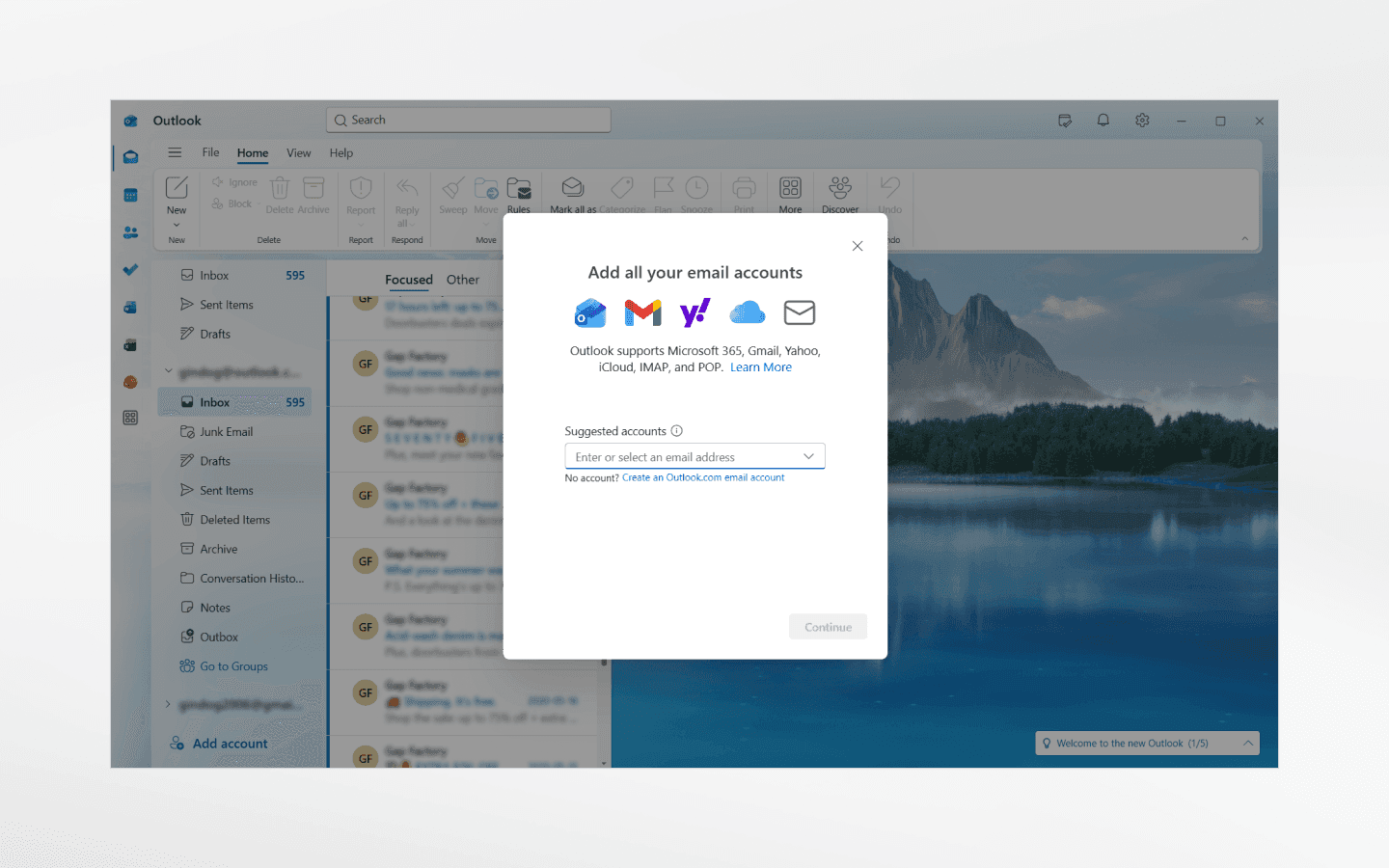
For Microsoft 365, enter your password and complete MFA.
For third-party services, additional permissions may be required.
Outlook web interface
Currently, Microsoft has removed the option to add multiple Outlook accounts directly in the web interface.
However, you can link an additional Outlook email via account settings:
1. Go to https://account.microsoft.com.
2. Open Your info → Account info → Edit account info.
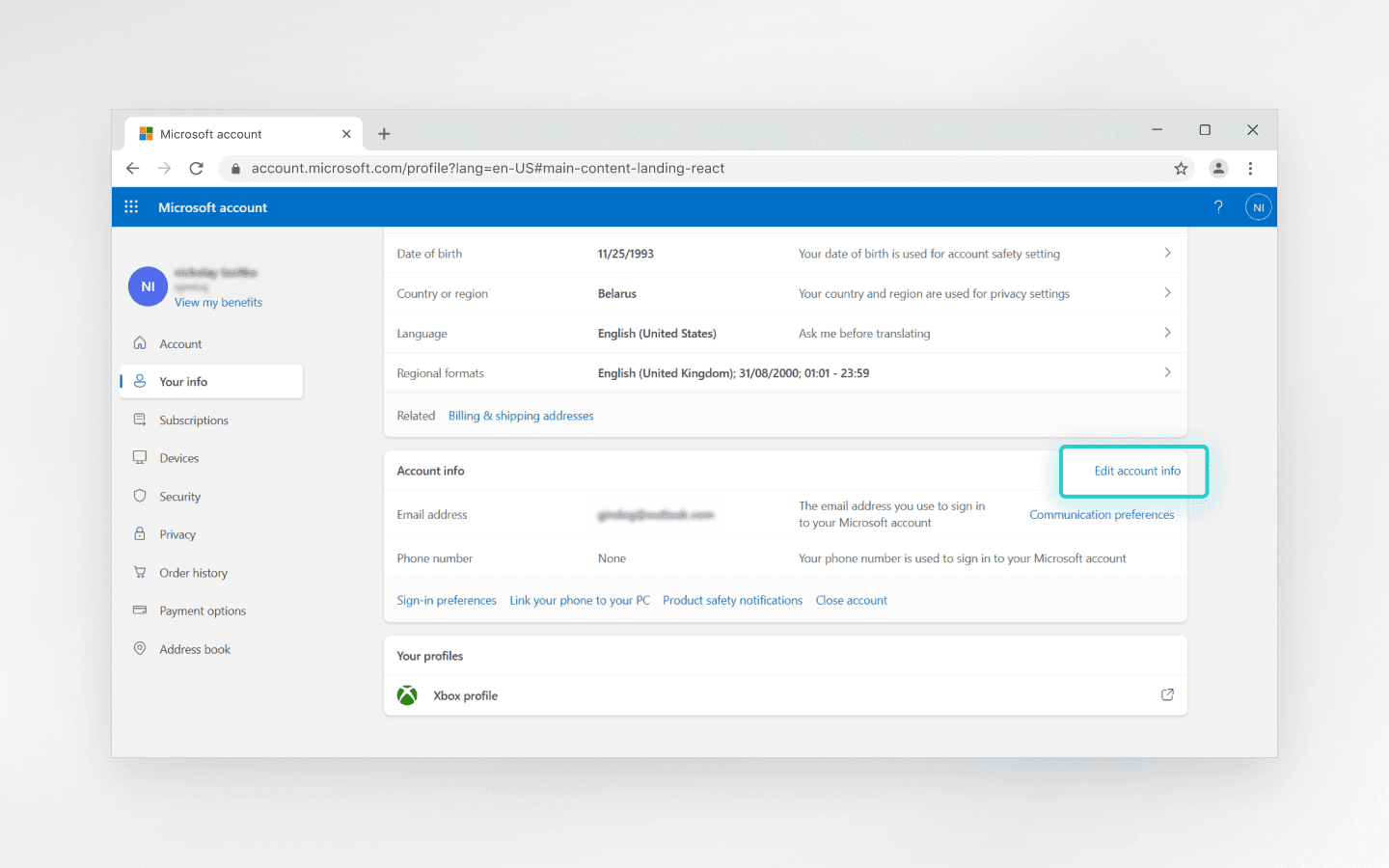
3. Click Add email and link another Outlook address.
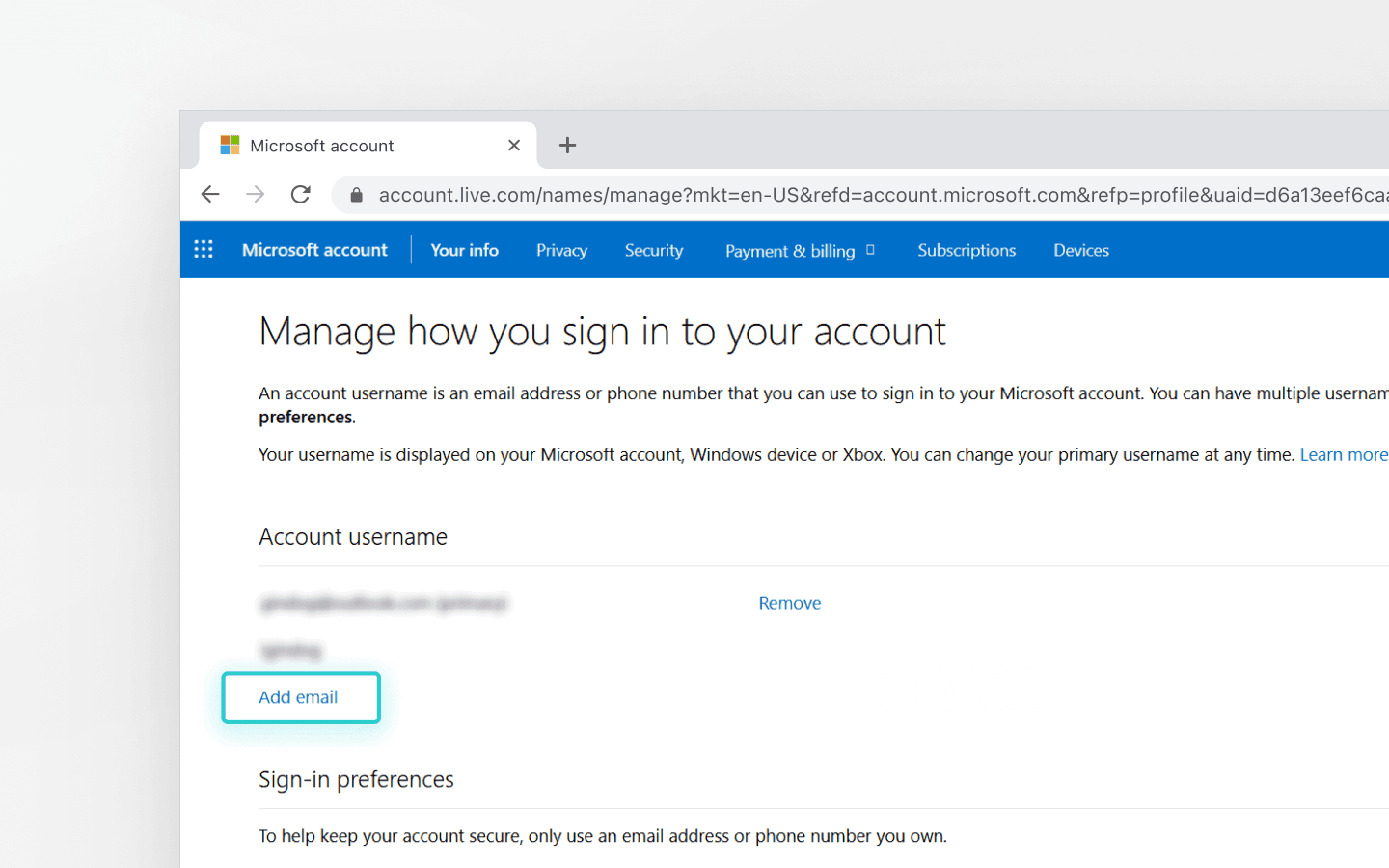
The added email becomes a secondary alias of the same account.
To receive emails from Gmail, Yahoo, or iCloud to your Outlook account, set up email forwarding in those services.
Outlook mobile (iOS and Android)
Outlook mobile supports up to 25 accounts.
Tap the profile icon.
Tap the “+” icon.
Enter account details.
Outlook mobile supports OAuth, so no manual port configuration is needed. If your company uses Intune, you may need the Company Portal app to comply with security policies.
Switching between multiple Outlook accounts
Your speed of switching between multiple Outlook accounts directly affects your productivity. Microsoft offers different methods to switch between multiple Outlook accounts depending on your device.
Outlook desktop
In Outlook desktop, accounts appear as a folder tree in the left panel. Each account has its own folders. Switch between them by clicking the desired account or folder.
For full isolation, use Outlook Profiles. These are separate configuration files. To switch, hold down the Shift button when launching Outlook. This prevents inadvertent mixing of contacts and calendars.
Outlook web
In 2026, Microsoft discontinued OneView and TrueTime features for the Outlook web interface. You can no longer view multiple Outlook accounts in a single window.
Recommended methods to switch between multiple Outlook accounts in your browser:
use separate browser profiles;
use incognito mode for a second session;
switch via the profile menu (this does not allow working with parallel active sessions in one tab).
Common issues
When working with a large number of Outlook accounts, it’s important to know how to handle technical issues. Let’s go over the most common ones.
Repeated password prompts
This issue is often caused by a conflict in cached data.
Windows: open Credential Manager via the Control Panel and clear the stored data.
macOS: delete old entries in Keychain Access.
A conflict may occur if you have Full Access permissions to a mailbox that has already been added as a separate account.
Notification issues on mobile devices
Android and iOS limit background activity to save energy. If you haven’t opened your Outlook account for several hours, synchronization may stop.
Solution: set the app’s battery mode to Unrestricted. Disable the feature that removes permissions for unused apps.
Intune restrictions
MAM policies often prevent adding more than one work account to a single app. If you need multiple work accounts from different companies, use the web version or Outlook PWA.
How to manage multiple Outlook accounts with an anti-detect browser
For those who need dozens or hundreds of Outlook accounts, standard methods are not enough. Anti-fraud systems analyze your digital fingerprint, detect links between accounts, and restrict your activity. Anti-detect browsers are specialized solutions for bypassing such multi-accounting limitations.
What is a digital fingerprint?
A digital fingerprint includes more than one hundred browser and device parameters: screen resolution, fonts, GPU data, time zone, system language, and more. If you log into multiple mailboxes from the same device, Microsoft will detect the connection between them using your digital fingerprint. If one account is banned for spam, the others may automatically come under suspicion, or even be blocked. This is known as a carpet ban.
To avoid this, the anti-detect browser Octo Browser creates isolated virtual profiles. Each profile has its own realistic fingerprint. Modifications are made at the Chromium kernel level, making fingerprint spoofing invisible to Outlook, and your profiles become indistinguishable from regular users on different devices.
Advantages of Octo Browser
Data isolation: each profile stores cookies separately. Outlook sessions never overlap.
Proxy management: assign a separate IP address to each account, creating the appearance of logins from different regions.
Cookie Robot: a feature for warming up and preparing profiles. The robot visits websites and builds browsing history, making you appear as a real user to security systems.
Teamwork: share profiles with colleagues without transferring logins and passwords. The active session is shared along with the profile.
Setting up Octo Browser for Outlook
Installation: sign up on the Octo Browser website and download the browser for your OS.
Subscription: choose and pay for the required subscription or activate a promo code.
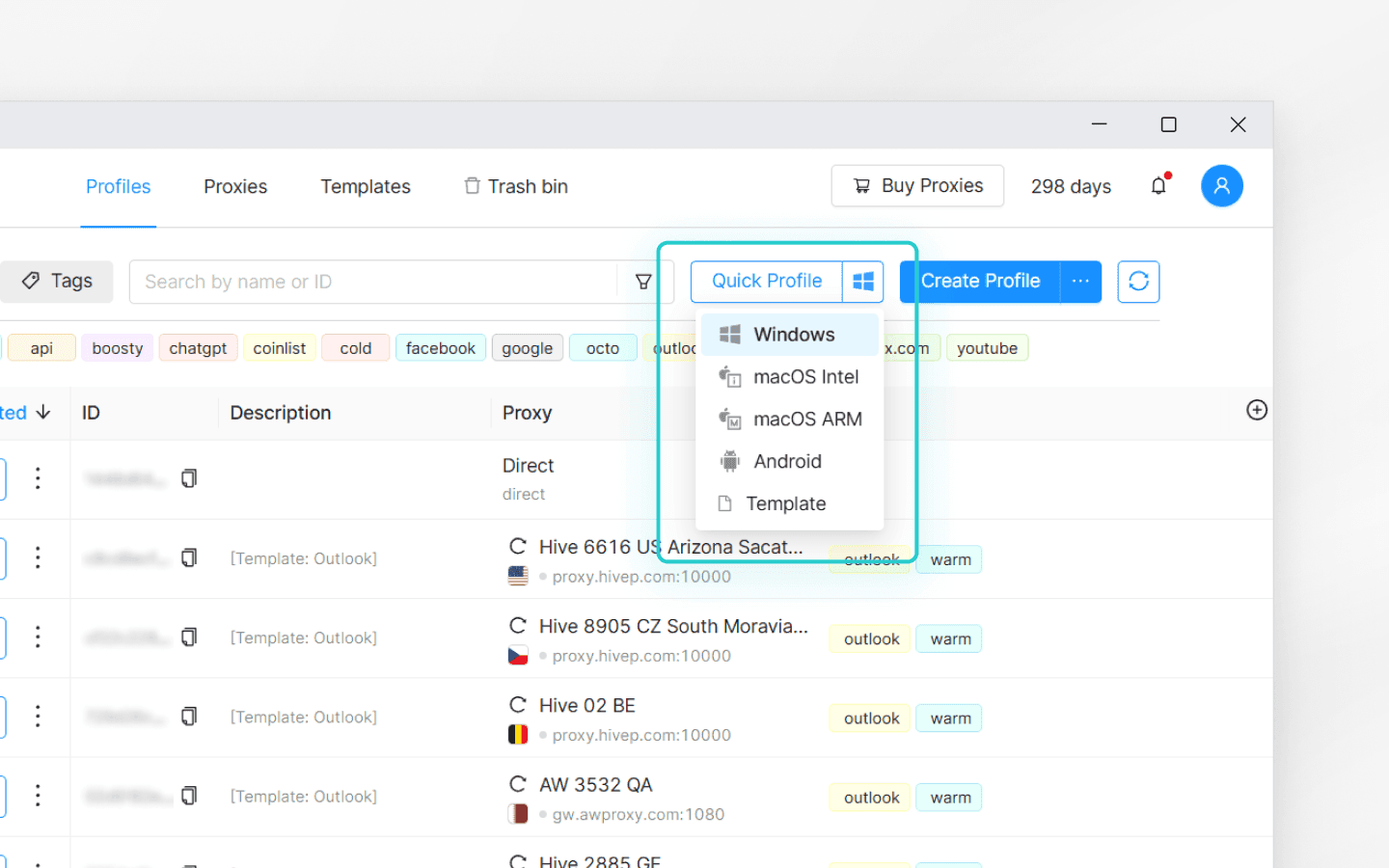
Profile creation: click the icon to the right of Quick Profile, select the desired OS, and click Quick Profile. A ready-to-use profile with optimal settings will immediately appear in the Profile List.
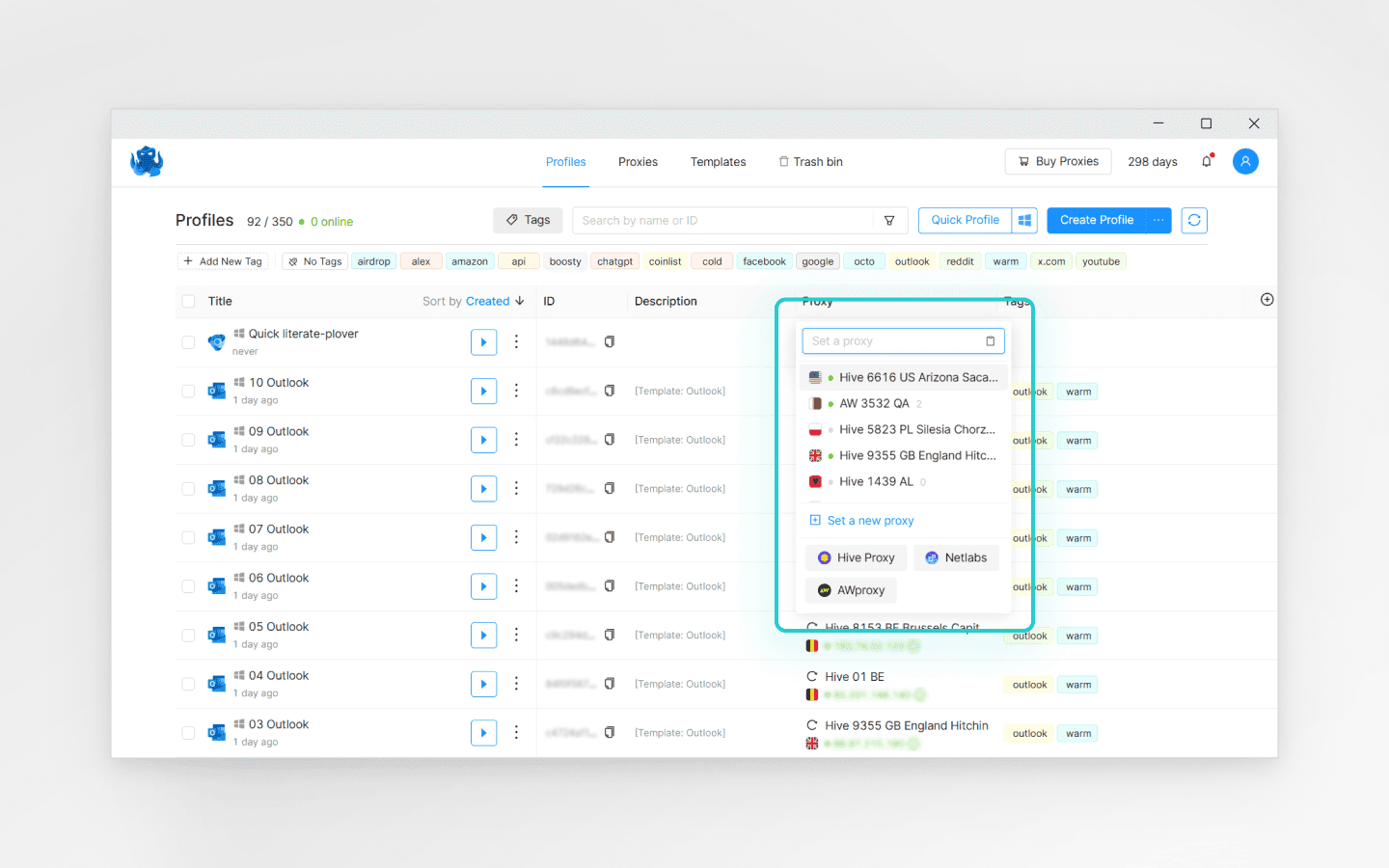
Proxies: click the Proxy field and assign a proxy to the profile. Residential proxies from verified providers can be purchased directly in Octo Browser.
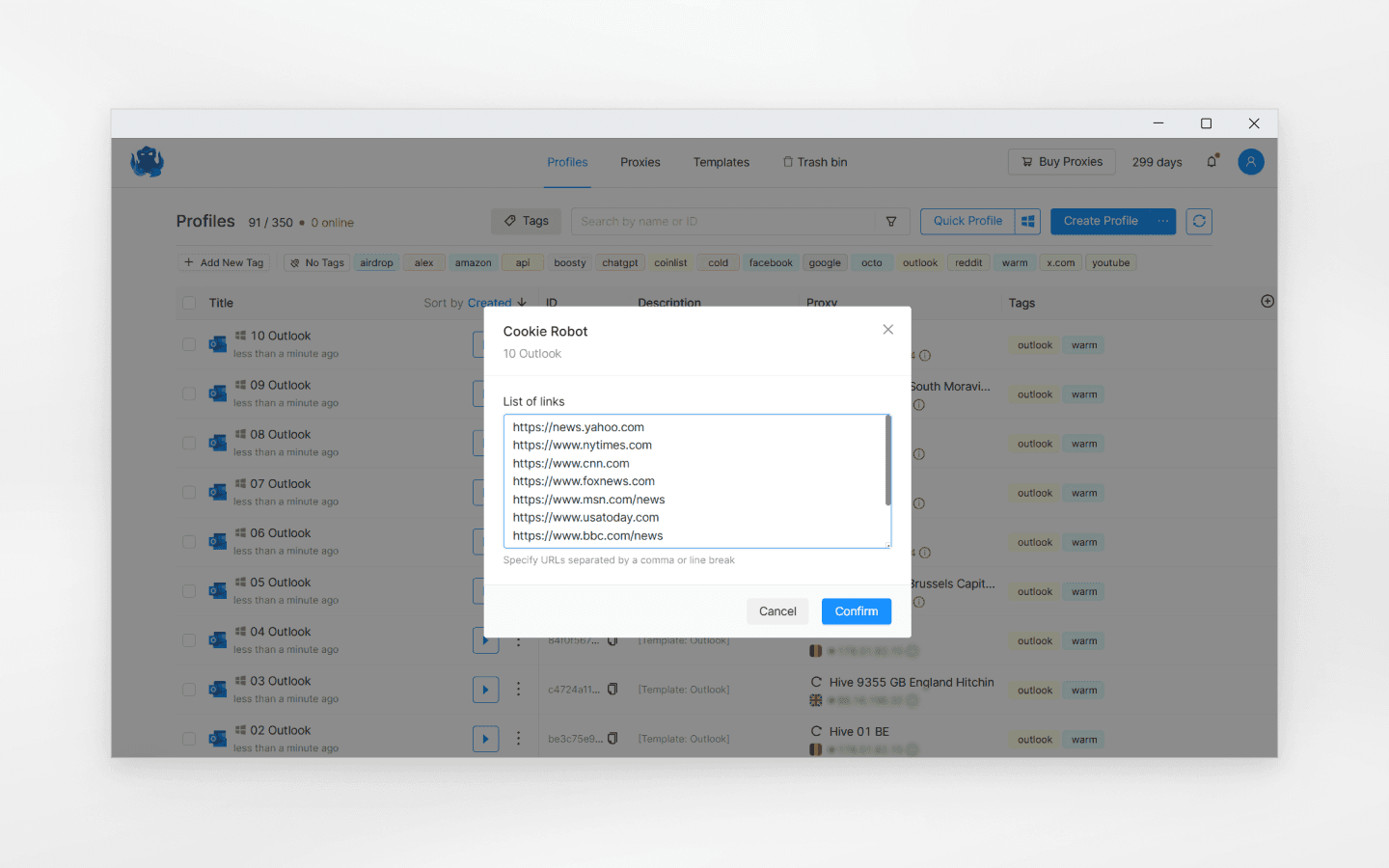
Cookie Robot: run the Cookie Robot before your first login to Outlook. Select the Cookie Robot in the profile settings and specify websites matching your proxy’s region in the modal window that appears.
Authorization: launch the profile and create an Outlook account in it. The new Outlook account is now tied to that profile’s digital fingerprint.
To manage hundreds of accounts, Octo provides an API. This allows you to automate profile creation and perform actions in Outlook via scripts.
Managing a large number of Outlook accounts in 2026 requires balancing convenience and security. Microsoft continues to tighten account controls and develop its anti-fraud systems. Using professional software like Octo Browser combined with high-quality proxies is a reliable way to scale your operations.
FAQ
Can I have more than one Outlook account?
Yes, you can own an unlimited number of Outlook accounts. Microsoft’s terms do not prohibit owning multiple personal profiles. However, mass registration will trigger IP-based limits and phone verification. For safe multi-accounting without the risk of bans, use Octo Browser.
How do I switch between multiple Outlook accounts?
The method depends on the device:
Mobile app: use the profile list in the sidebar.
Desktop version: select the required folder tree on the left or switch accounts via the File menu.
Browser: use different profiles in Octo Browser. This allows you to maintain multiple active sessions simultaneously.
Can I have two Outlook accounts on one phone?
Yes, the mobile app supports up to 25 email accounts. You can add both personal and work addresses. If Intune policies prevent adding multiple work accounts, open the second account via a mobile browser or as a PWA.
Work with multiple ad accounts and test ad setups without unnecessary routine. Avoid bans and scale your revenue.
Would you like to try Octo Browser at discount?
Use the promo code OCTOAFFILIATE to get 30% off any subscription. This offer is valid only for new users.
Types of Outlook accounts
Microsoft divides accounts into two main categories, which use different security protocols and management systems.
Personal accounts (MSA)
A Microsoft Account (MSA) is created for personal use. It provides access to Outlook, OneDrive, Xbox, and Teams. Data is stored in Microsoft’s global consumer database. You configure two-factor authentication (2FA) and recovery methods yourself. Such an account can be registered with a third-party email (Gmail, Yahoo) or created with an address in the @outlook.com or @hotmail.com domains.
Work and school accounts (Entra ID)
These accounts are created by organizations through Microsoft 365 Business. Previously known as Azure AD, they are now called Microsoft Entra ID. They are managed by an IT administrator, who sets password policies and access levels to resources (Teams, SharePoint).
Personal and work account data are not synchronized to protect corporate information. An administrator may require multi-factor authentication through a specific app or block logins from certain devices.
How to create multiple Outlook accounts
If you work with a large number of Outlook accounts, you need a multi-accounting strategy. Microsoft’s security systems track automated registrations. If your behavior is flagged as suspicious, the account will be blocked.
Limits and registration
When creating an account on Outlook.com, enter your name, region, and date of birth. This data is used for personalization and account recovery. Microsoft limits registrations per IP address: no more than three new accounts can be created from a single IP within 24 hours.
To manage a large number of Outlook accounts, use high-quality proxies. Free proxies often have a poor reputation and lead to instant bans. Mobile and residential proxies mimic real user behavior, making it easier to pass anti-fraud checks.
Phone verification
As of 2026, phone verification is mandatory on most platforms. Microsoft tracks how often a phone number is used. If one number is linked to multiple Outlook accounts, they all may be flagged as suspicious. If you manage a network of accounts, each one should have its own backup email and a separate phone number.
How Outlook anti-fraud works
A newly created Outlook account is closely monitored by algorithms. Sending mass emails immediately after registration will result in restrictions. Outlook’s security system analyzes:
Outlook login frequency;
IP geography;
email sending speed in Outlook;
repetitive actions in Outlook;
interaction with emails in Outlook (opens, replies).
If multiple Outlook accounts show identical behavior patterns (same actions, timing, IP), they may be linked together.
A proper account warm-up and preparation strategy allows you to safely scale work with multiple Outlook accounts. Without it, even high-quality proxies and solutions won’t protect your Outlook accounts from bans.
Warm-up and preparation strategy
A new Outlook account has no activity history, which signals high risk to anti-fraud systems. Sudden actions (e.g., mass sending of emails, logins from different IPs, automation) are treated as suspicious.
A newly created account is always under increased scrutiny. Outlook algorithms analyze user behavior in the first few days and assign a trust score. If activity looks unnatural, email sending may be restricted or the account may be blocked.
A proper Outlook account preparation helps to:
build a natural behavior pattern of your Outlook accounts;
reduce the risk of bans of your Outlook accounts;
prepare your Outlook accounts for its actual workload.
If you intend to use your Outlook accounts for work, follow this account warm-up and preparation plan:
Day 1–2:
Log into Outlook from one IP and device.
Check incoming emails using Outlook.
Configure basic Outlook settings (language, signature).
Do not send emails using Outlook yet.
Day 3–4:
Subscribe to several newsletters using Outlook.
Send 1–2 emails manually.
Add contacts to Outlook.
Avoid identical message templates.
Day 5–7:
Increase sending to 5–10 Outlook emails per day.
Start using your Outlook account to register on various services.
Reply to incoming emails.
Keep your IP address and device consistent.
Try Octo Browser to warm up your accounts.
How to add additional accounts in Outlook
Integrating multiple Outlook accounts into one interface speeds up your workflow. The method to do so depends on your platform.
Outlook desktop app
Click Add Account in the lower-left corner.
Enter the email address and click Continue.
For Microsoft 365, enter your password and complete MFA.
For third-party services, additional permissions may be required.
Outlook web interface
Currently, Microsoft has removed the option to add multiple Outlook accounts directly in the web interface.
However, you can link an additional Outlook email via account settings:
1. Go to https://account.microsoft.com.
2. Open Your info → Account info → Edit account info.
3. Click Add email and link another Outlook address.
The added email becomes a secondary alias of the same account.
To receive emails from Gmail, Yahoo, or iCloud to your Outlook account, set up email forwarding in those services.
Outlook mobile (iOS and Android)
Outlook mobile supports up to 25 accounts.
Tap the profile icon.
Tap the “+” icon.
Enter account details.
Outlook mobile supports OAuth, so no manual port configuration is needed. If your company uses Intune, you may need the Company Portal app to comply with security policies.
Switching between multiple Outlook accounts
Your speed of switching between multiple Outlook accounts directly affects your productivity. Microsoft offers different methods to switch between multiple Outlook accounts depending on your device.
Outlook desktop
In Outlook desktop, accounts appear as a folder tree in the left panel. Each account has its own folders. Switch between them by clicking the desired account or folder.
For full isolation, use Outlook Profiles. These are separate configuration files. To switch, hold down the Shift button when launching Outlook. This prevents inadvertent mixing of contacts and calendars.
Outlook web
In 2026, Microsoft discontinued OneView and TrueTime features for the Outlook web interface. You can no longer view multiple Outlook accounts in a single window.
Recommended methods to switch between multiple Outlook accounts in your browser:
use separate browser profiles;
use incognito mode for a second session;
switch via the profile menu (this does not allow working with parallel active sessions in one tab).
Common issues
When working with a large number of Outlook accounts, it’s important to know how to handle technical issues. Let’s go over the most common ones.
Repeated password prompts
This issue is often caused by a conflict in cached data.
Windows: open Credential Manager via the Control Panel and clear the stored data.
macOS: delete old entries in Keychain Access.
A conflict may occur if you have Full Access permissions to a mailbox that has already been added as a separate account.
Notification issues on mobile devices
Android and iOS limit background activity to save energy. If you haven’t opened your Outlook account for several hours, synchronization may stop.
Solution: set the app’s battery mode to Unrestricted. Disable the feature that removes permissions for unused apps.
Intune restrictions
MAM policies often prevent adding more than one work account to a single app. If you need multiple work accounts from different companies, use the web version or Outlook PWA.
How to manage multiple Outlook accounts with an anti-detect browser
For those who need dozens or hundreds of Outlook accounts, standard methods are not enough. Anti-fraud systems analyze your digital fingerprint, detect links between accounts, and restrict your activity. Anti-detect browsers are specialized solutions for bypassing such multi-accounting limitations.
What is a digital fingerprint?
A digital fingerprint includes more than one hundred browser and device parameters: screen resolution, fonts, GPU data, time zone, system language, and more. If you log into multiple mailboxes from the same device, Microsoft will detect the connection between them using your digital fingerprint. If one account is banned for spam, the others may automatically come under suspicion, or even be blocked. This is known as a carpet ban.
To avoid this, the anti-detect browser Octo Browser creates isolated virtual profiles. Each profile has its own realistic fingerprint. Modifications are made at the Chromium kernel level, making fingerprint spoofing invisible to Outlook, and your profiles become indistinguishable from regular users on different devices.
Advantages of Octo Browser
Data isolation: each profile stores cookies separately. Outlook sessions never overlap.
Proxy management: assign a separate IP address to each account, creating the appearance of logins from different regions.
Cookie Robot: a feature for warming up and preparing profiles. The robot visits websites and builds browsing history, making you appear as a real user to security systems.
Teamwork: share profiles with colleagues without transferring logins and passwords. The active session is shared along with the profile.
Setting up Octo Browser for Outlook
Installation: sign up on the Octo Browser website and download the browser for your OS.
Subscription: choose and pay for the required subscription or activate a promo code.
Profile creation: click the icon to the right of Quick Profile, select the desired OS, and click Quick Profile. A ready-to-use profile with optimal settings will immediately appear in the Profile List.
Proxies: click the Proxy field and assign a proxy to the profile. Residential proxies from verified providers can be purchased directly in Octo Browser.
Cookie Robot: run the Cookie Robot before your first login to Outlook. Select the Cookie Robot in the profile settings and specify websites matching your proxy’s region in the modal window that appears.
Authorization: launch the profile and create an Outlook account in it. The new Outlook account is now tied to that profile’s digital fingerprint.
To manage hundreds of accounts, Octo provides an API. This allows you to automate profile creation and perform actions in Outlook via scripts.
Managing a large number of Outlook accounts in 2026 requires balancing convenience and security. Microsoft continues to tighten account controls and develop its anti-fraud systems. Using professional software like Octo Browser combined with high-quality proxies is a reliable way to scale your operations.
FAQ
Can I have more than one Outlook account?
Yes, you can own an unlimited number of Outlook accounts. Microsoft’s terms do not prohibit owning multiple personal profiles. However, mass registration will trigger IP-based limits and phone verification. For safe multi-accounting without the risk of bans, use Octo Browser.
How do I switch between multiple Outlook accounts?
The method depends on the device:
Mobile app: use the profile list in the sidebar.
Desktop version: select the required folder tree on the left or switch accounts via the File menu.
Browser: use different profiles in Octo Browser. This allows you to maintain multiple active sessions simultaneously.
Can I have two Outlook accounts on one phone?
Yes, the mobile app supports up to 25 email accounts. You can add both personal and work addresses. If Intune policies prevent adding multiple work accounts, open the second account via a mobile browser or as a PWA.
Stay up to date with the latest Octo Browser news
By clicking the button you agree to our Privacy Policy.
Stay up to date with the latest Octo Browser news
By clicking the button you agree to our Privacy Policy.
Stay up to date with the latest Octo Browser news
By clicking the button you agree to our Privacy Policy.

Join Octo Browser now
Or contact Customer Service at any time with any questions you might have.
Join Octo Browser now
Or contact Customer Service at any time with any questions you might have.
Join Octo Browser now
Or contact Customer Service at any time with any questions you might have.